Progress Data Source Program
Session Objectives
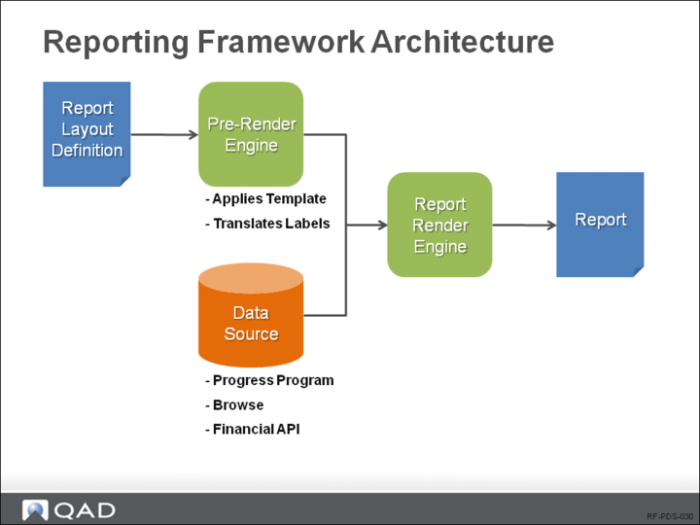
Reporting Framework Architecture
There are three types of data sources that a report can use: Browse, FinancialAPI, and Progress Program. Our focus in this session is on developing and deploying a Progress Program – a proxy data source program.
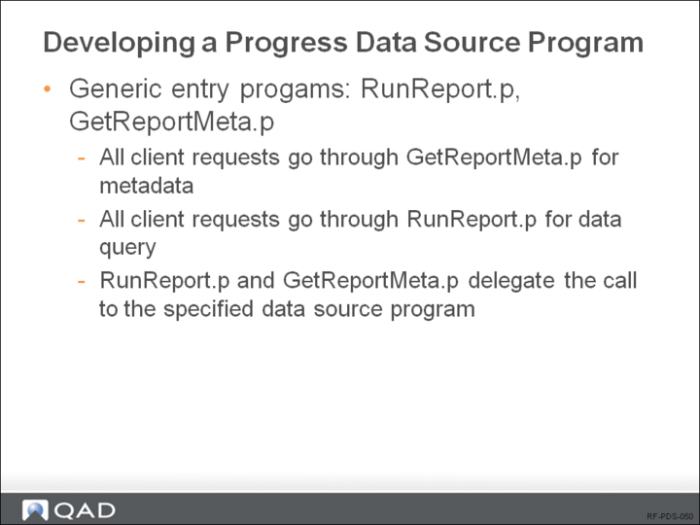
Developing a Progress Data Source Program
Developing a Progress Data Source Program
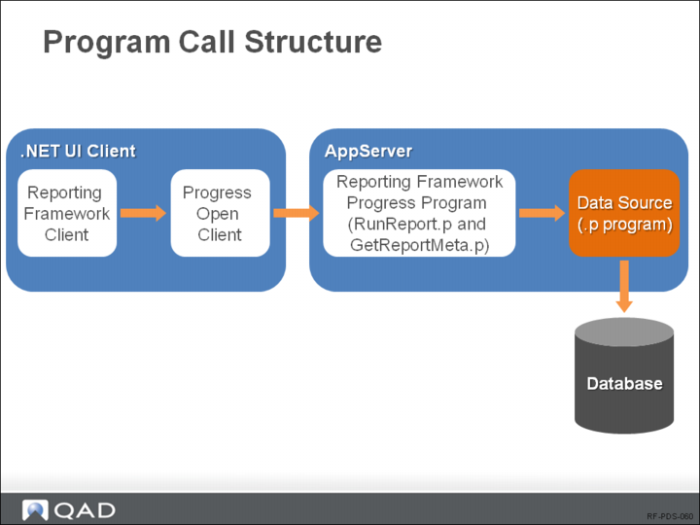
Program Call Structure
This diagram illustrates the context in which a Progress data source program is run.
Progress Data Source Program Calls
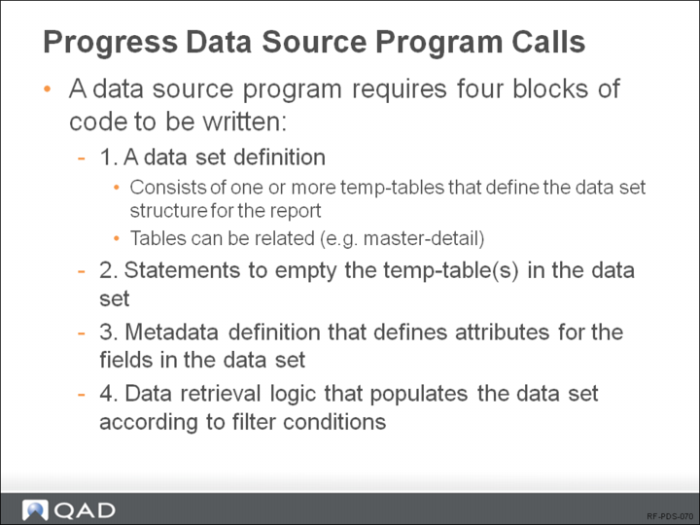
A data source program comprises four blocks of code:
• A data set definition (consisting of one or more temp-tables) that defines the data set structure for the report
• Statements to empty the temp-table(s) in the data set
• Metadata definition that defines attributes for the fields in the data set
• Data retrieval logic that populates the data set
Data Source Program Code Sections
A data source program comprises four blocks of code:
• A data set definition (consisting of one or more temp-tables) that defines the data set structure for the report
• Statements to empty the temp-table(s) in the data set
• Metadata definition that defines attributes for the fields in the data set
• Data retrieval logic that populates the data set
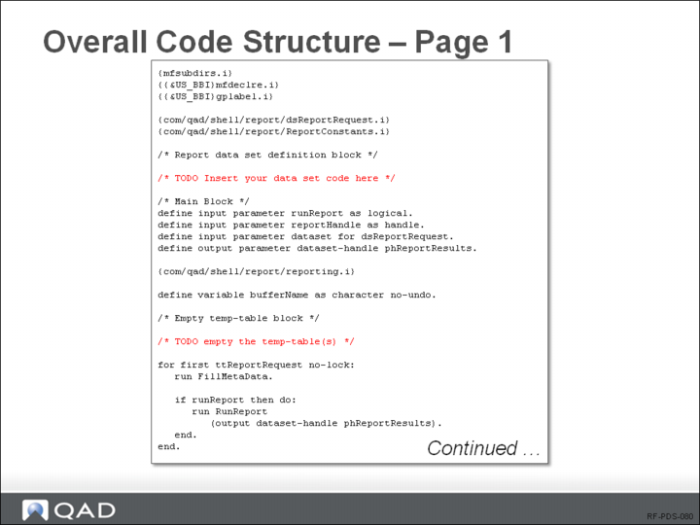
In order for the program to be invoked properly by RunReport.p, it must have a specific structure. The following sample code illustrates this structure, showing where the four blocks of code should be inserted:
/* UserGuideReportSkeleton.p - Progress Report Data Source program skeleton */
/* Copyright 2012 QAD Inc. All rights reserved. */
/* */
{mfsubdirs.i}
{{&US_BBI}mfdeclre.i}
{{&US_BBI}gplabel.i}
{com/qad/shell/report/dsReportRequest.i}
{com/qad/shell/report/ReportConstants.i}
/* Report data set definition block */
/* TODO Insert your data set code here */
/* Main Block */
define input parameter runReport as logical no-undo.
define input parameter reportHandle as handle no-undo.
define input parameter dataset for dsReportRequest.
define output parameter dataset-handle phReportResults.
{com/qad/shell/report/reporting.i}
define variable bufferName as character no-undo.
/* Empty temp-table block */
/* TODO empty the temp-table(s) */
for first ttReportRequest no-lock:
run FillMetaData.
if runReport then do:
run RunReport
(output dataset-handle phReportResults).
end.
end.
/* Metadata definition block */
procedure FillMetaData:
/* TODO Insert your metadata code here */
end procedure.
/* Data retrieval logic block */
procedure RunReport:
define output parameter dataset-handle phReportResults.
/* TODO Insert your data retrieval code here */
/* Assign phReportResults to your dataset here */
/* phReportResults = dataset <your dataset>:handle. */
end procedure.
/* This delete is to prevent a memory leak of the data set */
delete object phReportResults no-error.
The code contains several comments starting with TODO. These comments indicate where the code blocks should be inserted.
For more information, see
QAD Reporting Framework User Guide, Appendix A, Implementing a Progress Data Source Program.
Overall Code Structure - Page 1
Overall Code Structure - Page 2
1. Data Set Definition Block - Example
Note: If you want to use some fields in the temp-table as search fields, you must use the same field names in the temp-tables as those in the database.
Note: Indexes specified for the temp tables can be used to define unique constraints and the default sort order of the records.
Note: There must be a dataset named dsReportResults defined for temp-tables for the program to work, even if they have no relations.
2. Table Emptying Code - Example
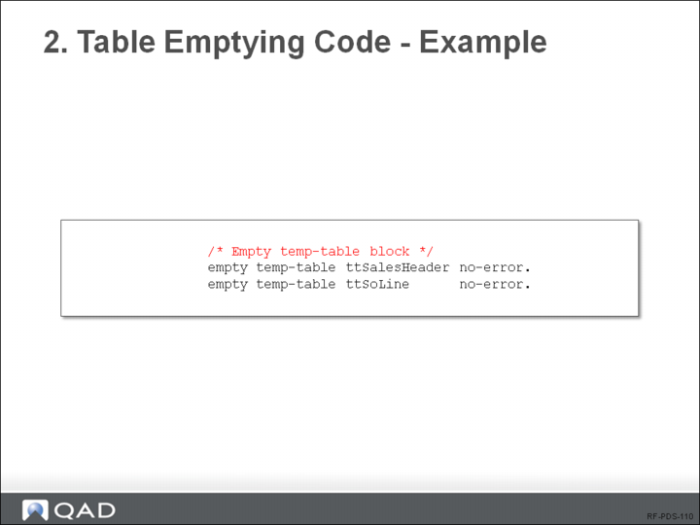
Each temp-table in the report data set should be emptied before the main program logic is executed. This is necessary since temp-table contents could still be cached on the Application Server from previous client requests.
ReportHelper.p Program
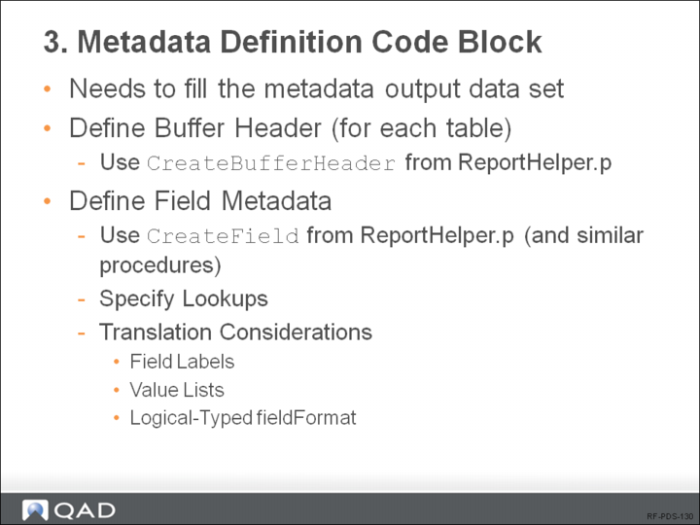
3. Metadata Definition Code Block
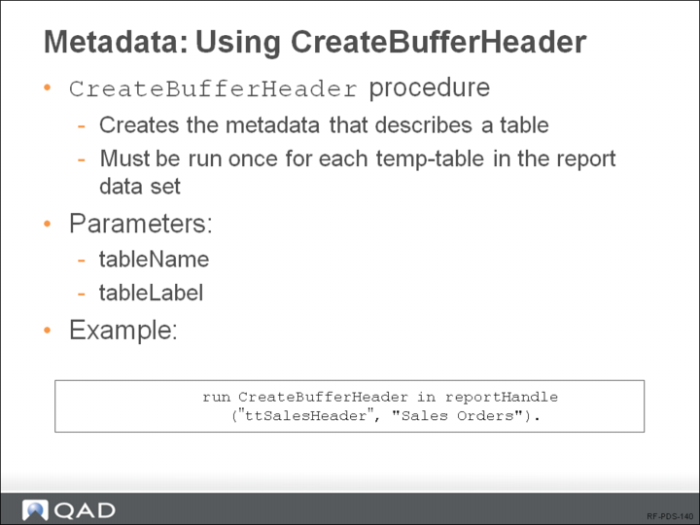
Metadata: Using CreateBufferHeader
CreateBufferHeader Parameters
Seq. | Name | Input/Output | Data Type | Description |
1 | tableName | Input | Character | Temp-table name |
2 | tableLabel | Input | Character | Label displayed in Report Designer |
Metadata: Using CreateField
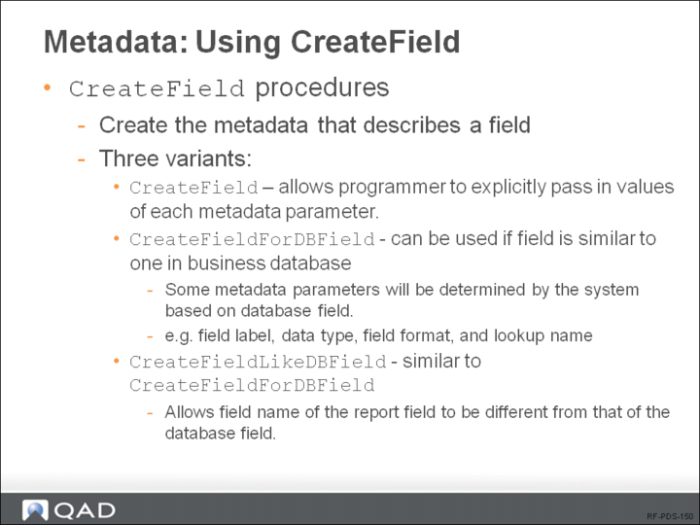
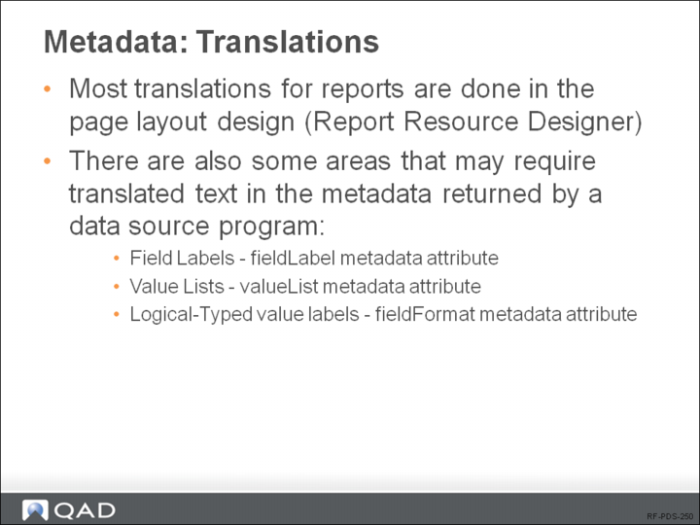
Either of three predefined procedures can be used to create field metadata. The procedures are similar and have the same effect of creating a metadata record for one field. A description of each is given below.
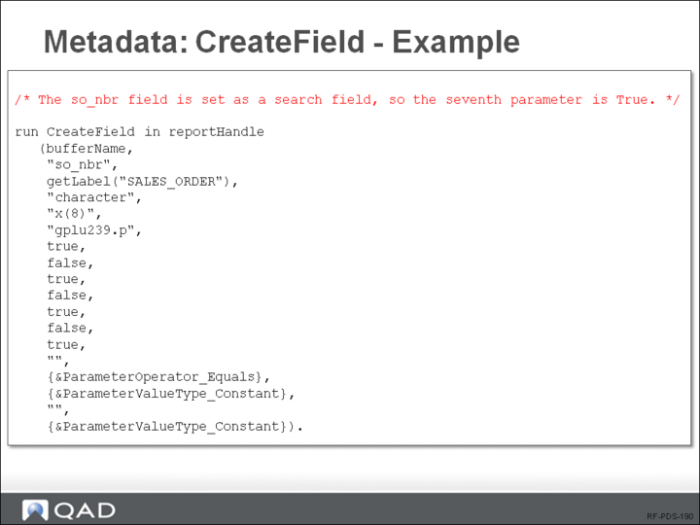
CreateField — this variant allows the programmer to explicitly pass in the values of each metadata parameter.
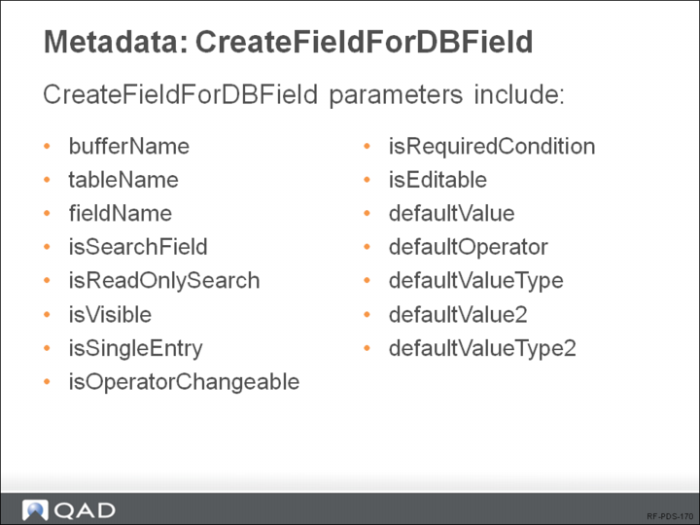
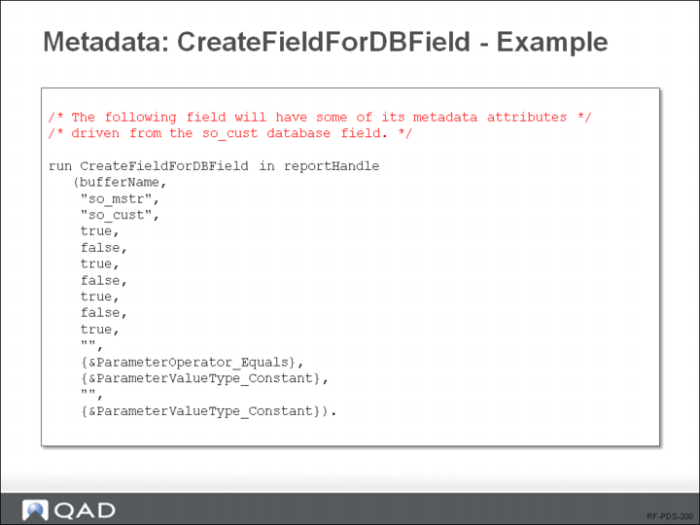
CreateFieldForDBField — this variant can be used if the field is similar to one in the business database, in which case some of the metadata parameters will be determined by the system based on the database field. For example, the field label, data type, field format, and lookup name will be driven by the database field.
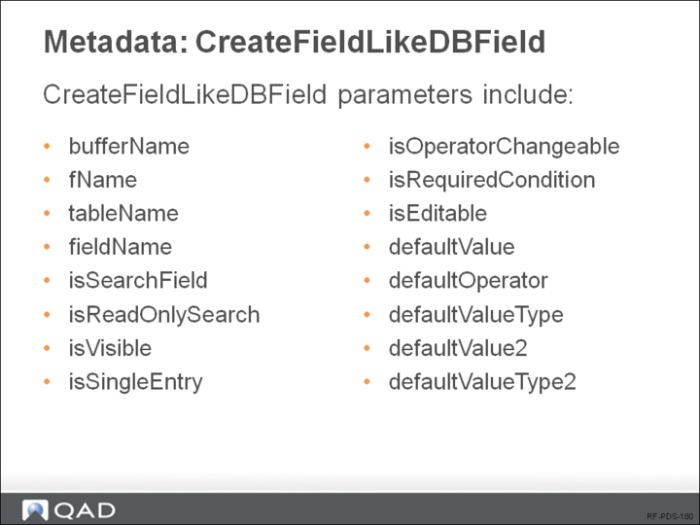
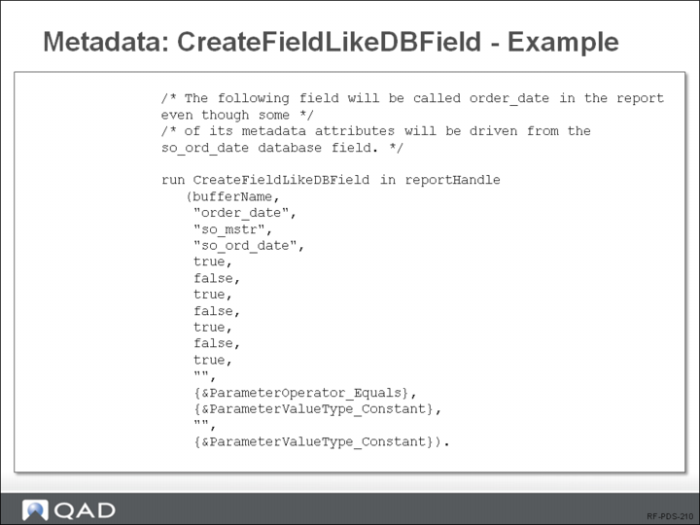
CreateFieldLikeDBField — this variant is almost identical to CreateFieldForDBField except that it allows the field name of the report field to be different from that of the database field.
(The following sections list the input parameters for each of these three procedures.)
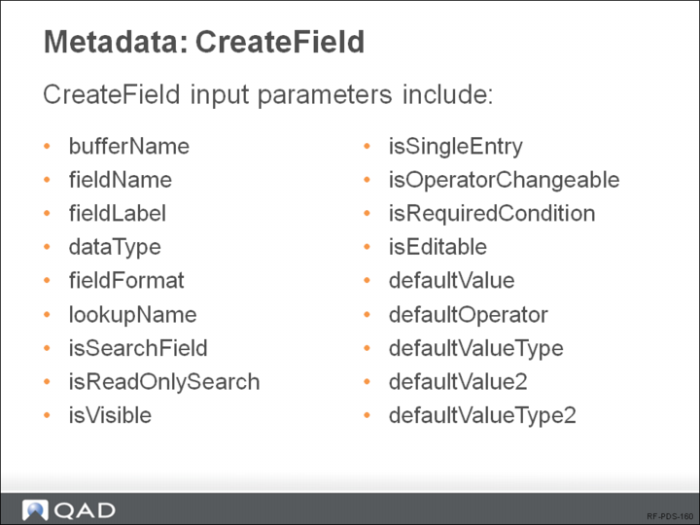
Metadata: CreateField
CreateField Parameters
Name | Input/Output | Data Type | Description |
bufferName | Input | Character | Temp-table name |
fieldName | Input | Character | Report field name |
fieldLabel | Input | Character | User-facing label for this field, as it will appear on the prompt page of the report viewer |
dataType | Input | Character | Progress datatype of the field |
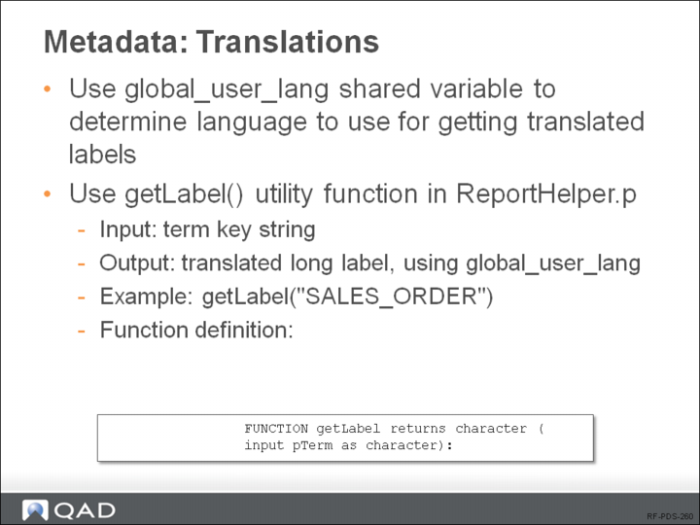
fieldFormat | Input | Character | Progress format for the field. In the case of logical-typed fields, the field format string is used to specify the user-facing labels for the true and false values the field can hold; the syntax is: <trueLabel>/<falseLabel>. For example, "Debit/Credit". Note: in a multi-language system, these values should not be hard coded but instead dynamically translated using the getLabel function. The format strings will be used in search condition values on the prompt page, as well as data values in the report output. |
lookupName | Input | Character | Program name of the lookup program (if any) that will be invoked from the lookup icon for this field on the prompt page of the report viewer. For example, "gplu340.p". |
isSearchField | Input | Logical | Whether this field should be a search field on the prompt page |
isReadOnlySearch | Input | Logical | Whether this field is read-only on the prompt page |
isVisible | Input | Logical | Whether this field is visible in Report Designer |
isSingleEntry | Input | Logical | Always set this to False |
isOperatorChangeable | Input | Logical | Whether the operator can be changed on the prompt page |
isRequiredCondition | Input | Logical | Whether the field is mandatory on the prompt page |
isEditable | Input | Logical | Whether the field can be edited on the prompt page |
defaultValue | Input | Character | Default value of the first search field |
defaultOperator | Input | Character | Default operator of the first search field |
defaultValueType | Input | Character | Default value type of the first search field |
defaultValue2 | Input | Character | Default value of the second search field |
defaultValueType2 | Input | Character | Default value type of the second search field |
Metadata: CreateFieldForDBField
CreateFieldForDBField Parameters
Name | Input/Output | Data Type | Description |
bufferName | Input | Character | Temp-table name |
tableName | Input | Character | QAD ERP database table name |
fieldName | Input | Character | QAD ERP database field name |
isSearchField | Input | Logical | Whether this field should be a search field on the prompt page |
isReadOnlySearch | Input | Logical | Whether this field is read-only on the prompt page |
isVisible | Input | Logical | Whether this field is visible in Report Designer |
isSingleEntry | Input | Logical | Always set this to False |
isOperatorChangeable | Input | Logical | Whether the operator can be changed on the prompt page |
isRequiredCondition | Input | Logical | Whether the field is mandatory on the prompt page |
isEditable | Input | Logical | Whether the field can be edited on the prompt page |
defaultValue | Input | Character | Default value of the first search field |
defaultOperator | Input | Character | Default operator of the first search field |
defaultValueType | Input | Character | Default value type of the first search field |
defaultValue2 | Input | Character | Default value of the second search field |
defaultValueType2 | Input | Character | Default value type of the second search field |
Metadata: CreateFieldLikeDBField
CreateFieldLikeDBField Parameters
Name | Input/Output | Data Type | Description |
bufferName | Input | Character | Temp-table name |
fName | Input | Character | Field name in the temp-table (report field name) |
tableName | Input | Character | QAD ERP database table name |
fieldName | Input | Character | QAD ERP database field name |
isSearchField | Input | Logical | Whether this field should be a search field on the prompt page |
isReadOnlySearch | Input | Logical | Whether this field is a read-only on the prompt page |
isVisible | Input | Logical | Whether this field is visible in Report Designer |
isSingleEntry | Input | Logical | Always set this to False |
isOperatorChangeable | Input | Logical | Whether the operator can be changed on the prompt page |
isRequiredCondition | Input | Logical | Whether the field is mandatory on the prompt page |
isEditable | Input | Logical | Whether the field can be edited on the prompt page |
defaultValue | Input | Character | Default value of the first search field |
defaultOperator | Input | Character | Default operator of the first search field |
defaultValueType | Input | Character | Default value type of the first search field |
defaultValue2 | Input | Character | Default value of the second search field |
defaultValueType2 | Input | Character | Default value type of the second search field |
Metadata: CreateField - Example
Metadata: CreateFieldForDBField - Example
Metadata: CreateFieldLikeDBField - Example
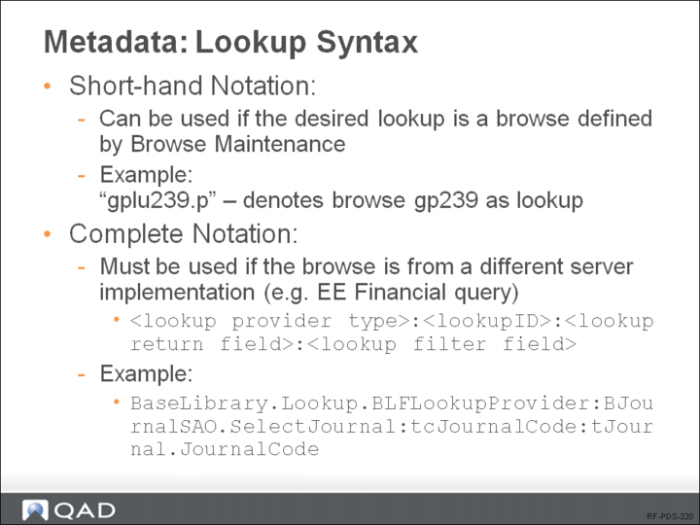
Metadata: Loookup Syntax
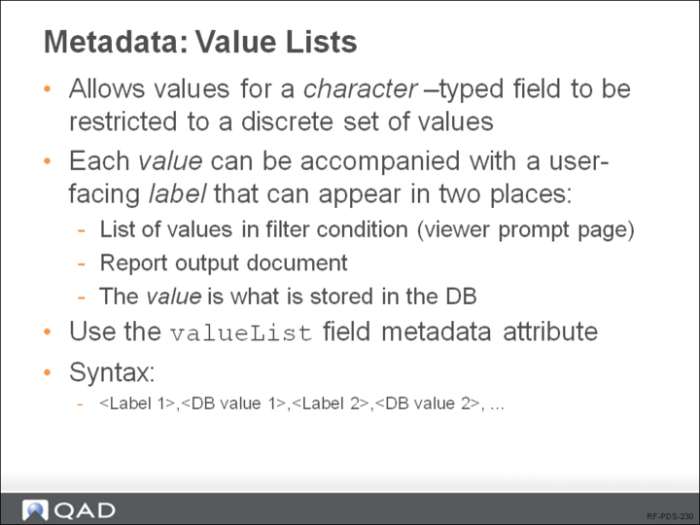
Metadata: Value Lists
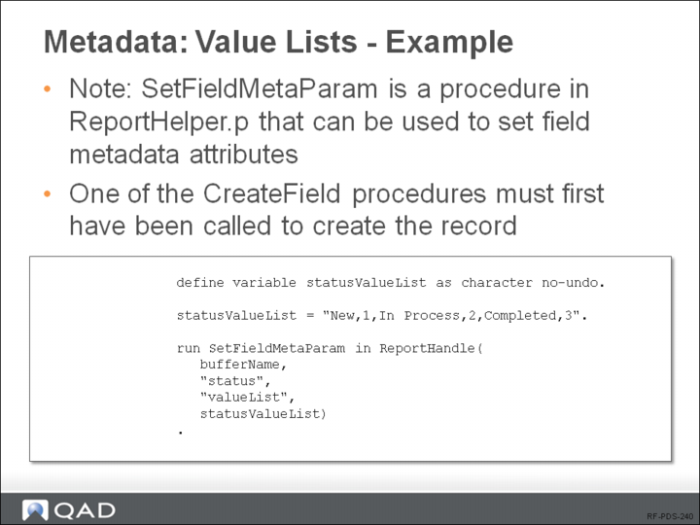
Metadata: Value Lists - Example
Metadata: Translations
Metadata: Translations
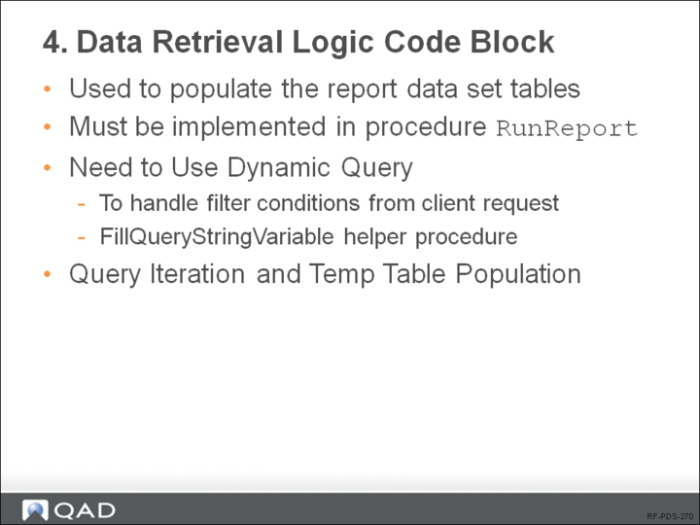
4. Data Retrieval Logic Code Block
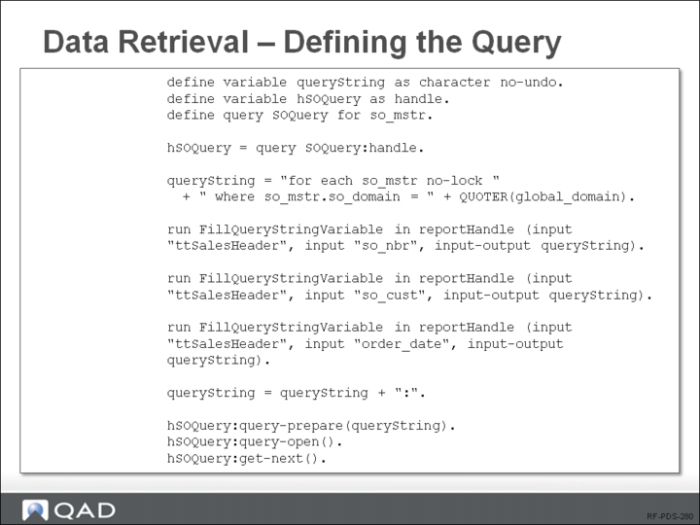
Data Retrieval - Defining the Query
FillQueryStringVariable Procedure
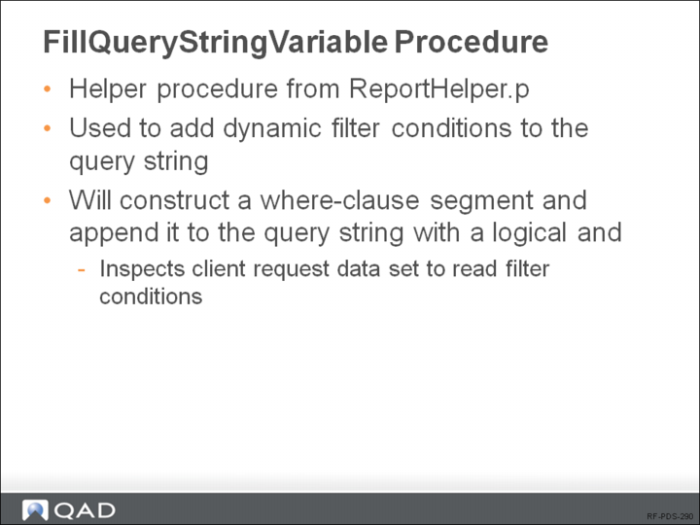
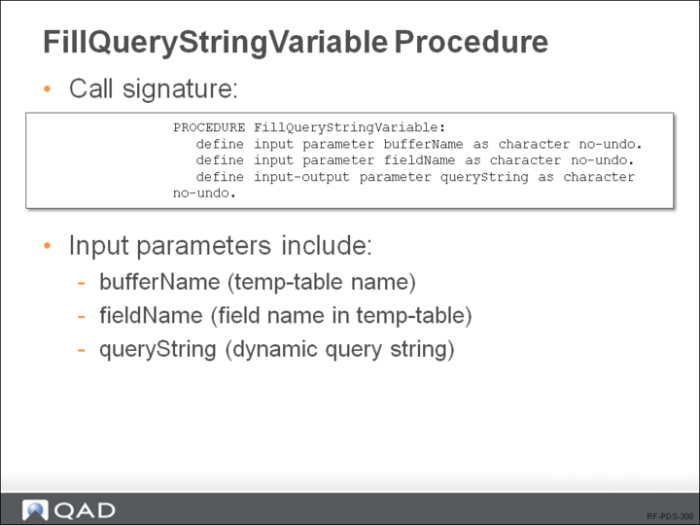
The FillQueryStringVariable function will get the search conditions sent from the client request (each consisting of the search field, operator, and value entered by the user) and then construct the corresponding where clause fragment and add it to the query string dynamically at run time.
The following lists the input parameters for the FillQueryStringVariable function:
Name | Input/Output | Data Type | Description |
bufferName | Input | Character | Temp-table name |
fieldName | Input | Character | Field name in the temp-table |
queryString | Input-Output | Character | Dynamic query string |
Note: For the function to work, the temp-table fields defined as search fields in the metadata definition should use exactly the same names as those in the database.
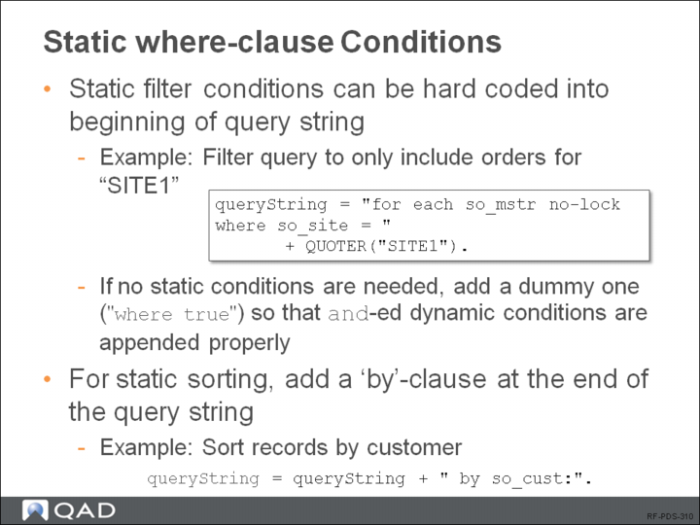
Note: If other static filter conditions are required in the query string, they can be added in place of the “where true” part of the query string in the above example. For example, if we wanted this report to filter its query to only include orders whose so_site value is “SITE1”, we could use the following statement to begin the query string:
queryString = "for each so_mstr no-lock where so_site = " + QUOTER("SITE1").
The QUOTER() function returns the input string wrapped in quotes, and is useful when specifying text in a dynamic query string that must appear quoted in the final query string.
If static sorting is required, a “by” clause can be added at the end of the dynamic query string. For example, the following change to our above example will cause records to be sorted primarily by so_cust:
queryString = queryString + " by so_cust:".
FillQeryStringVariable Procedure
Static where-clause Conditions
NOTE: The QUOTER() function returns the input string wrapped in quotes, and is useful when specifying text in a dynamic query string that must appear quoted in the final query string.
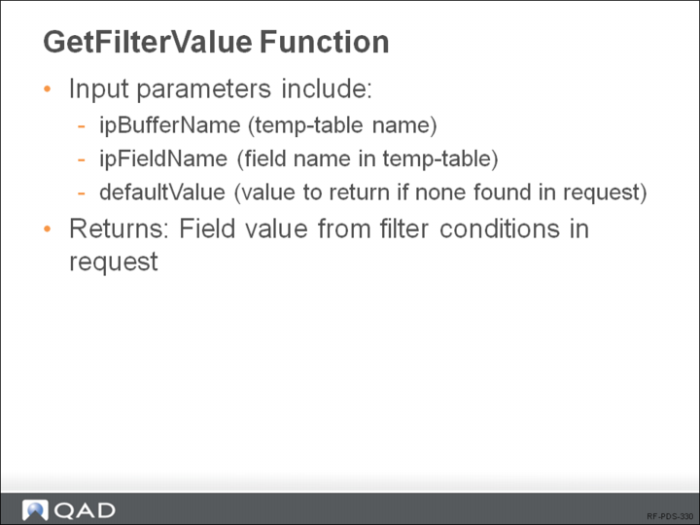
GetFilterValue Function
GetFilterValue Function
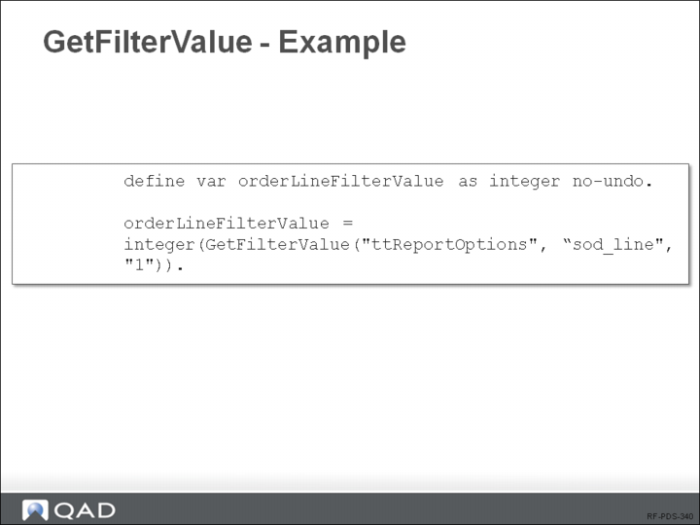
GetFilterValue - Example
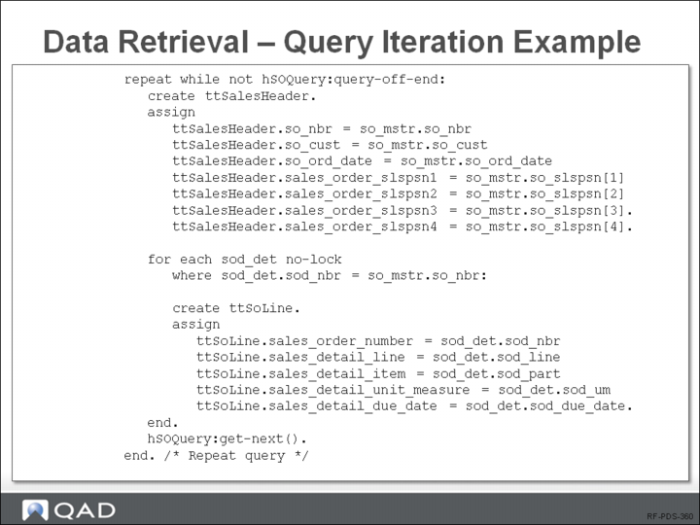
Data Retrieval - Query Iteration
Data Retrieval - Query Iteration Example
Progress Data Source Deployment
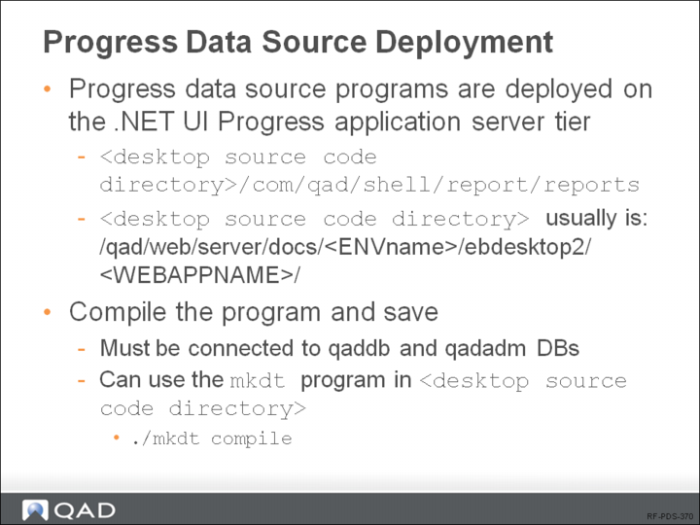
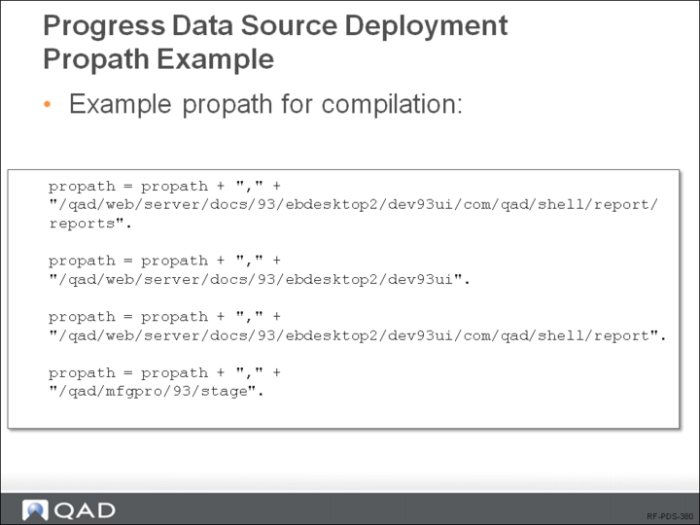
Note: If you prefer to physically locate your Progress data source programs in another directory path, that is fine. Just be sure to realize that at run-time the reporting system will attempt to locate the program using the path com/qad/shell/report/reports/<DataSourceRef>, where <DataSourceRef> is the value in the Data Source Ref field in Report Resource Maintenance. Therefore, make sure that you name your file accordingly, put your alternate directory into the application server’s propath, and place your data source program in a com/qad/shell/report/reports subdirectory under your alternate location.
Progress Data Source Deployment: Propath Example
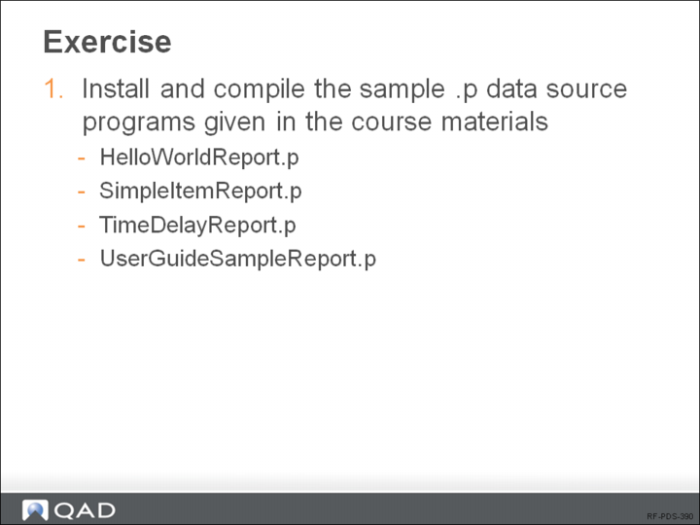
Exercise
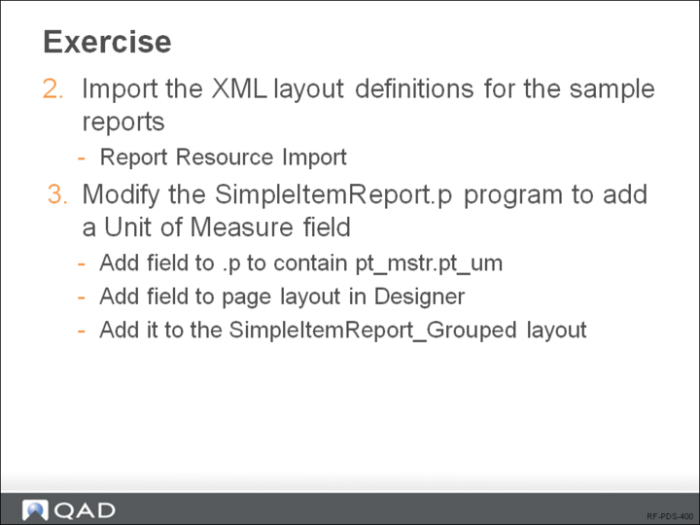
Exercise
Summary