Scheduling Automatic Processing
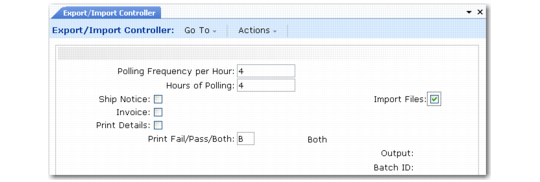
Use Export/Import Controller (35.17.5) to export and import files on a regular schedule.
Based on the frequency and number of hours you specify, the system searches the database for confirmed shippers or invoices that have not been exported. When it finds a document, eCommerce begins processing automatically.
For imports, the system polls the import directory defined in eCommerce Control.
Logical fields let you set up polling for various combinations of import and export documents.
When the program is running in the foreground, a summary frame displays processing data.
You can choose to run this process later using the Batch ID field.
Export/Import Controller (35.17.5)
Polling Frequency per Hour
Enter the number of times per hour the process checks for files to import or documents to export.
Hours of Polling
Enter the number of hours the process checks for files to import or documents to export. If you enter zero, the process keeps checking for available items until you manually interrupt it.
Hours of Polling is a decimal field. For example, enter 2.50 to indicate two and one-half hours of polling.
Ship Notice
Enter Yes to have the system automatically search for and process confirmed shippers in the database and generate ASNs.
Invoice
Enter Yes to have the system automatically search for and process invoices in the database.
Import Files
Enter Yes to have the system automatically search for and process files in the inbound directory specified in eCommerce Control.
Input Directory
Enter the directory path to the location of the files to process. Input Directory must be a valid directory.
Initially, the field defaults from eCommerce Control. If you change it, the system associates the value you enter with your user ID. Next time you run this program, the field defaults to the same value you entered previously.
File Mask
Specify one or more patterns, including wildcards (*), for the system to use in selecting files for processing. For example, if you enter *.EDW, the system selects all files with an extension of EDW. Separate multiple entries with commas.
Print Details
Enter Yes to include detailed error and warning message information on the report that is output when this program executes. If you enter No, the report is limited to higher-level summary information.
Print Failed/Passed/Both
Specify the status of documents that are included in the output report of this program.
Failed (the default): The report is limited to documents that failed to process.
Passed: The report is limited to documents that processed correctly.
Both: The report includes all documents regardless of status.