QAD 2017 Enterprise Edition
>
User Guides
>
Financials
>
Accounts Receivable
>
Reversing Customer Invoices
Reversing Customer Invoices
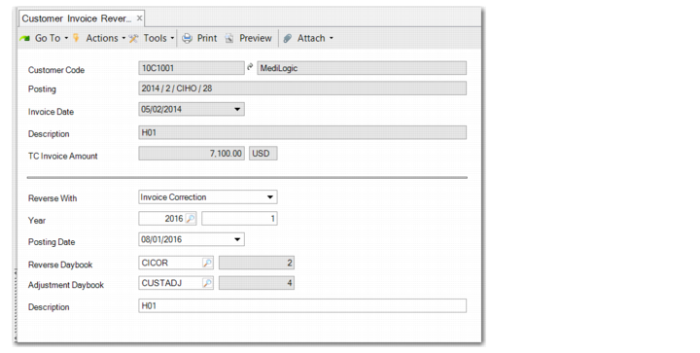
Use Customer Invoice Reverse (27.1.1.6) to reverse Financials invoices; you cannot reverse operational invoices. You can only reverse invoices that are unpaid or that have not been included in payments.
You must first choose the invoice to reverse and enter the daybook, year and period, posting date, and description information required for the reversal. You then click Reverse.
You can reverse an invoice using a credit note or an invoice correction, if invoice corrections are enabled.
Note: You must ensure that a daybook of the correct reversing type is available in the shared set.
The amounts and postings on the new invoice are the reverse of the original.
When you save the reversal, the system creates a credit note or invoice correction for the same amount as the original invoice and performs an open item adjustment for the two invoices. The original invoice and the reserving invoice are then closed.
Customer Invoice Reverse
Customer Code
This field displays the customer name and description.
Posting
This field displays the invoice voucher number.
Invoice Date
This field displays the invoice creation date.
Description
This field displays the invoice description.
TC Invoice Amount
This field displays the invoice amount in transaction currency.
Reversing Area
Reverse With
Choose the reversing option. You can reverse an invoice using a credit note or an invoice correction, if invoice corrections are enabled.
Year and Period
Specify a GL calendar year and period to assign to the reversal. The current year and period are displayed by default.
Posting Date
Specify a posting date for the reversal.
Reverse Daybook
This field displays the default reversal daybook code. You must define a separate reversal daybook for credit notes and for corrections. The default value for this field changes, depending on the option you choose in the Reverse With field.
Adjustment Daybook
This field displays the default daybook for customer adjustments.
Description
Enter a brief description for the reversal.