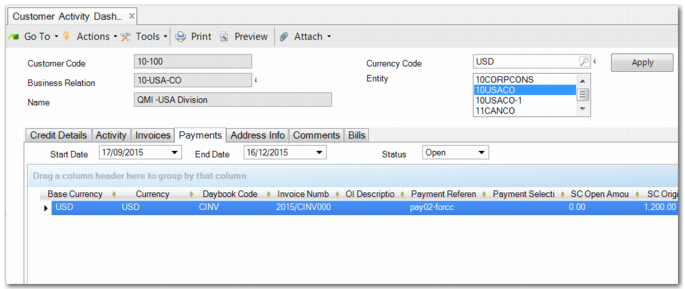
Payments Tab
Use the Payments tab to view the payments and payment selections received for this customer for a specified date range. The Status filter lets you select partial payments for which invoices are still open. Double-click a line on the grid to view the original payment.
Customer prepayments created using Banking Entry display as payments in the Customer Activity Dashboard.
Customer Activity Dashboard, Payments
Field Descriptions
Payment Reference
This field displays any reference information entered in the Payment Reference field.
Payment Selection
This field displays the payment selection code.
TC Payment Original Amount
This field indicates the original payment amount in transaction currency.
TC Discount Amount
This field displays the amount of discount for this payment.
Currency
This field displays the currency for the payment.
Invoice Number
This field displays the number of the invoice being paid.
OI Description
If the invoice was adjusted using open item adjustment, this field displays the description recorded in Open Item Adjustment Create (25.13.5) or Open Item Adjustment Modify (25.13.3).
See
Open Item Adjustment for more information.
Status
This field displays the status associated with the payment.
BC, SC, and TC Original Amount
These fields display the original invoice amount in base, statutory, and transaction currencies. The BC and TC Original Amount fields are hidden by default.
BC, SC, and TC Open Amount
This field displays the open (unallocated) invoice amount. The BC and TC Open Amount fields are hidden by default.
Base Currency
This field displays the base currency of the domain in which the invoice was created.
Voucher
This field displays the voucher number of this invoice.
Year
This field displays the year in which the payment was made.
Daybook Code
This field displays the daybook code of the daybook associated with the payment.
Statutory Currency
This field displays the statutory currency for this payment.
Note: You can also add other columns to the grid that are not displayed by default. For example, the Bank Import Reference column displays the lock box batch ID of the imported transactions. If the lock box ID is unavailable, this field displays the filename of the imported bank file. Other useful columns include Creation Date, Expected Payment Date, and Entity Code.
Address Info Tab
The Address Info tab displays the address and contact details of the customer.
Comments Tab
The Comments tab displays comments recorded for this customer in the customer record. You can also add further comments and save them using the Save button in the Customer Activity Dashboard.
Bills Tab
The Bills tab is only displayed when the customer pays by bill, where multiple invoices are combined into one bill. This tab displays information about bill dates and due dates, along with other relevant information such as the currency and status of the bill. For more information, see
Customer Billing.