Payment Processing Configuration Maint
Using Payment Processing Configuration Maint (31.1.13), you can define how Process Incoming Bank Files (31.1.6) is to process bank files containing the action types:
• Create Customer Payment
• Pay Customer Payment
Example: By default, when the action is to create a customer payment and no invoice can be matched, the system creates an initial customer payment by default. However, using Payment Processing Configuration Maint, you can configure the system to create an initial customer payment, a prepayment, or an unallocated banking entry. You can allocate the payment manually later.
When you process an incoming bank file to create a customer payment with a deduction, the system allocates the deduction amount to the GL account when the deduction amount is within the write-off limit. When the deduction amount is larger than the write-off limit, the system creates a deduction line with Pending status. The deduction settings only apply to the Create Customer Payment action type.
Note: To use a deduction category, you must specify a deduction credit term for the relevant domain in Domain Create (36.1.1.1.1) or Domain Modify (36.1.1.1.2).
When creating customer payments, you can also use this program to specify tolerance values for assigning customer payments to outstanding invoices. The difference between the payment and the outstanding amount is then written off through an automatically created journal entry. You can specify tolerance for short payments and for over payments. When a payment is outside the tolerance levels, it follows the settings on the Process Incoming Bank Files tab.
Note: You can configure specific customer payment tolerance settings for each customer in Customer Modify (27.20.1.2). These settings override the settings by bank account in Payment Processing Configuration Maint.
Configure these settings for each bank account. The fields are as follows:
Own Bank Number
Enter the bank account number involved in the transactions you want to configure. Any settings you configure apply only to this bank account.
Entity Code
This field is read only. It defaults based on the value in the Own Bank Number field.
Process Incoming Bank Files Tab
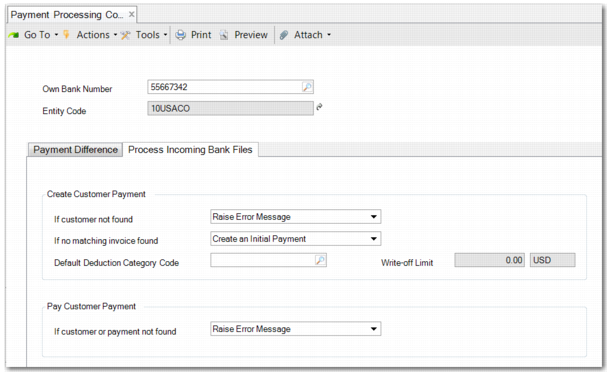
The Process Incoming Bank Files tab contains two sections. The Create Customer Payment section contains the following fields:
If customer not found
When the customer is not found by the system, you can specify what action the system is to take by selecting Raise Error Message or Create Unallocated Banking Entry.
If no matching invoice found
When no matching invoice is found by the system, you can specify system behavior by choosing Create a Prepayment, Create an Initial Payment, or Create Unallocated Banking Entry. If you choose to create a prepayment and no customer invoice is matched, the system creates a prepayment for the total payment amount. If only some of invoices can be matched, the system creates a normal customer payment, including a prepayment open item for the remaining amount.
Default Deduction Category Code
This field enables you to assign a default deduction category code for an own bank number.
Write-off Limit
The write-off limit field is read only, and defaults from deduction settings. The currency code is the domain base currency that the own bank number belongs to. The write-off amount is the amount converted to the own bank domain base currency amount.
The Pay Customer Payment section contains the following field:
If customer or payment not found
When the customer or payment is not found by the system, you can choose one of two options for the action that the system must perform.
The options are:
• Raise Error Message
• Create Unallocated Banking Entry
Payment Difference Tab
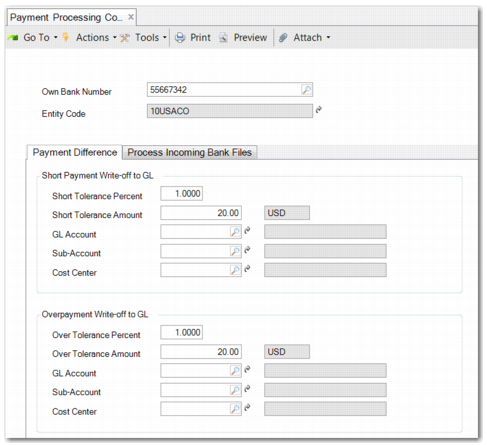
The Payment Difference tab contains two sections. The Short Payment Write-off to GL section contains the following fields:
Short Tolerance Percent
Enter a tolerance percent with up to four decimal places. For example, if you enter 1%, any payment that brings the total payment to 99% or more of the fully allocated invoice amount is considered a payment of that invoice. If both the percent and amount tolerances are set, the payment difference is only accepted if both conditions are met.
If the payment is outside the tolerance, the system creates an unallocated banking entry, an initial customer payment, or a prepayment (in the case of an over payment), depending on the settings.
Short Tolerance Amount
Enter a tolerance amount. For example, if the tolerance amount is 50 and the invoice amount is 5000, any payment between 4950 and 5000 is considered a payment on that invoice. If both the percent and amount tolerances are set, the payment difference is only accepted if both conditions are met.
GL Account
Enter the GL account to which to allocate the payment difference. This field is mandatory when you specify a percent or amount.
Sub-Account
Enter the sub-account to which to allocate the payment difference. This field is mandatory when the tolerance percentage or amount is larger than zero.
Cost Center
Enter the cost center to which to allocate the payment difference. This field is mandatory when the tolerance percentage or amount is larger than zero.
The Overpayment Write-off to GL section contains the following fields:
Over Tolerance Percent
Enter a tolerance percent with up to four decimal places. For example, if you enter 1%, any payment that brings the total payment to 101% or less of the fully allocated invoice amount is considered a payment of that invoice. If both the percent and amount tolerances are set, the payment difference is only accepted if both conditions are met.
Over Tolerance Amount
Enter a tolerance amount. For example, if the tolerance amount is 50 and the invoice amount is 5000, any payment between 5000 and 5050 is considered a payment on that invoice. If both the percent and amount tolerances are set, the payment difference is only accepted if both conditions are met.
GL Account
Enter the GL account to which to allocate the payment difference. This field is mandatory when the tolerance percentage or amount is larger than zero.
Sub-Account
Enter the sub-account to which to allocate the payment difference. This field is mandatory when the tolerance percentage or amount is larger than zero.
Cost Center
Enter the cost center to which to allocate the payment difference. This field is mandatory when the tolerance percentage or amount is larger than zero.