Updating the Supplier Invoice Bank Number
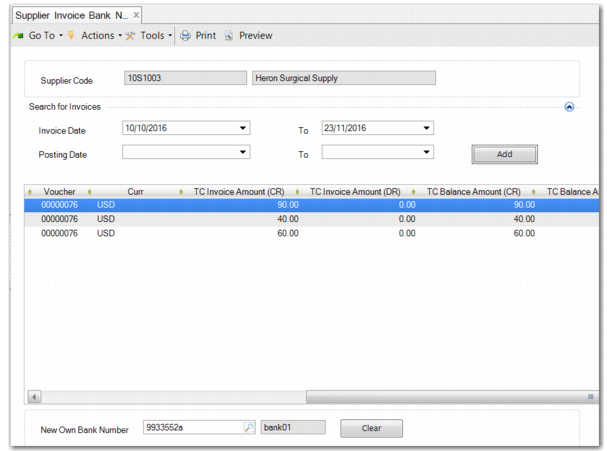
Supplier Invoice Bank Number Change (28.1.1.14) enables you to modify supplier bank details for open invoices. You can change the bank details for multiple invoices for a single supplier simultaneously. However, you cannot change invoices that are selected for payment selection.
If an invoice is not paid partially, this menu deletes any existing supplier bank and creates a new supplier bank number, which is the New Own Bank Number you create. If an invoice is paid partially, this menu updates the existing bank record TC Payment Amount to zero and creates a new supplier bank record with the New Own Bank Number you created for the balance amount.
First, enter the supplier code for which you want to modify supplier bank details. When you enter a supplier code, the business relation name is displayed next to it. When you enter the supplier code, the field is disabled. You cannot add another supplier.
You can search for invoices using an invoice date or a posting date range.
When you click Add, the invoices that meet the criteria are added to the grid. If you reset the dates and search again, any additional invoices are appended to the existing records in the grid. You must select the Select field in the grid to enable you to change the details for an invoice.
When you enter the supplier code, the New Own Bank Number field is enabled. You can use the lookup to select the active supplier bank. The lookup displays the active supplier’s bank for all entities defined for this supplier.
To completely reset the screen, click Clear. This action clears all the invoices in the grid, disables the New Own Bank Number lookup, and enables the Supplier Code field.
Supplier Invoice Bank Number Change