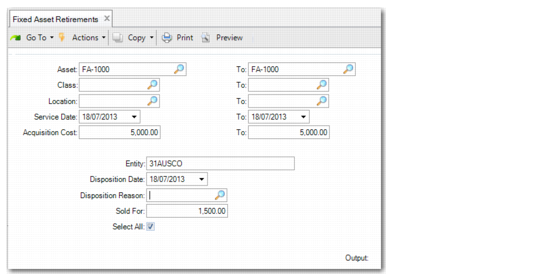
Fixed Asset Retirements
Use Fixed Asset Retirements (32.19) to dispose of multiple assets at one time.
If you retire an asset and then use Fixed Asset Transaction Post (32.13) to post the GL transactions, the system posts the resulting GL transactions to the daybook defined in Posting Book Daybook Maintenance (32.9) for the posting book and entity. If the system cannot find a daybook linked to the current entity, it uses a daybook linked to a blank entity. If the system cannot find a daybook linked to the current entity or a daybook linked to a blank entity, it posts the GL transaction to the system daybook defined in Default Daybook Maintenance (25.8.4).
Fixed Asset Retirements (32.19)
Asset, To
Enter a range of asset IDs to select assets to retire.
Class, To
Enter a range of class IDs to select assets to retire.
Location, To
Enter a range of Location IDs to select assets to retire.
Service Date, To
Enter a range of service dates to select assets to retire.
Acquisition Cost, To
Enter a range of acquisition costs to select assets to retire.
Entity
Enter the entity for the assets you want to select to retire. This is a required entry. The default is the database primary entity.
Disposition Date
Enter the effective date of the retirement. This is a required entry. This date must be in an open GL period.
Disposition Reason
Enter the reason for the disposal of the asset.
The field is validated against codes set up in Generalized Codes Maintenance for field fa_disp_rsn.
This is the reason the asset is removed from service and ownership interest relinquished. Examples of disposition reasons are sold, stolen, destroyed, donated, and impaired.
Sold For
Enter the amount received for the disposal of the asset. This field is optional.
The disposition amount is assigned to each asset that you are retiring. This amount is used when calculating the gain or loss on the disposition of an asset.
Select All
This field indicates whether the assets matching the selection criteria are automatically selected to retire.
Yes: All assets matching the selection criteria are selected to retire. You can modify the assets on the Select Assets to Retire screen.
No: Assets are not automatically selected. You must manually select the assets on the Select Assets to Retire screen.
Click Next to display a list of assets that match your selection criteria. Adjust the list as needed and then click Next again to transfer the assets.