Payment of Golden Tax Invoices
When the Golden Tax invoice is printed, the invoice is sent to the customer for payment collection. When the customer makes a payment against the Golden Tax invoice, you can allocate the payment in the QAD system by Golden Tax invoice number. You can reconcile the payment in the following programs:
• Customer Payment Create (27.6.4.1)
• Banking Entry Create (31.1.1) or Petty Cash Create (31.2.1)
• Open Item Adjustment Create (25.13.5)
Customer Payment – Allocate
When the customer makes payment for a Golden Tax invoice in part or in full, you can record the payment in Customer Payment Create (27.6.4.1).
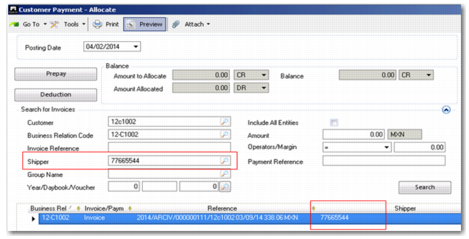
Customer Payment Create - Allocate
In the Customer Payment - Allocate screen, in the Search for Invoices section, enter the Golden Tax invoice number in the Shipper field and click Search. The related QAD invoice is then displayed in the grid and you can make a complete or partial payment against this invoice.
If the VAT invoice—the legal Golden Tax invoice—number is not loaded back to the QAD system, you need to input the Golden Tax Document Number with temp as the suffix.
Banking Entry - Allocate and Petty Cash - Allocate
You can also record the payment the using Banking Entry Create (31.1.1) or Petty Cash Create (31.2.1).
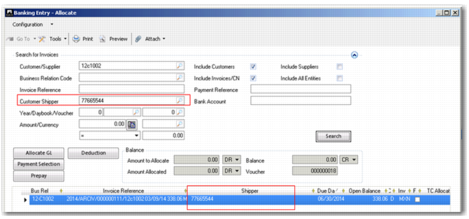
Banking Entry Create - Allocate
In the Banking Entry - Allocate screen, in the Search for Invoices section, enter the Golden Tax invoice number in the Shipper field and click Search. The related QAD invoice is then displayed in the grid and you can make a complete or partial payment against this invoice.
If the VAT invoice—the legal Golden Tax invoice—number is not loaded back to the QAD system, you need to input the Golden Tax Document Number with temp as the suffix.
Open Item Adjustment Create
Open Item Adjustment also enables you to record payment for Golden Tax invoices.
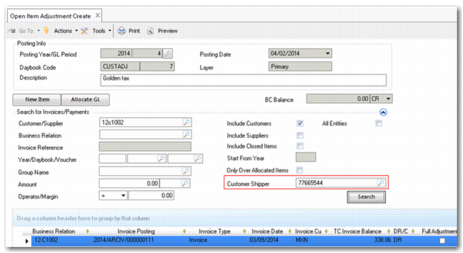
Banking Entry Create - Allocate
In the Open Item Adjustment Create screen, in the Search for Invoices section, enter the Golden Tax invoice number in the Customer Shipper field and click Search. The related QAD invoice is then displayed in the grid and you can make a complete or partial payment against this invoice.
If the VAT invoice—the legal Golden Tax invoice—number is not loaded back to the QAD system, you need to input the Golden Tax Document Number with temp as the suffix.