Adding Attributes to an Item Profile
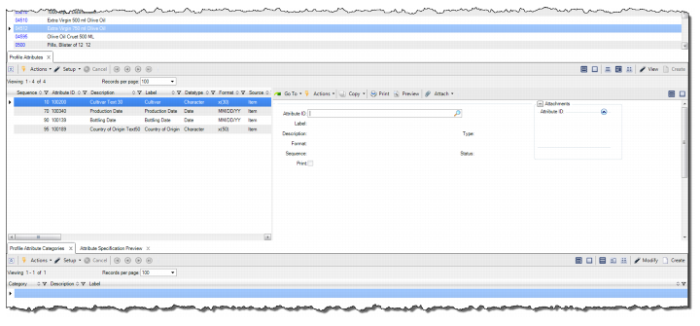
Follow these steps to add an item attribute to a profile:
1 Add item attributes to the item profile by clicking Create in the Attributes tab.
Adding Attributes to a Profile
2 Enter the required information in the following fields:
Attribute ID
Select or enter an attribute ID to apply to the profile. When you select the attribute ID, the system pulls in the label, description, type, format, and status from the attribute master record.
Source
Displays the source profile for the attribute. For example, if there is a deviation for an item and supplier, the source field indicates whether the attribute is specific to the item and supplier, the item, supplier, and site, or if it applies generally to the item.
Label
Displays the label for the selected attribute.
Description
Displays the label description for the selected attribute.
Type
Displays the datatype of the selected attribute, such as integer, decimal, character, and so on.
Format
Displays the datatype format for the selected attribute.
Sequence
Enter a sequence number for the attribute on this profile. The sequence determines the order in which attributes print on reports.
Status
Select Active or Inactive to set the status of the attribute:
• Active. When the status is set to Active, the attribute and its parameters are considered when the system processes the item for printing documents and for inventory transactions, such as receiving, allocating, picking, and shipping.
• Inactive. When the status is set to Inactive, the attribute and its parameters are not recognized by inventory transactions and by functions that manage materials. The attribute appears in the profile but it is not recognized elsewhere. When the status of an item profile attribute is Inactive, the system does not recognize the attribute for the item. The system also does not recognize the attribute on higher-level profiles for the same item and attribute, such as those for the item and a customer, or for the item and a sales order line.
Print
Select this check box if you want the attribute to be printed on documents such as sales orders, work orders, and purchase orders.
Level
Select or enter the Level parameter, which determines how the attribute and its parameters are applied to the item.
• Item. Set the level to Item when the attribute is a characteristic of the item. For example, an item-level attribute would be a field that is defined for an item master record, such as Item Type, Status, and Design Group. Item-level attributes can be defined with parameters to specify a value, specification, and measurement. The values for item-level attributes are fixed and they do not vary from lot to lot, like the fields in Item Master Maintenance (1.4.1).
• Lot. Set the level to Lot when the value for the attribute is specific to an item and a lot and when the attribute is a characteristic of a lot master. The attributes for a lot master apply to that item and lot across all sites and locations within a domain. You can define the default value and specifications of lot-level attributes to determine if an item and a lot are conforming or non-conforming.
• Sublot. Set the level to Sublot when the value for the attribute is specific to an item, a lot, and an inventory detail reference and the attribute is a characteristic of a lot master and sublot. Like lot-level attributes, you can define the default value and specifications of sublot-level attributes to determine if an item and a lot are conforming or non-conformingnon-conforming.
The use of sublot-level attributes should be restricted to implementations where the inventory reference field is used to always identify a sublot. Sublot-level attributes should not be used when the reference field is used to identify objects such as a pallet, container, shelf, or location, or when there is an integration with QAD Warehousing.
Input Method
If the level is set to lot or sublot, select or enter the Input Method parameter:
• User. For a lot-level or sublot-level attribute, set the input method to User so that the attribute value can be updated when processing the receipt for an item using supported inventory transactions, such as Purchase Order Receipts.
• System. For a lot-level or sublot-level attribute, when the input method is set to System, the attribute is not visible when processing receipt transactions. However, it is recorded for an item lot (and sublot) using functions such as Maintain Lot Attribute Order and Maintain Quality Order.
Multiple Values
For a character attribute, select this check box to allow a person to record multiple values for an item lot (and sublot), each value separated by a comma. An example of an attribute that may have multiple values is a blend of olive oil with a Country of Origin attribute that permits more than one country.
Note: Do not select this check box if the character attribute will only have a single value.
Certification
The item profile must include all attributes that should be printed on a Certificate of Analysis (COA), including any attributes that are controlled on test specifications that are used to determine if a lot is conforming or non-conforming.
Select this check box to display the item attribute on COA reports.
• For an item-level attribute, if the check box is selected, the COA includes the label, the specification, and the default value for the attribute defined on the profile.
• For a lot-level or sublot-level attribute, if the check box is selected, the COA includes the attribute label and the specification and value on the quality or lot attribute order.
Certification Category
When attributes are displayed on the COA, they are grouped by certification category. If the Certification check box is enabled, select the certification category.
Label
This field displays the label for the selected category.
Default Value
Enter the default value according to the datatype of the attribute. Depending on the Level setting of the attribute, enter the following for the default value:
Datatype | Level Setting | Default Value |
Character | Item | Enter the value of the item attribute. |
Lot and Sublot | Enter the initial value the system displays when a user enters the value for a lot (or sublot) attribute when processing a supported receipt transaction or when recording values on a lot attribute order, quality order, or test record. For example, if the item is olives and there is a character attribute for country of origin that allows multiple values, enter the countries that are considered conforming |
Decimal/Integer | Item | Enter the value of the item attribute. For example, if the item is a 100-ml bottle and the integer attribute is Size, you would enter 100 in the Default Value field and ml in the Measurement field. |
Lot and Sublot | Enter the initial value that the system displays when a user enters the value for a lot (or sublot) attribute when processing a supported receipt transaction or when recording values on a lot attribute order, quality order, or test record. |
Date | Item | For a date attribute that is an item-level attribute, set Default Value to User Defined and then select or enter the value for the attribute in the Target Date field. |
Lot and Sublot | For a date attribute that is either a lot-level or sublot-level attribute, select Transaction Date or Effective Date to calculate the default value. Then enter a + or - operator in the field next to the Default Value field and a value in the Interval Value (Day) field. |
Logical | | Specify the initial value the system displays when a user enters the value for a lot (or sublot) attribute when processing a supported receipt transaction or when recording values on a lot attribute order, quality order, or test record: • Selected. If you select the check box, the value entered in the True Value field (Conforming) defaults in the field. • Not Selected. If you do not select the check box, the value entered in the False Value field (Non-conforming) defaults in the field. |
Specification Type
For a lot-level or sublot-level attribute that is not a logical attribute, select the specification type that is appropriate for the attribute’s datatype. The value that is listed in the lookup depends on the datatype and format for the attribute. Specification types include:
• None. For all attributes, when there is no specification required to determine if an attribute value is conforming or not.
• Greater Than. For character, integer, and decimal datatype attributes that are expressed in terms such as greater than, greater than or equal to, minimum, and not less than.
• Min Max Value. For character, integer, and decimal datatype attributes that are expressed in terms such as min max, between, and range.
• Less Than. For character, integer, and decimal datatype attributes that are expressed in terms such as less than, less than or equal to, maximum, and not more than.
• Tolerance Value. For integer and decimal datatype attributes that are based on tolerances relative to a target value.
• Tolerance Percentage. For integer and decimal datatype attributes that are based on percentage tolerances relative to a target value for decimal, and for integer attributes that do not have a format for percentage.
• Membership. For character datatype attributes that specify a list of conforming or non-conforming values for an attribute.
• Rule Expression. For more complex specifications that are configured by using software coding that follows Progress Software Corporation constructs and conventions and the variable attribute_value. For more information, see
Frequently Asked Questions.
Measurement
For character, integer, and decimal datatypes, provide a short description for how the attribute is measured or determined (12 characters maximum). For example, a measurement for flow rate might be expressed as ppm, psi, or cl/sec.
Specification
A short description for the attribute specification (48 characters max). For example, if the item attribute is Country of Origin, this field could display the countries that are acceptable. You can use the Reference field to make note of additional information or to refer to a document for the attribute or specification.
Test
For an item-level attribute, enter the test that determines if the item conforms to the specification. The system uses this value if the QAD EE Quality Control module is not implemented.
Test Method
For an item level attribute, enter the test method for this attribute. The system uses this value when the QAD EE Quality Control module is not implemented.
Value Required
When a lot or sublot attribute appears on a quality or lot attribute order, select this check box to require that a value for the lot-level or sublot-level attribute is entered and processed for the order status to be changed to closed.
Validation
For a lot-level or sublot-level attribute, select this check box if the entered value and result for this attribute must fall within specification to determine whether the overall result of the quality or lot attribute order is conforming or non-conforming. Do not select this check box for nominal attributes that do not determine whether the result for the order is conforming or non-conforming, such as supplier ID, supplier lot number, or manufacturing part number.
Edit Specification
For a lot-level or sublot-level attribute, select this check box to allow the specification to be overridden by a deviation that is defined on a higher-level profile. For example, an attribute specification on an item profile can have attribute deviations on higher-level profiles defined for the item and customer, the item, customer, and ship-to, or for a sales order line for the item.
When Edit Specification is selected, deviations can be defined on a higher-level profile by editing specification-related parameters including:
• Specification Type, Specification, and Specification Detail
• Default Value
• Test, Test Method
Note: To prevent higher-level profiles from overriding attribute specifications, leave this check box unchecked.
Reference
Optionally, specify a reference related to the profile attribute, such as a document or standard.
Specification Fields
Depending on the datatype and the specification type that is selected when you click Next, additional fields appear that require you to enter the attribute specifications.
True Value
Enter the conforming value for the attribute.
Note: This field is used in conjunction with the logical datatype, which contains True and False values, such as Organic and Conventional, < 10 ppm and Fail, or Pass and Fail.
False Value
Enter the non-conforming value for the attribute.
Note: This field is used in conjunction with the logical datatype, which contains True and False values, such as Organic and Conventional, < 10 ppm and Fail, or Pass and Fail.
Target Value
Enter the target value for the attribute specification.
Minimum Number
Enter the minimum acceptable value for the attribute. This field is available if you select the Greater and Min Max specification types.
Minimum Inclusive
Select this check box to include the Minimum Number value in the specification range. For example, if the Minimum Number is 10 and this check box is selected, values that are greater than or equal to 10 will be conforming. If this check box is not selected, values that are greater than 10 will be conforming. This field is available if you select the Greater and Min Max specification types.
Maximum Number
Enter the maximum acceptable value for the attribute. This field is available if you select the Less Than and Min Max specification types.
Maximum Inclusive
Select this check box to include the Maximum Number value in the specification range. For example, if the Maximum Number is 10 and this check box is selected, values that are less than or equal to 10 will be conforming. If this check box is not selected, values that are less than 10 will be conforming. This field is available if you select the Greater and Min Max specification types.
Tolerance (-)
Enter the minimum amount of variation from the target value. This field is available if you select the Tolerance Percentage and Tolerance Value specification types.
Tolerance (+)
Enter the maximum amount of variation from the target value. This field is available if you select the Tolerance Percentage and Tolerance Value specification types.
Include List
Enter the list of conforming character values in this field, each separated by a comma.
Note: If you enter values in both the Include and Exclude List fields, only the values in the Include list are validated. Values entered in Include List take precedence over the values in Exclude List.
Exclude List
Enter the list of non-conforming character values in this field, separated by commas.
Note: If you enter values in both the Include and Exclude List fields, only the values in the Include list are validated. Values entered in Include List take precedence over the values in Exclude List.