Verify Item Attribute Setup
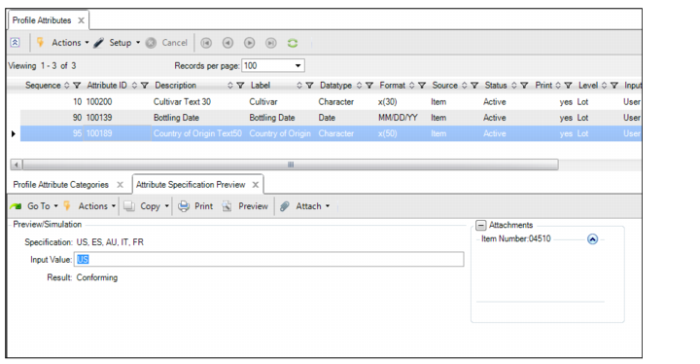
Use the Attribute Specification Preview tab in the Maintain Item Profile browse collection to verify that you have properly set up a profile attribute, its specification type, and specification details. You can test the setup by entering values for the attribute to see if the result is either conforming or non-conforming.
Follow these steps to verify that the attribute profile is set up properly:
1 Open the item profile.
2 Highlight the item attribute in the Profile Attributes tab.
3 Select the Attribute Specification Preview tab.
Attribute Specification Preview Tab
4 The attribute profile information is displayed in the fields. Verify that the attribute profile is set up properly by entering attribute values in the Input Value field and verifying the correct result (conforming or non-conforming) is displayed in the Result field.
Item Number
Displays the item number associated with the item attribute profile.
Site
Displays the site associated with the item attribute profile.
Attribute
Displays the attribute ID associated with the profile.
Source
Displays the source profile for the attribute. For example, if there is a deviation for an item and supplier, the source field indicates whether the attribute is specific to the supplier or is applied generally to the item.
Specification
A short description for the attribute specification (48 characters max). For example, if the item attribute is Country of Origin, this field could display the countries that are acceptable.
Input Value
Enter the attribute value in this field.
Result
This field displays the quality result (conforming or non-conforming) that is determined by the attribute value entered in the Input Value field and its specification parameters.