Releasing Purchase Orders
You can choose to release blanket POs for purchase receipt type kanbans when a dispatch list is generated. This option is available only when Update is Yes.
The blanket order number assigned to the supplying source in Kanban Master Maintenance is used to release a PO. If the Purchase Order field is blank, the system searches for the oldest open PO for the item and supplier that can fulfill the entire kanban quantity. If an open PO cannot be found or an open PO cannot fulfill the entire kanban quantity, an error displays and a PO is not released for that item.
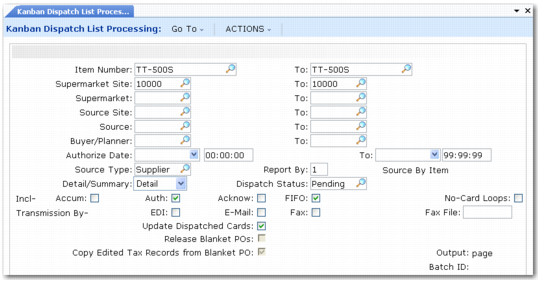
Kanban Dispatch List Processing (17.5.1)
Item Number/To
Enter a range of kanban item numbers to be included in the dispatch list.
Kanban items are identified using Kanban Item Master Maintenance.
Supermarket Site/To
Enter a range of sites that use kanban loops as sources of supply to be included in the dispatch list.
Supermarket/To
Specify a range of supermarkets supplied by kanban loops to be included in the dispatch list.
Source Site/To
Enter a range of sites associated with processes or supermarkets that supply kanban loops to be included in the dispatch list.
Source/To
Enter a range of source identifiers for kanban loops to be included in the dispatch list. Sources can be kanban manufacturing processes, inventory supermarkets, or supplier addresses.
Buyer/Planner/To
Enter a range of buyers or planners for the system to use as selection criteria in choosing kanban transaction records.
The buyer is the person responsible for planning and ordering items.
If you specify a buyer/planner code, the system processes only items associated with this person in Item Master Maintenance (1.4.1).
Authorize Date/To
Enter ranges of dates and times that kanban cards to be included in the dispatch list were authorized for replenishment.
Source Type
Enter a source type to limit the kanban loops included in the dispatch list:
• Inv: The item is supplied from the inventory of a kanban supermarket.
• Process: The item is manufactured by a kanban process.
• Supplier: The item is purchased from an external supplier.
If you set this field to blank, all loops that meet the other selection criteria are included in the dispatch list.
Report By
Specify how the dispatch list is sorted. Valid values are:
1: Source, then item (the default)
2: Destination supermarket, then item
3: Both source and supermarket by item
4: Source, then date
5: Destination supermarket, then date
6: Both source and supermarket by date
Detail/Summary
Specify the level of detail to include on the dispatch list report output.
Detail (the default): The report includes a line for each card.
Summary: The report includes only total quantities for each loop.
Dispatch Status
Specify the dispatch status of cards to be selected for processing.
• Pending (the default): The selection is limited to cards that have the Dispatch field set to Yes on the card record. The system automatically sets Dispatch to Yes when the card is authorized; depending on the card status, you may be able to set the field manually in Kanban Card Maintenance. See
Maintain Cards.
• Dispatch: Only cards that have Dispatch set to No are selected. When you select this option and set Update Dispatched Cards to No, you can generate a report on dispatched cards for loops meeting the selection criteria.
• All: Cards meeting the selection criteria are selected regardless of dispatch status.
Accumulate
Specify whether cards with a status of Empty-Accumulate are included in the selection. The default is No.
Authorized
Specify whether cards with a status of Authorized are included in the selection. The default is Yes.
Acknowledged
Specify whether cards with a status of Acknowledged are included in the selection. The default is No.
FIFO
Specify whether cards with a status of In FIFO Process are included in the selection. The default is Yes.
Note: This setting only has an effect on process loops that include FIFO processes.
No-Card Loops
Specify whether the report should list a loop even if the loop currently has no cards to be dispatched based on their current status.
• No (the default): Cards are selected for dispatch only when their current status matches the associated selection criteria.
• Yes: The report identifies all loops matching the loop selection criteria. However, when no cards match one of the specified status codes, the report indicates that no cards are available for dispatch.
Note: Regardless of this value, loops are only included in the report when Dispatch List is Yes in Kanban Master Maintenance.
E-mail
Enter Yes to e-mail dispatch lists for loops that have E-mail Dispatch List set to Yes in Kanban Master Maintenance. The selected records are grouped and e-mailed by e-mail address using the same sequencing as the printed report.
To determine the e-mail address or addresses to use, the program first looks at the source and supermarket e-mail address fields in Kanban Master Maintenance. If these fields are blank, the system uses the following logic to search for an e-mail address:
• For the destination supermarket, it uses the e-mail address specified in Supermarket Maintenance.
• If the loop’s source type is an external supplier, the system uses the e-mail address from the business relation assigned to the supplier.
• If the loop’s source type is an inventory supermarket or process, the program does not search further.
If an e-mail address cannot be determined, the program ignores the kanban transaction record.
Fax
Enter Yes to create a report in fax format for loops that have Fax Dispatch List set to Yes in Kanban Master Maintenance. The selected records are grouped and printed by fax number using the same sequencing as the printed report.
To determine the fax number or numbers to use, the program first looks at the source and supermarket fax number fields in Kanban Master Maintenance. If these fields are blank, the system uses the following logic to search for a fax number:
• For the destination supermarket, it uses the fax number from Supermarket Maintenance. If no number is specified, it searches for a company address record for the supermarket site and uses the associated fax information.
• If the loop’s source type is an external supplier, the system uses the fax number from the business relation assigned to the supplier.
• If the loop’s source type is an inventory supermarket or process, it searches for a company address record for the supermarket or process site and uses the associated fax information.
If a fax number cannot be determined, the report is printed without a number.
Fax File
Optionally, enter the name of the fax output file. The fax report is saved to a file without an extension in your working directory.
EDI
Enter Yes to create card dispatch records in EDI format and transmit them to the loop supplier using EDI eCommerce. See
EDI Dispatch List Transmittal.
Update Dispatched Cards
Enter Yes to create a report of all kanban transactions selected using the selection criteria. The selected kanban transactions are updated with the current date and time to prevent them from being selected again the next time a dispatch list is processed.
When this field is No, the system generates a simulated report showing the cards that will be included on the dispatch list.
Note: Because creating an EDI dispatch list requires EDI eCommerce to create repository records, you cannot run this program with EDI set to Yes and Update Dispatched Cards set to No.
Release Blanket POs
Enter Yes to automatically release POs from blanket orders associated with supplier kanbans during dispatch list processing.
You can access this field only when Update is Yes.
When the purchase order specified in Kanban Master Maintenance is a blanket order, the system will attempt to automatically release a PO from that blanket order. If a kanban loop does not have a blanket order associated with it or the specified order does not have a sufficient open quantity, the program looks for the oldest open PO that can fulfill the entire kanban quantity for the item and supplier. If a PO cannot be found that fulfills the entire kanban quantity, an error displays and a PO is not released for that kanban.
Copy Edited Tax Records from Blanket PO
Enter Yes to copy any manually edited tax details from the blanket orders to the released POs. Otherwise, enter No to overwrite manually edited tax details with the current blanket order tax data. Tax data is defined for the entire blanket order, but the tax details for line items can be manually edited.