Viewing Dispatch Records
Three programs on the Kanban Dispatch Menu let you view several types of data regarding dispatched cards.
The two view programs are described here. The third, Dispatch Report (17.5.7), is a standard report that lets you generate summary or detailed reports based on a variety of selection criteria.
Dispatch View by Dispatch ID (17.5.4)
Use this program to view dispatch data associated with a specific kanban card, based on the assigned dispatch ID.
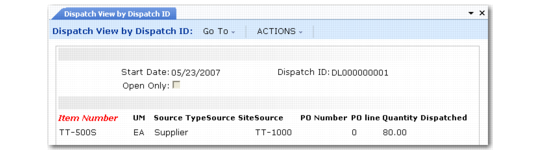
If you know the dispatch date, you can narrow the list of available records by entering a start date, which defaults to today. Otherwise, you can clear the date field. The system then displays all dispatch IDs when you access the lookup on that field.
Optionally, set Open Only to Yes to limit the selection to cards that have not completed the dispatch cycle.
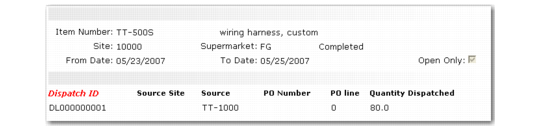
When you click Next, the system displays all the items included on the selected dispatch list, along with loop information such as the source type, source ID, and purchase order, when appropriate, as well as the total quantity dispatched.
Dispatch View by Dispatch ID (17.5.4)
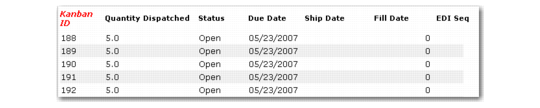
Select an item and click Next to list all the cards for that item. For each card, the system displays the following dispatch information:
• The card dispatch quantity.
• Whether the dispatch is open or closed; when a dispatch is closed, it has completed the dispatch cycle by being sent to the loop supplier, shipped, and filled.
• As appropriate, the associated due, ship, and fill dates.
• If the card was sent using EDI, the associated application document sequence.
Dispatch View by Dispatch ID, Card Selection
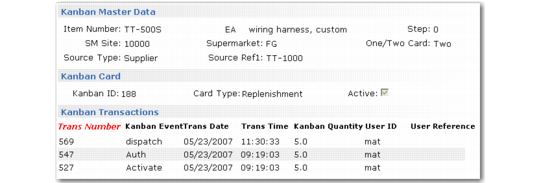
To view an additional level of information, select a card and click Next. The system lists individual kanban transactions and summary data. Select a transaction and click Next to view transaction history details. If the selected transaction has associated inventory history, the system prompts you to display the records.
Dispatch View by Dispatch ID, Transaction Selection
Dispatch View by Source/Item (17.5.5)
This program displays the same data as Dispatch View by Dispatch ID. In this case, the selection is based on loop information.
Dispatch View by Source/Item (17.5.5)
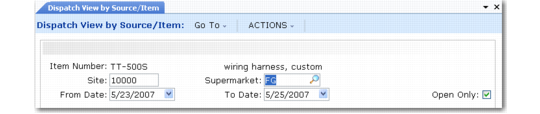
To start a specific search, enter both a source type and item number. If you want to start with a more generalized selection, enter a value in only one of the fields.
The system displays another level of selection criteria. The fields displayed are based on the information entered in the first frame.
For example, if you enter Supplier in the Source Type field and do not specify an item, the second frame includes a Supplier field. If you specify both a source type and an item, the second frame prompts you to narrow the selection by specifying the destination site and supermarket for the item, as well as a range of dispatch dates. To see all dispatch lists that include that item, leave these additional fields blank.
Dispatch View by Source/Item, Additional Selection Criteria
If you do not enter an item number in either of these two frames, the system then displays a list of items matching the selection criteria. Select an item to display associated dispatch IDs, starting with the earliest dispatch date and time. The list includes summary information about the dispatch.
Dispatch View by Source/Item, Dispatch Selection
Select a dispatch ID to display all the cards included on it. Just as in Dispatch View by Dispatch ID, you can then drill down to kanban and inventory transaction detail records.