QAD 2017 Enterprise Edition
>
User Guides
>
Master Data
>
Pricing
>
Using Best Pricing
>
Repricing Orders in Sales Order Repricing
Repricing Orders in Sales Order Repricing
Use Sales Order Repricing (7.1.11) to update the list and net price of selected orders to the latest corresponding price list price. You can reprice sales orders so that ordered quantities are added together, across orders, to calculate quantity breaks.
Note: To open a sales order for repricing in Sales Order Repricing (7.1.11), set Fixed Price in the order header or line item to No.
Sales Order Repricing combines orders by matching price lists and any combination of:
• Sold-to customer numbers
• Bill-to customer numbers
• Ship-to customer numbers
• Purchase order numbers
• Any combination of these four factors
Customers that do not have centralized purchasing can still receive quantity and volume discounts based upon purchases made from other intracompany purchasing departments. Line items on combined orders are repriced as if they are on the same order, which means that line items with the same break category (or the same item number) have their order quantities accumulated.
If you want an open sales order to be repriced in Sales Order Repricing, the Fixed Price field in the sales order header or the line item frame must be set to No. Otherwise, the order is skipped, even if it matches selection criteria.
The Fixed Price field appears in:
• Customer Data Maintenance
• Sales Quote Maintenance, header and line
• Sales Order Maintenance, header and line
• RMA Maintenance, header and line
Fixed Price defaults from Customer Data Maintenance to Sales Quote Maintenance, and then to Sales Order Maintenance. If you do not use sales quotes, the value defaults directly from Customer Data Maintenance to Sales Order Maintenance. The value of Fixed Price on an order header determines the default for each line as it is added.
When a sales quote is released to an order, the system resets the Fixed Price value on the order header to the value associated with the customer. The line item Fixed Price value is unchanged.
During order repricing, you can:
• Check credit limits after new prices are applied and make various credit adjustments.
• Print sales orders.
• Combine sales orders.
• Include RMA issues.
• Recalculate taxes.
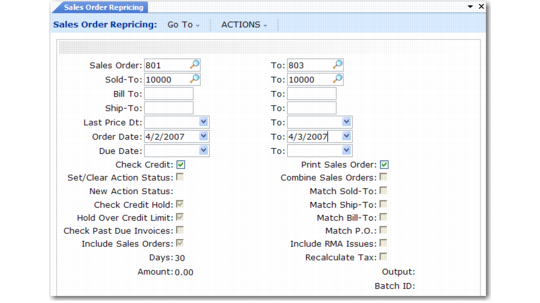
Use Sales Order Repricing (7.1.11) to reprice and print sales orders and sales quotes for a specified range of order numbers.
Sales Order Repricing (7.1.11)
Use the Sales Order, Sold-To, Bill-To, and Ship-To fields to narrow the range of sales orders to be processed. Leave blank to include all orders. Use the Last Price Date, Order Date, and Due Date fields to select orders to process by date.
Check Credit
Enter Yes to check customer credit limits and past-due invoices, and generate an audit report. Enter No to bypass credit check and generate audit report only; default is Yes. If Yes, you can change the values of related credit check fields.
Print Sales Order
If Yes, the Print field is set to Yes on all orders that are repriced. This allows them to be selected for printing even if they have been printed before.
Set/Clear Action Status
If Check Credit is Yes, enter Yes (the default) to check customer credit status prior to release or No to bypass status check. If Yes, the value of New Action Status is assigned to the Action Status field on the sales order for orders exceeding credit limits.
New Action Status
If Set/Clear Action Status is Yes, leave blank to clear the status, Hd to place on hold, or any other valid status code; default is blank. Make sure that codes are entered consistently by entering the allowed codes into Generalized Codes Maintenance (36.2.13) for field so_stat.
Check Credit Hold
If Yes, the system checks the customer Hold field before clearing the Action Status of an order. If the Hold field is Yes, indicating the customer is on credit hold, the Action Status of orders is not cleared.
Hold Over Credit Limit
If Yes, the system compares the customer balance to the customer credit limit. The customer balance includes open invoices and, optionally, open sales order amounts. If the customer balance is less than the predefined credit limit and the action status is blank, the order is not placed on hold.
Check Past Due Invoices
Used in combination with the Automatically Set Action Status field. If both are Yes, then sales orders for customer with credit problems are automatically placed on hold by setting the action status to the value specified. Otherwise, sales orders are simply listed with all the credit status information
Include Sales Orders
If Yes, the system adds open sales order values to open invoice totals in determining the credit limit. See the description for Hold Over Credit Limit.
Days
The number of days after which the system considers an invoice past due when checking past due invoices.
Amount
The maximum total invoice amount allowed to be overdue after which the system places orders on credit hold for past due invoices.
Combine Sales Orders
If Yes, the system combines sales orders with matching values based on the Yes/No settings in the four Match fields: sold-to, ship-to, bill-to, and purchase order number.
Include RMA Issues
If Yes, the system includes RMA issues in sales order repricing.
Recalculate Tax
Indicate whether the sales tax should be recalculated for the sales orders being repriced.
Use Sales Order Price Inquiry (1.10.1.17) or Sales Quote Price Inquiry (1.10.1.18) to verify if items are priced correctly.