Setting Up PCC Control
Use PCC Control (1.9.24) to specify how PCRs and PCOs are processed.
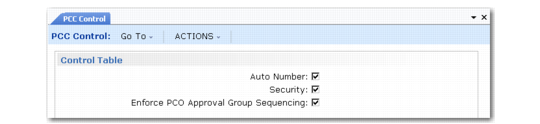
PCC Control (1.9.24)
Auto Number
Select Yes to generate document numbers automatically when a new PCR or PCO is created. Enter No to enter numbers manually when creating PCRs or PCOs.
Security
Select Yes to verify user identity when PCR/PCO Approval (1.9.6.1) is accessed. If Yes, users are prompted to enter a password before the screen displays. The password they enter must match the one associated with their user record in User Maintenance (36.3.1).
Enforce PCO Approval Group Sequencing
Specify whether the system lets you complete approval of a PCR or PCO even if it has not yet been approved by a member of a group with a lower sequence number. Approval sequences are assigned to groups in Routing Slip Maintenance.
No (the default): The system displays a warning message if approvals are attempted out of sequence. You can ignore the warning and complete the approval.
Yes: The system displays an error message if you attempt to approve a PCR or PCO out of sequence. You cannot complete the current approval.
This field also controls whether a group member can update the Approved field on a PCR or PCO if it has already been approved by a member of a group with a higher approval sequence. When the field is Yes, the system displays an error.
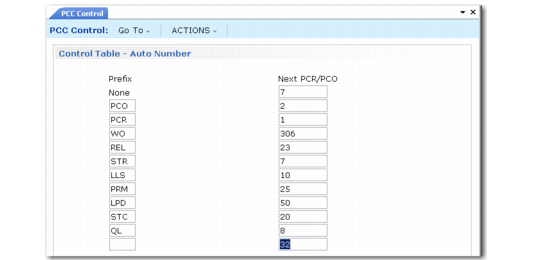
PCC Control (1.9.24), Auto Number Frame
Prefix
If Auto Number is Yes, the system assigns a prefix based on the PCR/PCO Type specified and associates the prefix with the Next PCR/PCO field to create a unique number. Multiple prefixes can be specified. Use the null prefix for types that do not reference a specific prefix.
Note: Types are defined in PCR/PCO Type Maintenance (1.9.1.9).
Next PCR/PCO
The next number available for an associated prefix. When the prefix is used to label a new document, the portion of the number after the prefix is determined by this field.