QAD 2017 Enterprise Edition
>
User Guides
>
Master Data
>
Product Change Control
>
Routing PCRs and PCOs for Approval
Routing PCRs and PCOs for Approval
Route PCOs for approval using Route PCO for Approval (1.9.2.16). To route PCRs, use Route PCR for Approval (1.0.2.4). After a PCO is submitted, it can be approved with PCR/PCO Approval.
Once a PCR or PCO has been routed, the system restricts changes to the document to ensure that the approved document is the most current. If a routed PCR or PCO is accessed in the maintenance function, a warning displays. If you continue despite the warning, you can modify the PCO, but all approvals are reset to No, and each group on the routing must reapprove.
If a group disapproves a PCO and severity levels apply, the PCO can be rerouted to selected groups based on the severity of changes required. Only approvals of groups that need to review the document are reset.
Route PCO for Approval (1.9.2.16)
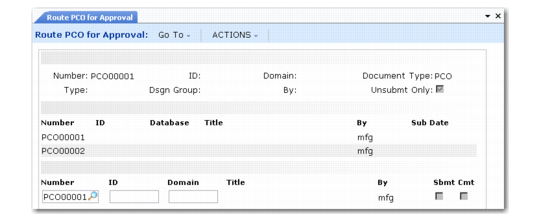
Route PCO for Approval lists PCOs in order, beginning with the number you enter in the first frame. Select PCOs to display by PCO Type, Design Group, and By (Created By). Use Unsubmt Only to display unsubmitted PCOs, or set it to No to see both submitted and unsubmitted PCOs. Set Unsubmt Only to No if you want to revoke a submitted PCO.
Select a PCO for submittal, and set Sbmt to Yes in the bottom frame. The system displays a submit date for the PCO. To unsubmit a submitted PCO for which no approvals have been given, set Sbmt to No. A partially approved PCO must first have all electronic approvals changed from Yes to No. Once unsubmitted, additional changes can be made, and the approval cycle started again.
To attach comment pages, set Cmt to Yes.