QAD 2017 Enterprise Edition
>
User Guides
>
Master Data
>
Inventory Control
>
Setting Up Inventory Control
Setting Up Inventory Control
Control programs let you specify two types of settings:
• Operations-related settings—such as picking logic—in Inventory Control (3.24)
• Financial settings—such as default account information—in Inventory Accounting Control (36.9.2)
Inventory Control includes:
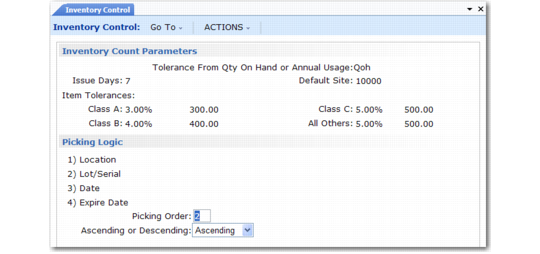
• Inventory Count Parameters. These parameters determine how the system handles inventory balance variations during counts. Tolerances can be set based on item ABC class. See
ABC Class Code.
• Picking Logic. Before the system can move inventory, it must know what inventory to select, or pick. The picking logic specified here determines how the system picks inventory.
Inventory Control (3.24)
Picking Order
Enter the method to use for selecting inventory during detail allocation:
1–Location. The system looks for inventory by location.
2–Lot/Serial. The system looks for inventory by lot/serial number.
3–Date. The system looks for inventory by the date the item was created or received.
4–Expire Date. The system looks for inventory by item expiration date.
Ascending or Descending
Enter Ascending to have the system pick the oldest or lowest number first. Enter Descending to have the system pick the newest or highest number first. As an example, if Picking Order is by Date and Ascending order is specified, the first item picked is that with the oldest create or receipt date.
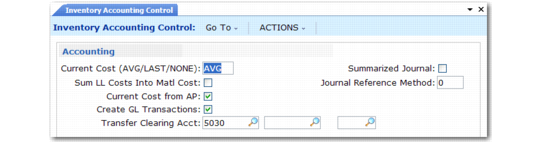
Settings in Inventory Accounting Control are associated with costing issues, whether GL transactions are created for inventory transactions, and other related issues.
Inventory Accounting Control (36.9.2)
Current Cost
Specify the method to use for updating current material, labor, and burden costs. When you use the Cost Management module, this is the default update method for all sites that do not have site-specific cost sets defined in Cost Set to Site Assignment. When you do not use Cost Management, this setting applies to all sites in the system.
Average (AVG): Default. Current costs are updated during item receipts and other inventory-related activities using a simple weighted-average calculation.
Last: Each item’s current cost is equal to the unit cost from the last receipt or inventory update.
None: The system does not automatically update current costs. They must be maintained manually, if needed.
Note: When you use the Cost Management module, you can use the Average method to calculate site-specific GL costs as well as current costs.
To change the default costing method from Last or None to Average, you cannot have secondary (non-primary) cost elements defined. You must first set all secondary-element values for each cost category to 0 (zero), then delete the secondary cost elements using Cost Element Maintenance (30.17.1).
When the update method is Average or Last, the following system activities can update current costs:
• Receiving inventory from a work order or repetitive schedule or using Receipts – Backward Exploded.
• Running the accounting close function for a work order or cumulative order, to consider any costs posted after the last receipt.
• Transferring inventory between sites; for example, using distribution orders or inventory transfer functions.
• Receiving quantities from purchase orders or supplier schedules or returning items to a supplier using functions such as Purchase Order Returns (5.13.7).
• Matching a supplier invoice with a purchase order receipt. This reverses the effect of the corresponding purchase order receipt update and only applies when Current Cost from AP is selected.
Note: Issue and shipment transactions processed with negative quantities are not considered receipts and do not update average and last costs.
To calculate average costs for materials, the following equation is used:
(receipt quantity * receipt cost) + (item quantity on hand * current material cost)
The result is then divided by the new quantity on hand—including the receipt—to determine the new current average cost of the item.
For manufactured items, current labor, subcontract, and burden costs are calculated for each work order or repetitive operation using the following equation:
(item quantity received/cumulative quantity completed at the operation) * operation's cumulative work-in-process (WIP) cost
Sum LL Costs Into Matl Cost
Specifies how lower-level costs are posted to Cost of Goods Sold.
If No, lower-level costs are added to this-level costs for each cost component and the total posted to Cost of Goods Sold. For example, the total material cost (this-level plus lower level) is posted to Cost of Goods – Material, the total labor cost is posted to Cost of Goods – Labor, and so on, for Cost of Goods – Burden, Overhead, and Subcontract.
If Yes, all lower-level costs are summarized into Cost of Goods – Material. Only this-level costs are posted to Cost of Goods – Labor, Burden, Overhead, and Subcontract.
This field does not affect the way costs are calculated or stored in cost sets.
Usually this field is set to No. Cost of goods sold amounts are maintained separately for each cost component. However, in some companies, the material cost for an end item is considered to include all costs associated with purchasing or manufacturing components, as well as any direct material costs. Then this field is set to Yes.
Current Cost from AP
Indicate whether current cost should be affected by AP Rate Variances calculated in Accounts Payable.
No: AP Rate Variances—differences between the supplier invoice cost and the purchase order cost—are not reflected in current cost.
Yes: Current material cost is updated to reflect AP Rate Variances.
Setting this field to Yes lets the system maintain current cost automatically to reflect the actual cost incurred, which you can compare to your GL (standard) cost. Current cost is updated as Last or Average. It may or may not be affected by actual supplier costs for purchased items.
Create GL Transactions
Indicate if GL transactions are to be created by inventory activities.
Yes: Inventory issues, receipts, count adjustments, and transfers create GL transactions reflecting the change in inventory asset balances. In addition, any transactions that affect work-in-process inventory create GL transactions. This includes work order issues and receipts.
No: GL transactions are not created by any of these activities.
Note: This field does not affect memo item transactions. These do not create GL transactions regardless of this field.
Companies who do perpetual inventory accounting typically set this field to Yes, taking advantage of the automatic journal transactions created in the system.
Companies using periodic inventory accounting normally set this field to No. With periodic accounting, the accountant manually calculates ending inventory based on:
Ending Inventory = Beginning Inventory + Purchases - Cost of Goods Sold
Manual journal entries are then made to post the purchases and cost of goods sold amounts, since these are not posted automatically by the system.
Another alternative is to let the system create journal transactions but not post them. This is useful for creating manual journal entries under periodic accounting, or if you are using an external general ledger system. GL transactions can be printed and then deleted using GL Transactions Delete/Archive (36.23.2).
Important: GL transactions can only be deleted when no IC transactions have ever been posted.
Transfer Clearing Acct
Enter the GL account, sub-account, and cost center used to track transfers within a site or between sites in the same entity. The account cannot be blank when multiple sites are defined. You must specify a valid, active account of type Standard.
Transfers between sites in different entities are tracked using the Cross-Company Inventory Control accounts associated with the domain in Domain Create (36.1.1.1) and the entity’s intercompany code.
In a single-site environment, the Purchases account is used when no account is specified.
Summarized Journal
If Create GL Transactions is Yes, this field determines how GL transactions are created:
No: Detailed GL transactions are created, one per inventory transaction.
Yes: One summarized GL transaction is created based on the value of Journal Reference Method. This is based either on:
• A combination of date, entity, account, sub-account, cost center, and project
• All transactions created per user session
Note: The AR amount of the transaction is always summarized for posting regardless of how you set this field.
A summarized journal takes less space and may be easier to manage in the GL. Greater detail is always available by printing transaction registers in the original module. However, if you want to analyze GL transactions using system-supplied supplementary analysis fields (SAF), you must set Summarized Journal to No. SAFs can only be used with individual detail transactions. See
QAD Financials User Guide for more detail on system SAF codes.
Journal Reference Method
This field controls the summarization method when field Summarized Journal is Yes.
0: Generate one summarized journal transaction for each combination of date, entity, account, sub-account, cost center, and project.
10: Generate one summarized journal transaction for each active user session.
When Summarized Journal is No, this field has no effect, but must be zero.