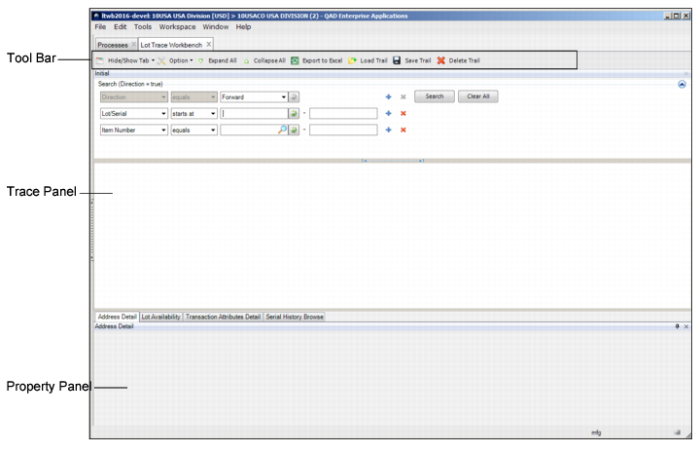
Lot Trace Workbench UI
The Lot Trace Workbench (3.22.6) browse is in Master Data |Inventory Control| Lot/Serial Number Menu |Lot Trace Workbench. The browse consists of the Tool Bar, the Trace Panel, and the Property Panel.
Lot Trace Workbench Browse
Tool Bar
The Tool Bar at the top of the screen contains the following buttons that allow you to customize the UI and to manage the trace trail:
• Hide/Show Tab. This drop-down menu allows you to show or hide the Address Detail, Lot Availability, and Transaction Attribute Data tabs in the Property Panel at the bottom of the screen. By default, all tabs are visible.
• Option. Click to set Level and Max Workfile parameters.
• Level. Enter a value from 1 to 99 to identify the lowest-level record that the code processes the trace to. The default is level 10. For example, if the level is set to 3, the code does not search for any child records lower than level 3. The result set is only from level 1 to level 3. If the level is set to 0 (zero), there is no depth limitation in processing.
• Max Workfile. The default is 500. Maximum number of records allowed in the inquiry workfile. Programs that use workfiles may exceed established memory limits. If this occurs, Progress immediately exits the session. By setting the max workfile limit to a value less than the memory limit (or conversely increasing the memory limit at startup) this uncontrolled exit can be eliminated. If the max workfile is exceeded, no further workfile records are created and a message displays that the report or inquiry has been truncated. Alternately, the number of workfile records created can be reduced by narrowing the range of items selected for the inquiry or report. The workfile size increases with BOM depth, but the default value should be adequate for most installations.
• Expand All. Expand all search results in the trace panel to the lowest level. There are no limitations in the number of levels in the system. Note that inventory transactions, such as inventory transfers, are considered levels as well.
• Collapse All. Collapse all search results in the trace panel to the top level.
• Export to Excel. Export search criteria and all records in the trace panel to Excel. Only the visible columns in the trace panel are exported.
• Load Trail. Load a saved trail. The system brings you back to the original analysis scenario.
• Save Trail. Save the search criteria of the trace and the saved trail so that you can reload it to return directly to the original analysis scenario.
• Delete Trail. Delete a saved trail.
Trace Panel
Contains the search fields and displays the search results. The system organizes the search results using a drill-in structure indicated by an arrow for the level, which can be selected to expand the next level’s transaction. The last transaction level in will not show an arrow.
Property Panel
The Property Panel contains the Address Detail, Lot Availability, Transaction Attribute Data tabs, and Serial History tabs, which provide more detailed information on specific transactions.
• Address Detail. The Address Detail tab shows the supplier data for inbound received products or customer data for outbound shipments. This tab shows the name, address and contact information, and the related transaction number. To view the address details for a supplier, you must search on a lot number.
• Lot Availability. The Lot Availability tab displays the inventory details related to a specific transaction. This tab shows the item number, quantity, location, status, and the related lot-serial number.
• Transaction Attribute Data. When the case-specific lot attributes are associated with an item in an item profile, this tab displays the specific values related with the captured attribute values.
Note: The Transaction Attribute Data tab is only available when the Item Attributes and Quality Control products are installed. It is not necessary to have Quality Control implemented. When Item Attributes and Quality Control are not installed, only the Address Detail and Lot Availability tabs appear.
• Serial History Browse. Available when Serialization is activated in the system. Displays packaging transaction data related to the inventory transaction.