QAD 2017 Enterprise Edition
>
User Guides
>
Master Data
>
Items/Sites
>
Sites
>
Creating Sites
Creating Sites
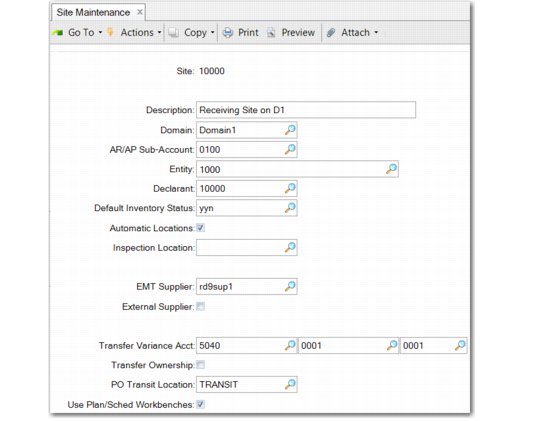
Use Site Maintenance (1.1.13) to set up sites.
Note: The Transfer Ownership field is active only if you are using the optional Supplier Consignment Inventory module. This module is described in
QAD Purchasing User Guide.
Site Maintenance (1.1.13)
Site
Enter a unique identifier for a site. Even though DRP may not be implemented in the immediate future, it is a good idea to make site codes unique across all domains.
AR/AP Sub-Account
Enter a sub-account to use to report financial data by site. The value in this field defaults to the sub-account portion of the AR/AP control accounts on the invoice. If this field is blank, no defaulting occurs. The value in this field overrides any default sub-account values coming from the customer or supplier profile, or any sub-account linked to the default Control GL account on the customer or supplier profile.
This field enables you provide site-level financial data for reporting purposes, even when there are multiple sites within the same entity.
Entity
Specify the entity associated with this site for managing financial activities. Entity defaults from the primary entity associated with the current domain.
Entity codes identify general ledger (GL) transactions for a specific company within a domain. The entity code assigned to the site determines the GL entity for transactions created when inventory is moved into or out of the site.
Declarant
Specify the address code of the declarant who will make Intrastat declarations for inventory movements into and out of this site. Define the declarant with Declarant Maintenance (29.22.1.20). See
QAD Intrastat User Guide for details about Intrastat.
Default Inventory Status
Enter a status code to associate by default with items at this site. See
here for details.
Automatic Locations
Set to Yes if you want the system to create new locations whenever an undefined value is entered in an inventory transaction. See
Automatic Locations for details.
Inspection Location
Specify a code identifying the location where purchased items needing inspection are received.
This field defaults from the Inspection Location field in Purchasing Control (5.24) and sets the default value for the same field in Item-Site Planning Maintenance when new item-site records are defined.
Note: To update the inspection location in existing item-site records to the one specified for the site, use Inspection Location Population 2 (1.25.2).
This inspection location is used during receipts only when Inspection Required is Yes for the purchase order line item.
During receipts, the system searches for an inspection location in this order:
a The inspection location specified for the site and item in Item-Site Planning Maintenance (1.4.17)
b The inspection location defined for the site in Site Maintenance (1.1.13)
c The inspection location defined in Purchasing Control (5.24)
Domain
Enter the code identifying the domain defined in Domain Create (36.1.1.1) that you want to associate with this site. You must specify a valid, active domain that you have access to. The default is your current working domain.
If you change the default, the system ensures that the site does not already exist as a primary site in a different domain, or an error is generated.
Note: The EMT Supplier and External Supplier fields are used by Enterprise Material Transfer (EMT). See
QAD Sales User Guide.
Transfer Variance Account
Enter the GL account code used to track cost variances for inventory transfers between two sites. This must be a valid active account of type Standard.
This account defaults from the Transfer Variance account set up in Domain/Account Control (36.9.24), but you can change it to another account with a standard GL type. Product-line specific accounts can be defined in Inventory Account Maintenance (1.2.13).
Inventory activity typically occurs at the site where orders are processed. However, in a multi-site environment, you can ship, receive, or issue inventory from a different site. If the other site has different costs for an item, a variance occurs.
This variance is posted to the Transfer Variance account. The system uses the following logic to find a Transfer Variance account in relevant inventory transactions:
• A value defined for the item product line and site in Inventory Account Maintenance
• A value defined for the site in Site Maintenance
• A value defined for the domain in Domain/Account Control (36.9.24)
If the two sites are in different entities, an intercompany transaction may also be posted. The system automatically updates costs at both the central and remote sites.
• When the transfer-from and transfer-to sites are in different entities, the system automatically generates the appropriate intercompany balancing entries using the Cross-Company Inventory Control account associated with the current domain and the intercompany codes associated with the entities.
• When the two sites are in the same entity, a balancing debit or credit is posted to the Transfer Clearing account defined in Inventory Accounting Control (36.9.2).
Note: The PO Transit Location field is used by the Logistics Accounting module to store items on PO shippers that are owned by your company but must be paid for before they actually arrive.
Use Plan/Sched Workbenches
Set this field to Yes to enable the .NET UI-only Planning and Scheduling Workbenches for this site.
No: You cannot run the Planning and Scheduling Workbenches for this site. Use Repetitive Menu programs as usual.
Yes: You can use the Planning and Scheduling Workbenches that contain both a master scheduling workbench (MSW) and production scheduling workbench (PSW) for this site.
When a site is enabled to run the MSW and PSW workbenches, Capacity Requirements Planning (CRP) runs as part of MRP for orders that have a P(lanned) status. When CRP runs as part of MRP, the system explodes planned orders as they are created, and lets you access the orders via the work center schedule resource in MSW. So, once a site is enabled to run MSW or PSW, and you run MRP for the site to create planned orders, then within MSW, you can retrieve the orders for the item/site.
Setting this field to Yes also disables the following programs:
• Schedule Maintenance (18.2.1 and 18.22.2.1)
• Schedule Explosion (18.2.4)
• Cumulative Completed Maintenance (18.6)
• Line Schedule Workbench (18.22.1.10)
• Schedule Explosion (18.22.2.4)
• Cumulative Completed Maintenance (18.22.2.6)
• Planned Repetitive Schedule Approval (23.8)