QAD 2017 Enterprise Edition
>
User Guides
>
Master Data
>
Address Data
>
Setting Up Customer Data
Setting Up Customer Data
Use Customer Data Maintenance (2.1.1) to define or modify customer information that is used in operational activities and create an operational address record. Customer records are initially created in Customer Create (27.20.1.1) and associated with the headoffice address of a business relation. Customer Data Maintenance completes the customer definition by creating an operational address record with a list type of customer.
You can also add operational data for ship-to records created in Customer Ship-To Create (27.20.2.1) and linked to a ship-to address of a business relation. These have an operational address type of ship-to.
To complete the setup for a customer so that it is ready for use in transaction processing, click Next through every frame of this program, adding operational data as needed. Only active customers that have complete operational data are available for transactions.
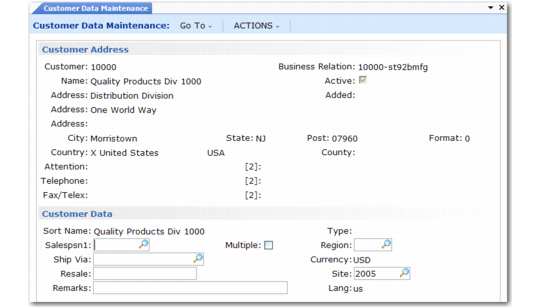
Customer Data Maintenance (2.1.1)
Customer
Specify a customer to modify with sales and operational data. The address information of the business relation associated with the customer displays. You cannot modify it here.
Salesperson
Enter the salesperson who normally receives commission and quota credit for sales to this customer.
Multiple
Enter Yes to specify up to four salesperson codes.
Ship Via
Enter a code identifying the carrier normally used for shipments to this customer. Ship Via is validated against predefined values entered in Generalized Codes Maintenance for field cm_shipvia, if any. It prints on formal documents such as sales quotes, sales orders, packing lists, and invoices.
Resale
Enter the resale identification code assigned to this customer by the government.
Enter resale identification codes for all non-taxable customers.
Region
Enter the region to be used for sales analysis reporting.
Site
This is the default ship-from site for this customer. Typically, enter the site closest to the customer.
In the second Customer Data frame, set up additional data for each customer. The system uses this information during order entry.
Customer Data Frame
Partial OK
The value of Partial OK determines how the system typically processes partial shipments to this customer.
No: The customer does not accept partial shipment. Sales Order Packing List verifies that all line items are allocated and can be completely shipped. If they are not, a packing list does not print for this order.
Yes: A packing list prints and shipments are made when the entire order quantity is not available. The remainder of the order stays in the system as backordered until it can be shipped.
Note: The Partial OK setting is effective only if you use packing lists to control shipping. While it prevents the packing list from printing, it does not prevent you from shipping.
Discount Table
Enter a default discount table for use with scheduled orders for this customer. This discount table must be created using the functions on the Cust Sched/RMA Rcpt Pricing Menu (1.10.3). See
Pricing for more details.
Note: Most sales activities use the price lists and analysis codes defined with the SO/SQ/RMA Pricing Menu. Supplier activities use the price lists defined with the Supplier Pricing Menu. If this customer does not use scheduled orders, this field has no effect on pricing.
Fixed Price
Enter Yes to indicate that prices negotiated with the customer are fixed. Enter No to indicate that prices negotiated with the customer are not fixed. Prices not fixed are subject to batch updates based on changes in price lists.
Daybook Set
Specify the daybook set typically associated with this customer. This is a required field.
Valid daybook sets are defined in either Daybook Set Maintenance (25.8.7) or Daybook Set by Site Maintenance (25.8.10). The default value and validation for this field depend on the setting of Use Daybook Set by Site in Sales Order Accounting Control (36.9.6):
• When Daybook Set by Site is enabled, the system searches for a daybook set that matches the customer default site and sets the customer record to that value. Otherwise, it uses the first daybook set with a blank site. If you change the default, the specified daybook set must be defined in Daybook Set by Site Maintenance either for the customer site or with a blank site value.
• When you are not using daybook sets by site, the control program value is used as the default in new customer records. If you change the default, the system validates the specified daybook set against records defined in Daybook Set Maintenance.
This field defaults to the following programs for records related to this customer:
• Sales Order Maintenance
• Pending Invoice Maintenance
• Sales Order Shipments
• Call Activity Recording
• Call Invoice Recording
• RMA Maintenance
• RMA Receipts
• RMA Shipments
You can update the default in those programs.
Daybook sets are used to group individual daybooks used during the order cycle. For example, the invoice post and print process uses the customer invoice daybook specified in the associated daybook set to generate an invoice number.
See
QAD Financials User Guide for details about daybooks.
Class
Enter the class code that indicates the customer priority. When you cannot fill all orders, items can be allocated by customer class.
SIC
Enter the standard industrial classification (SIC) code associated with this customer. These codes are widely accepted classifications for categorizing companies into industry groupings.
This reference-only field displays on selected reports and inquiries.
Invoice by Authorization
This read-only field is set in the Customer Create function; it indicates how invoice totals should be calculated and displayed for this customer.
No: Invoice totals are calculated by line. This is the typical method for calculating totals, unless the customer is using AR Self-Billing.
Yes: Invoice totals are calculated by authorization number. The printed invoice includes the price and amount for each authorization line as well as the total for all authorization lines. The extended price for each invoice line item is not displayed.
RSS Calendar Option
Specify which calendar to use when the system generates required ship schedule (RSS) for customer scheduled orders. This field defaults from Container/Shipper Control (7.9.24). See
QAD Scheduled Order Management User Guide for information on schedule processing.
1 (the default): Use both the customer and shop (manufacturing) calendars to create the RSS. The system searches for calendars in this order:
• Ship-to-specific calendar
• Customer-specific calendar (if the ship-to is different from the customer ID)
• Default customer calendar
• Site-specific shop calendar
• Default shop calendar
2: Use only the customer calendar to create the RSS. The system uses the first three elements from the above list to search for customer calendars. The system makes no calendar adjustments if it cannot find a customer calendar of any type.
3: Use neither the customer calendar nor shop calendar. The system creates schedule dates without any calendar adjustments.