QAD 2017 Enterprise Edition
>
User Guides
>
Planning and Scheduling Workbenches
>
Overview
>
Common Features
>
Customizing Views
Customizing Views
A number of components of the workbenches can be customized:
• Layout of grids and panels
• Repositioning/hiding tabs
• Resizing panels
This section discusses each type of customization as well as saving your view.
Saving Views
You can also save customizations as a View when you change the layout of:
• Grid column settings
• MSW Schedule Grid and Capacity Panel
• PSW Sequence Grid and Production Order Browse Panel
Repositioning/Hiding Tabs
You can move a tab on a workbench to a new location or hide a tab that you typically do not use. Repositioning/hiding the following workbench tabs can be saved as part of a view:
• Supporting panels
• PSW, MSW, or Shortage Report tabs
If you are working in any of the supporting programs that display at the bottom of the workbenches, and the program has multiple tabs, you can right-click on the tab, then select the Auto Hide option to display only the data in that tab. For example, when working in Production Order Maintenance, you want to focus only on the dates and times of operations for a particular order. You select the order on the left side, then select the Date/Time tab on the right side. You right click to select Auto Hide so that only the date and time data for that order displays on the right side. You can save auto-hidden areas as part of your view.
Resizing Panels
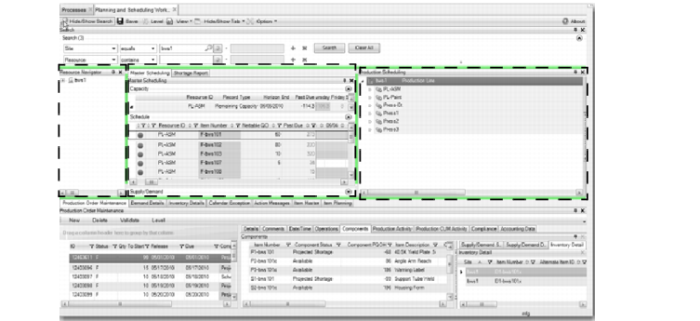
You can resize a panel to accommodate viewing by grabbing the panel’s perimeter and dragging the panel to the size that you want. You can then save your resized panels as part of your view. The following figure shows panels with dotted lines around them that can be repositioned and saved as part of the view.
Panels to Resize