QAD 2017 Enterprise Edition
>
User Guides
>
Planning and Scheduling Workbenches
>
Overview
>
Common Features
>
Filters and Browses
Filters and Browses
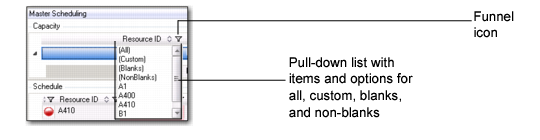
In the various grids and panels, you can apply filters to the columns that display by clicking the funnel icon. Click the funnel icon to display a pull-down list with items displayed for the column along with options for (All), (Custom), (Blanks), and (NonBlanks). This is a standard .NET UI filtering mechanism.
Filter
• To display all data, choose (All). This is the default.
• To include custom criteria, choose (Custom).
• To include only blank items, choose (Blanks).
• To display everything except blank items, choose (NonBlanks).
• For a particular item, select the item from the list.
To define a custom browse, click the funnel icon, then choose (Custom). The Enter filter criteria pop-up menu displays. By default, the menu includes an initial criteria. You can add additional criteria by selecting Add a Condition, then selecting an operation.