Set Up Workbenches Controls
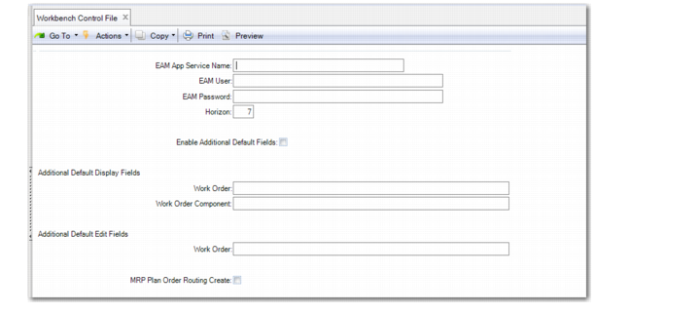
Use the Workbench Control File (22.20.24) to set defaults and other controls for the Planning and Scheduling Workbenches and the Component Availability browse collections.
You can set controls for the workbenches to work with Enterprise Asset Management (EAM) and set defaults for the Component Availability horizon and to enable the workbenches personalization architecture.
Workbench Control File (22.20.24)
EAM App Service Name
Enter the name of the AppServer service name entered in AppServer Service Maintenance (36.19.1).
If the entry created in AppServer Service Maintenance has wrong values or there are other technical problems encountered in trying to connect to or make calls to the EAM AppServer, the system generates exception data that is written to the NETUI log file. The exception data contains information about the operation being attempted and the failure reasons.
EAM User
Enter a valid EAM user name. This is used to log in to the EAM AppServer.
EAM Password
Enter the EAM password. This is used to log in to the EAM AppServer.
Horizon
Enter the default for the number of days into the future within which the Component Availability calculations consider MRP detail data. This applies to the Component Availability Collections and not the workbenches. For the workbenches, there is a similar field in the user preferences (refer to
MSW User Preferences). The system counts the number of days from the due date of the production order, not the release date.
Enable Additional Default Fields
Enter Yes to enable additional default fields. When set to Yes:
• You can enter a list of additional default fields to display in the Work Order or Work Order Component panels.
• The system sends the additional default fields lists to the client.
Additional Default Display Fields:
Work Order
Enter a list of additional default fields to display in the Work Order panels.
Work Order Component
Enter a list of additional default fields to display in the Work Order Component panels.
Additional Default Edit Fields:
Work Order
Enter a list of additional default fields to display/edit in the Work Order panels.
MRP Plan Order Routing Create
Select Yes to have the system create routing details when MPR creates planned orders. The default is No, so the system does not create detailed records as the default, improving performance.