MSW Scheduling Preferences
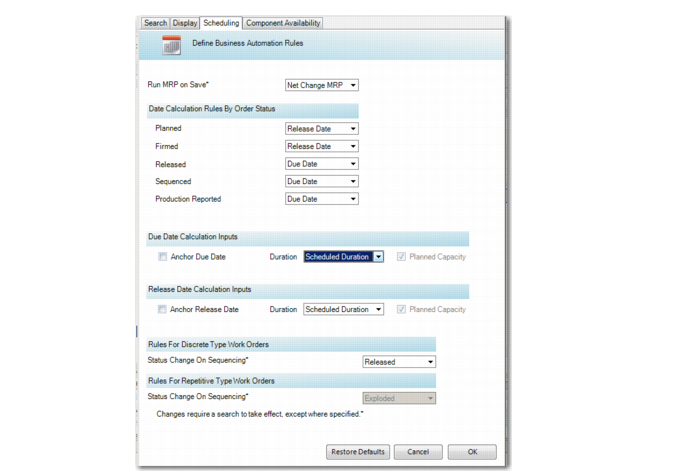
QAD EE applies a set of rules based on the production order status. You can set preferences for the rules under the Option menu in the toolbar. Select Preferences, then Scheduling.
MSW, Scheduling Window
For MSW, you can set options to:
• Run MRP on save.
• Select the method for date, due date, and release date calculations.
Run MRP on Save
Run MRP on Save
Optionally, you can run MRP when you save your changes in MSW. Choose from:
Select Net Change MRP: The system runs MRP for all changes made within MSW.
None: MRP is not run when saving changes.
There are additional steps required to run MRP:
• Set up a batch in Batch ID Maintenance (36.14.1). Set the following fields:
• Set Permanent to Yes.
• Set the Priority to your desired priority.
• Run Net Change Materials Plan (23.1) with the Batch ID and the set of values that you want to run for MSW / PSW.
• Run Batch Request Processor (36.14.13) in the background. Set the following fields:
• Set the Batch ID.
• Set Repeat Processing to Yes.
• Set Pause Seconds before Report to your preference.
Select the Method for Date Calculations
The fields for date calculations are grouped under the following headings in the Scheduling tab of User Preferences, and each heading has several different fields:
• Date Calculation Rules By Order Status
• Due Date Calculation Inputs
• Release Date Calculation Inputs
The Date Calculation Rules by Order Status section has the following fields. You can select either Due Date or Released Date for each field. The fields have their own rules that inform the system which date to calculate when the order is in that particular status:
Planned.
When the order has a P(lanned) status and the system calculates dates, the date (due versus release) assigned here is the date calculated.
Firmed
When the order is in F(irm), E(xplode) or A(llocate) status, and the system calculates dates, the date (due versus release) assigned here is the date calculated. The default is the release date.
Released
When the order is in R(eleased) status, and the system calculates dates, the date (due versus release) assigned here is the date calculated. The default is the due date.
Sequenced
When the order has been sequenced and the system calculates dates, the date (due versus release) assigned here is the date calculated. This setting takes precedence over the Planned, Firmed, and Released user preference settings. The default is the due date.
Production Reported
When the order has production reported, and the system calculates dates, the date (due versus release) assigned here is the date calculated. This setting takes precedence over the Sequenced, Planned, Firmed, and Released settings. The default is the due date.
The Due Date Calculation Inputs section has the following fields:
Anchor Due Date
When Yes, the due date stays fixed during date calculations, unless you select the due date to be calculated.
Duration
Select the type of duration. Note that order duration changes happen differently based on whether you select Projected or Scheduled duration.
Scheduled: When Scheduled, the system uses the value in the production order Scheduled Duration field to calculate order dates. This value is usually the item’s manufacturing lead-time.
When you make the following changes in status and duration and select Scheduled, the system calculates/recalculates dates:
• Firm an order
• Change a date that causes another date to recalculate
For example, when you set user preferences for firm order recalculate release date; then, change the due date, the system recalculates the release date.
• Initiate a date calculation by right clicking the menu in the grid, which causes the system to recalculate the release date, based on user-preference settings.
• Manually change the Scheduled Duration field on the production order. The system recalculates either the release or due date, based on preference settings.
Projected: When Projected, the system uses the value in the production order Projected Duration Days field to calculate order dates. Projected Duration is calculated based on required capacity and various other inputs.
When you make the following changes in status and duration and select Projected, the system calculates/recalculates dates:
• Firm an order
• Make changes that affect required capacity for the order, such as quantity, run time, setup time, run rate, number of resources changes, and so on.
• Make changes that directly affect projected days. such as duration buffer, number of lines changes, and so on.
• Make changes to the direct date changes as described for the Scheduled preference when you change a date or initiate a date calculation/recalculation
Planned Capacity
When Yes, a date’s planned capacity is used to determine whether a work order can be scheduled for that date.
The Release Date Calculation Inputs section has the following fields:
Anchor Release Date
When Yes, the release date stays fixed during date calculations, unless you select the release date to be calculated.
Duration
Set the type of duration:
Scheduled: When Scheduled, the system uses the value in the production order Scheduled Duration field to calculate order dates. This value is usually the item’s manufacturing lead-time.
Projected: When Projected, the system uses the value in the production order Projected Duration Days field to calculate order dates. Projected Duration is calculated based on required capacity and various other inputs.
Planned Capacity
When Yes, the system uses a date’s remaining planned capacity to determine whether a production order can be scheduled for that date.