EAM Visual Indicators
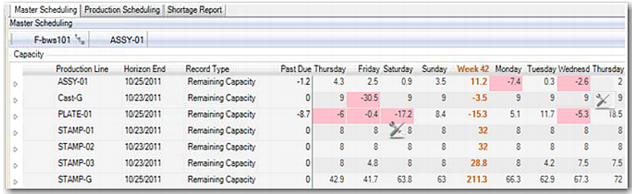
The Planning and Scheduling Workbenches let you know of the presence of EAM orders by displaying icons in the Remaining Capacity row of the Capacity Grid. There are two different icons that can display depending on the status of the associated EAM orders. The icons can display in any of the cells in the row, depending on whether there are EAM repair orders with particular attributes for that date.
The icons display in the Capacity Grid to let you know that there are EAM orders that might affect manufacturing capacity; however, there is no actual reduction in capacity in the workbenches.
Visual Indicator Summary
|
Indicator
|
Meaning
|
|
There is at least one closed EAM order and no open EAM orders for that date.
|
|
There is at least one open EAM order for that date.
|
When more than one EAM record exists on the same release or due date with different statuses, the system displays the most severe icon. In most cases, this is the active or red icon indicator. For example, EAM order A has a start date of Monday and a closed status. EAM order B has a start date of Monday and an open status, so the system displays the EAM icon per EAM order B.
The following depicts the icons in the Capacity Panel.
.
EAM Icons