Installing QAD Enterprise Edition
1 Stop the environment.
yab stop
2 If your system includes EAM and you are upgrading to EAM 2017.1, you must perform a delayed installation of EAM 2017.1.
yab -install-update:false install eam-yab-compatible-VERSION.zip
If your system includes EAM 2016.1 or EAM 2017, you must install the EAM patch specific to your EAM version before proceeding. Download the patch from QAD and then execute the following command:
• EAM 2016.1: yab install eam-patch-13.1.2.x.zip
• EAM 2017: yab install eam-patch-13.2.1.x.zip
3 Perform a delayed installation of Enterprise Edition 2017.
yab -install-update:false install <2017EE directory>
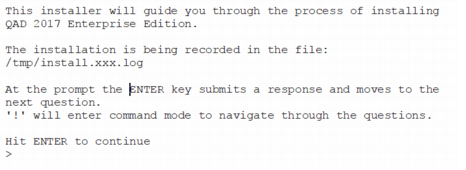
a The Enterprise Edition installer starts. Press Enter to proceed with the installation.
Note: The installer has a command mode that allows you to go back to previous questions, proceed to the next question, quit the installation, or return to interactive mode. You can move to command mode at any prompt by entering an exclamation point, !.
Installer Welcome
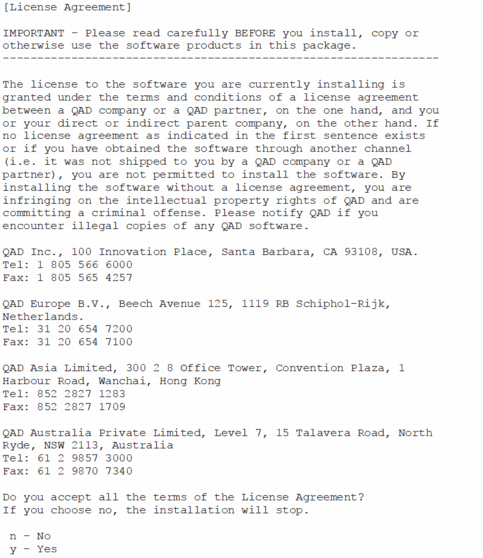
b Read and accept the software license agreement to proceed. If you do not accept the license agreement, the installation stops.
License Agreement
c Enter the Enterprise Edition install location.
Enterprise Edition Install Location
d Specify the Progress OpenEdge location.
Progress OpenEdge Location
e Specify the Java location.
Java Location
f Enter the Python interpreter location.
Python
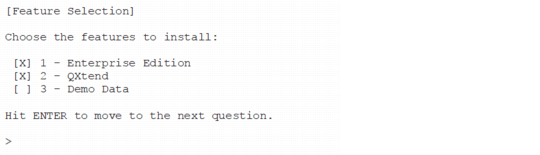
g Select the features to install. An X next to a feature indicates that it will be included in the installation. To add or remove an X, type the number that corresponds to the feature and press Enter.
Note: Demo Data is sample data you can install for use in a test environment. An installation with Demo Data takes considerably longer than an installation without the additional data.
Features
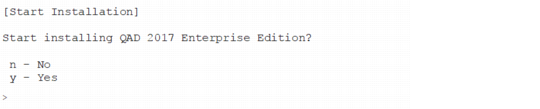
h The installer prompts you to start Enterprise Edition installation. Enter y to begin the install.
Start Enterprise Edition Installation?
i The installation begins. Status messages show the progress of the installation. Wait for the install to finish. When it is complete, you should see an INSTALL SUCCESSFUL message.
Note: The delayed installation should take about 10 minutes.