Setting Migration Defaults
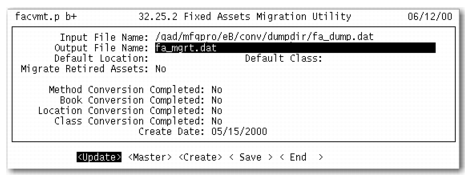
Choose Update to set up the default parameters for your migration.
Use the Default Location and Default Class fields to specify a legacy location and class to default for legacy assets that do not already have this information. The location and class must be part of the legacy data. You can run the Fixed Assets Migration Report (32.25.3) to generate a list of your legacy classes and locations.
Set the Migrate Retired Assets field to Yes to migrate retired legacy asset data. Set the field to No to exclude retired assets from the migration.
Fixed Assets Migration Utility (32.25.2)
1 The Input File Name field defaults to fa_dump.dat. Enter only the file name. If you specified a different file name in the MFG/CONV environment prompts, specify the file name for your legacy data dump file. Press Enter to continue.
2 Select the Update option and press Enter.
3 In the Output File Name field, specify the full path, including the file name, to the location where you want to store your migration file. Use this file to store your work as you map the legacy data to the new fixed assets model. The default file name is fa_mgrt.dat.
4 In the Default Location field, enter a default legacy location ID. Fixed asset location IDs refer to the accounting location of the fixed asset. This location does not have to be the physical location of the asset.
5 In the Default Class field, enter a default legacy class ID.
Classes group similar fixed assets together and define:
• GL accounts
• Depreciation books
• Service lives for calculating depreciation
• Depreciation methods
6 In the Migrate Retired Assets field, enter Yes to migrate retired assets to the new system. Enter No if you do not want to migrate retired assets.