Converting Classes
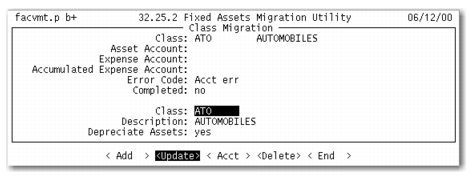
Use Class Migration to convert legacy classes to classes used in the enhanced Fixed Assets module and set up default GL accounts. To convert legacy classes, refer to the following figure and instructions.
Class Migration
1 Use the arrow keys to scroll through the legacy classes. The legacy class ID, description, Asset Account, accumulated depreciation account, and depreciation expense account display. For each legacy class, the class ID and description are automatically filled with the legacy data.
2 If an asset does not use this class, select the Delete option and press Enter to remove it. The system verifies that the class is not used and prompts to confirm the deletion.
3 To convert the legacy class, choose Update and enter whether this fixed-asset class is depreciated.
4 Select the Acct option and press Enter to modify the default GL accounts for the fixed-asset class.
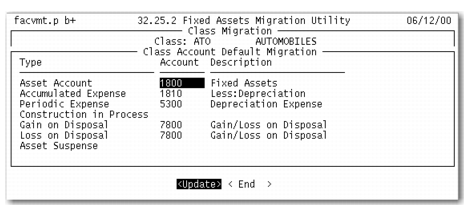
Class Account Default Migration
5 For each class, specify a GL account for the following accounts:
• Asset Account
• Accumulated Expense
• Periodic Expense
• Construction In Process
• Gain on Disposal
• Loss on Disposal
• Asset Suspense
6 If any fixed-asset accounts are undefined, the Error Code field displays acct err.
7 After you correct any errors, the Completed field updates to Yes for the converted class.
8 Repeat steps 1 through 7 for each legacy class.