Managing Report Definition Files
In the Report Designer, you can create, load, and delete report definition files, as well as edit them either in the WYSIWYG (What You See Is What You Get) or code edit mode.
Creating a New Report Definition
Click the New button on the Report Definition toolbar. Report Wizard takes you through the process of creating a basic report definition. Click the Save icon on the toolbar to save the definition as an XML file. For details on creating a basic report definition using Report Wizard, see
Creating a Report Definition.
Loading an Existing Report Definition File
Click the Open button on the toolbar; then in the Select Report Definition window, double-click the report definition you want to load. The Select Report Definition window also let you enter search conditions to search for the report definition you want to load.
Using Report Definition Manager
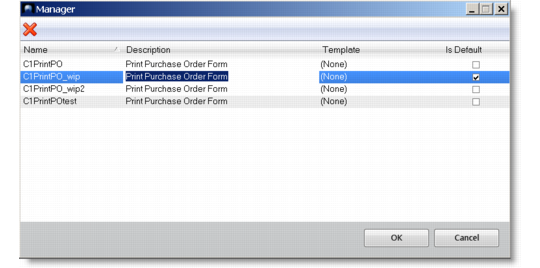
You can use Report Definition Manager to delete existing report definitions as well as modify some of their attributes.
Report Sections Example
To launch Report Definition Manager
Click the Manager button on the toolbar.
To delete an existing report definition
In the Manager window, click the report definition and then click the Delete button at the top. Confirm the deletion when prompted.
To select a different template for a report definition
Click the current template next to the report definition and select a different template from the list. The layout and formatting of the report definition will be changed after you assign a different template to it.
To set the default report definition for the report resource
Select the Is Default check box for the report definition. You must set one and only one default report definition.
When you open the report resource from the Applications menu tree, the default report definition is loaded.