Grouping and Sorting
You can organize the data in your report by grouping and sorting data, using running sums, and creating aggregate expressions.
Grouping and Sorting Data
After designing the basic report layout, you may decide that grouping the records by certain fields or other criteria would make the report easier to read. Grouping allows you to separate groups of records visually and display introductory and summary data for each group. Groups are also used for sorting the data, even if you do not plan to show the Group Header and Footer sections.
You can also specify how each group should be sorted using the group’s GroupBy and Sort properties.
To add or edit the groups and specify the sorting rule in the report
1 In Report Designer, right-click a report under the Reports tab in the toolbox; then select Sorting and Grouping from the shortcut menu.
Select Sorting and Grouping
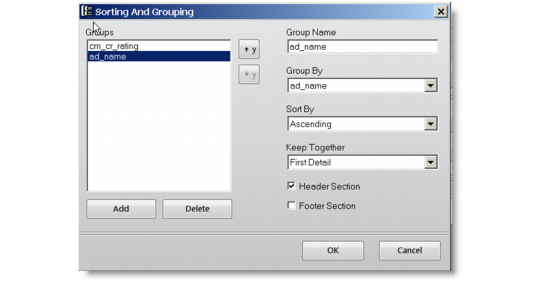
2 The Sorting and Grouping dialog box appears. Use this dialog box to create, edit, reorder, and delete groups.
Sorting and Grouping Dialog Box
3 To create a group, click the Add button and set the properties for the new group. The Group By field defines how the records will be grouped in the report. For simple grouping, you can select fields directly from the drop-down list.
4 Next, select the type of sorting you want (Ascending in this example). You can also specify whether the new group will have visible Header and Footer sections, and whether the group should be rendered together on a page.
5 If you add more fields, you can change their order using the arrow buttons on the right of the Groups list. This automatically adjusts the position of the Group Header and Footer sections in the report. To delete a field, use the Delete button.
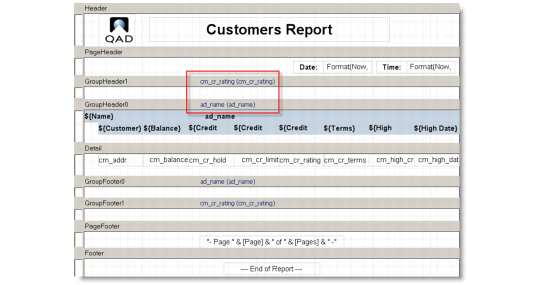
6 Once you are done arranging the fields, click OK to dismiss the dialog box and see the changes in the Designer. On the top of the new sections there are labels that contain the section name and the value of the group’s GroupBy property.
New Group Section
Adding Running Sums
You can easily maintain running sums over groups or over the entire report.
To keep running sums over groups:
1 In Report Designer, open the report definition you want to design.
2 Switch to the Item tab in the toolbox and click Calculated Field under the Common Components group.
3 The VBScript Editor displays. Enter the following script:
Sum(FieldToSumUp)
Where FieldToSumUp is the name of the field you want to sum up.
4 Move the mouse pointer over to the GroupHeader section of the report and the pointer changes into a cross-hair. Click and drag to define the rectangle that the new field will occupy, and then release the button to create the new field.