Revenue Contract Opening Balance
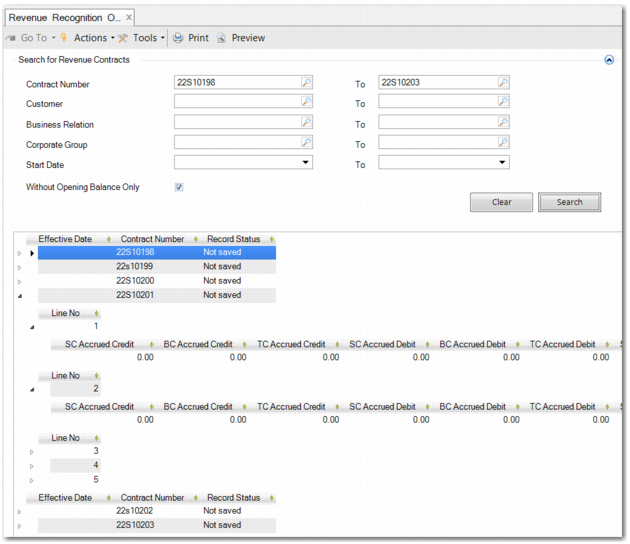
Revenue Contract Opening Balance (37.1.25) enables you to enter opening balances or to load revenue contract data to an Excel spreadsheet and add opening balances in Excel. When you have added the opening balances, you can then load them back into Revenue Contract Opening Balance (37.1.25) and save them.
Revenue Contract Opening Balance
Use the search fields to find revenue contracts that require opening balances.
Contract number
Enter a revenue contract number range to search for.
Customer
Enter the customer codes assigned to the revenue contracts.
Business Relation Name
Specify the business relation code used on the customers used on the contract.
Corporate Group
If customers have been grouped into corporate groups, you can search for contracts using corporate group codes.
Start Date
Specify the start date of the contract.
Without Opening Balance Only
Select this field to exclude contracts that already have opening balances assigned to them.
When you have completed the fields, click Search to display relevant revenue contracts in the grid.
Adding Opening Balances Manually
To enter or to modify opening balances, drill down to the revenue contract sales order line and trailer charges. No opening balances are required for the performance obligation level or the contract level. Enter opening balances for:
• Accrued revenue
• Deferred revenue
• Recognized revenue
• Invoice redistribution
For these revenue types, the opening balances must be broken down into credit and debit values. You must also enter the opening balances in transaction, base, and statutory currency.
The Effective Date field in the grid is blank for a revenue contract without an opening balance. In this case, you must manually enter an effective date for the opening balances of the revenue contract.
When you have entered the opening balances, you can click Save.
Note: After revenue calculation has run on the contract for the first time, you can no longer update the opening balances.
Adding Opening Balances Using Excel
You can also export the revenue contracts to Excel by choosing Export to Excel in the context menu. You can add or modify balances and import the spreadsheet back into the program by choosing Import from Excel. You can then save the balances.