QAD 2017 Enterprise Edition
>
User Guides
>
Service/Support Management
>
Contract Billing
>
Releasing Contract Invoices
Releasing Contract Invoices
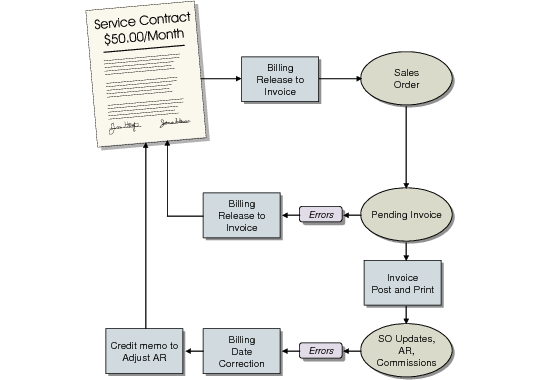
Use Billing Release to Invoice (11.5.18.13) to generate sales orders that serve as pending invoices for selected contracts with lines that are ready to bill. Print and post these pending invoices with functions on the Sales Orders/Invoices menu. Billing cycle codes control when a given contract generates a pending invoice.
The content of contract invoices is determined by the value of Bill Summary for the contract. The billing address is determined by the value of Bill End Users.
Billing Cycle Flow
The system maintains a transaction history (ISS-SO) for contract billing. If Keep Contract History is Yes in SSM Accounting Control, ORD‑SO transactions are also maintained.
To prevent billing problems, execute Billing Release to Invoice with Update set to No and Print Report set to Yes before you actually generate invoices. This creates a report listing contracts that would be selected, without updating them. When you have verified the contracts and billing, you can re-execute the function to generate the pending invoices.
The amount to invoice is based on the contract line price, quantity, and billing cycle. Prices for contract line items are stated as the price of service coverage for one installed unit for one month. To calculate the invoice amount, the system multiplies the line-item price by the number of units covered, and multiplies the result by the number of months in the specified billing cycle.
To indicate that a contract has been billed, Billing Release to Invoice updates the Coverage and Last Bill fields on the contract detail. When all contract lines have been fully billed for the contract header billing cycle, the contract header is updated to the next coverage date, and Last Bill and Next Bill are updated. You must run Billing Release to Invoice at least once during each contract billing cycle to update Coverage and Last Bill dates.
Billing Release to Invoice does not create any GL transactions. These are created by Invoice Post and Print (7.13.4) and Revenue Recognition (11.5.18.21).
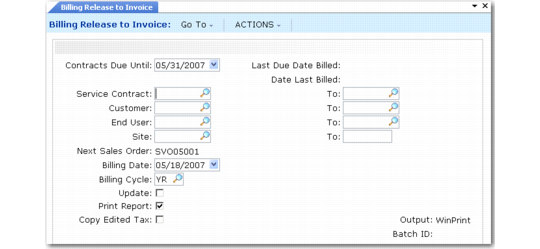
Billing Release to Invoice (11.5.18.13)
Contracts Due Until
This date serves as the cut-off date used to determine the last day of the billing period.When Bill Arrears is No, lines are billed when the detail coverage start date or next bill date is the same as or earlier than the due date. When Bill Arrears is Yes, due date must be after the coverage end date.
Last Due Date Billed and Date Last Billed.
These fields are output only. Date Last Billed is the date the Billing Release to Invoice was last run. Last Due Date Billed is the date that was previously in the Contracts Due Until field. Whenever you run the release program, the system updates these dates.
Service Contract and To
Beginning and ending numbers determine the range of contracts to be billed.
Customer and To
Beginning and ending address codes determine a range of contracts to be billed.
End User and To
Beginning and ending address codes determine the range of contract lines to be billed.
Site
Optionally, enter a range of site codes for selecting contracts to bill. Leave blank to include all contracts that meet the other selection criteria.
Note: You must have site security access to all sites in the range.
Next Sales Order
This output-only field indicates the first sales order number to be generated when Update is Yes. This number is found in Contract Control.
Note: If you want to differentiate contract billing from other sales orders, set them up with a unique sales order prefix in the control program.
Billing Date
Enter the date the system should use as the order date for the pending invoices generated for selected contracts. The default is the system date.
Billing Cycle
Optionally, enter a billing cycle code to select contract lines for billing. Set up cycle codes in Billing Cycle Code Maintenance. Leave Billing Cycle blank to generate invoices for lines regardless of billing cycle.
Update
Set Update to No and Print Report to Yes to view a report of what will be billed without generating invoices.
Note: When you select Update and certain settings are in force in Legal Document Control (7.10.24), the system creates a shipper rather than a pending invoice. The next screen displays a shipper ID, which is then printed in the report. You can confirm the shipper in SSM/LD Contract Shipper Confirm (11.5.13.26).
Print Report
Enter Yes to print a report listing contract lines billed. Set Update to No and Print Report to Yes to generate a simulation of contract lines that would be billed based on the current input selections.
For each contract line billed, the report lists the contract number, pending invoice number associated with the line, service type, end user, line number, covered item, item quantity, duration being billed, currency, price, and extended price (quantity * duration * price).
Copy Edited Tax
Indicate how you want the system to manage tax amounts that were modified in Contract Maintenance:
No: Taxes are recalculated based on current tax data, overwriting any manual changes previously entered.
Yes: The system copies the edited amounts to the pending invoice and uses them in the billing calculation.
When Update Tax Allowed is Yes in Tax Rate Maintenance (29.4.1) for a tax rate, you can modify the taxable base (amount subject to tax) and calculated tax amounts in Contract Maintenance. To change any other tax details, you must update the related fields on the order or modify the tax setup data.
SSM/LD Contract Shipper Confirm
The following settings in Legal Document Control mean that a shipper is created in Billing Release to Invoice:
• The Legal Document Form Code field contains the value 51.
• The Enable Electronic Legal Doc field is selected.
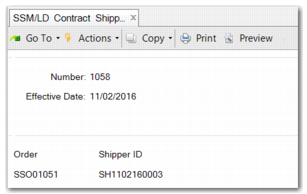
To assign numbers to the legal documents for the contract, you run SSM/LD Contract Shipper Confirm (11.5.13.26). The fields in SSM/LD Contract Shipper Confirm are:
Number
Enter the contract number that you created in Contract Maintenance.
Effective Date
The date of this shipment. The default is the system date. The effective date determines the date of the GL transaction to inventory. The effective date has no effect on the inventory balance update, which is updated immediately.
When you click Next, any shipper IDs associated with the contract are displayed.
SSM/LD Contract Shipper Confirm (11.5.13.26)
When you click Next, the following fields are displayed:
Carrier/Ship Via/FOB Point/Mode of Transport/Carrier Shipment Ref/Vehicle ID/Payment Type/Carrier Account
These fields appear on various printed documents.
Multi
Set the Multi field to Yes if this shipment requires more than one carrier. The system prompts you for additional carriers.
Document Format
Enter a valid document format of a type applicable to shippers, or leave this field blank. If the document format is edited for a shipper marked as having been printed, the system issues a warning message, but lets you continue.
Consolidate Ship
Consolidate indicates whether this shipment can be consolidated by transactions of a given type. Enter No to prohibit consolidation. Enter Optional to allow but not require consolidation. Enter Yes to require consolidation.
Language
The Language field contains the default language for retrieving header, line item, and trailer comments with the shipper.
Comments
Choose Yes in Comments if you want to attach any information about this document. The Master Reference field defaults to the document format of the shipper, and the Language field defaults to the language of the shipper. This enables you to copy comments associated with the document format to the line item of the shipper.
When you click Next, you can enter further complementary data.
Driver
Optionally enter the driver name of the carrier’s vehicle. This field is for reference only and appears on some legal documents.
License Number
Optionally enter the license number of the carrier’s vehicle. This field is for reference only and appears on some legal documents.
Print Comments
Specify whether to print shipper comments on the legal document.
Print Legal Document with Shipper
Choose Yes to immediately print the legal document along with the shipper. If you choose No, you can print the legal document later using Legal Document Print (7.10.4).
This value defaults from the Print Legal Document option in Legal Document Control (7.10.24).
Number of Copies
Specify how many copies of legal documents you want to print.
Volume
Enter a code indicating the amount of space the inventory occupies.
Volume UM
Enter a unit of measure in which the net weight is expressed, such as CF, SF, CM. This field is validated against predefined values entered in Generalized Codes Maintenance for field pt_size_um, if any.
Legal Doc Detail Maint
Select this field when you want to verify or change the fiscal data. The fiscal data in the shipper is used in the legal document.
On the next page, you can assign the legal document number.
Sequence ID
When prompted for a legal document sequence ID, accept the default sequence ID or specify another one assigned to the current site, and press Enter to proceed.
When you click Next, the shipper is confirmed and the legal document number is assigned.
SSM/LD Contract Shipper Unconfirm (11.5.13.27) enables you to unconfirm the confirmation. Enter the ship-from ID, the original shipper that was generated in Billing Release to Invoice, and the relevant dates. This program cancels the legal document and creates a debit note on the financial side.