QAD 2017 Enterprise Edition
>
User Guides
>
Service/Support Management
>
Call Management
>
Creating a Parts List
Creating a Parts List
Parts List Maintenance (11.1.10) enables you to create and maintain a list of parts for an item referenced in a Call Maintenance (11.1.1.1) call line.
After you enter the call ID for which to define the list of parts, the system loads the corresponding item and end user. You can then define the relevant call line number and begin building a parts list.
You can create a new parts list or base the parts list on an existing Bill of Materials (BOM). The system displays an existing BOM, if one was already associated with the call line. However, you can update this value. If you change the default BOM, the call line in Call Maintenance is also updated. When you specify or update the BOM code in Parts List Maintenance, the system displays a scrolling frame that lists its constituent parts. You can then add any other required parts to that list.
If any items on the parts list are unavailable, you can generate a material order for them. The system then associates the material order with the call line defined in the header. You can create a single material order for each parts list line, but a parts list in total can have multiple material orders. If you create a material order for a line on the parts list, the line cannot be edited in Parts List Maintenance. You must use Material Order Maintenance (11.11.1).
The Consumed field next to each parts line indicates which items have been placed on a Call Activity Recording (CAR) report. If you select an item row that has not been placed on a CAR report, an additional frame displays, enabling you to edit the Item Number, Quantity, and Material Order fields for the parts line. You can also delete a part from the list if it has not been placed on a CAR report.
When you have defined the parts list, you can optionally save it as a new service BOM code/service structure. If you select Yes, you must enter a new BOM code, a start effective date, and an end effective date. You must also define the engineer who requires the part and a ship-to address ID.
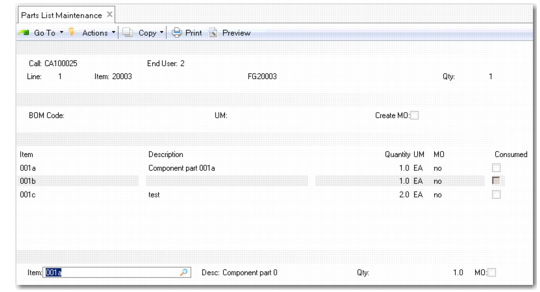
Parts List Maintenance (11.1.10)
Call
Specify the call for which you want to define a list of parts. The call ID identifies a call as it moves through its life cycle. The call must already be recorded in Call Maintenance.
End User
Displays the end user who initiated the call. This value defaults from Call Maintenance.
Line
Specify the call line for which to define a list of required parts.
Item
Displays the item that requires service.
Qty
Displays the quantity of the item on the call line.
BOM Code
Displays the BOM code defined for the item. This defaults from the call line’s BOM code.
You can update the default BOM code to another code. This action also updates the call line in Call Maintenance.
UM
Displays the unit of measure for the BOM.
Create MO
Select the field to create material orders for all items on the BOM.
If you do not select the Create MO field at this stage, you can still create MOs for individual parts by selecting and editing the lines (if the items have not been placed on a CAR report).
Note: When you associate a material order with a line on the parts list, you cannot edit the line in Parts List Maintenance. Use Material Order Maintenance to make any subsequent changes.
Item
Displays the items that comprise the BOM.
Description
Displays a description of the item.
Quantity
Displays the quantity of the item required for the BOM. You can edit the quantity by selecting the line, which opens the record in the end frame of the screen.
MO.
Indicates whether a material order has been generated for the item. If generated, the field will display the associated material order number. If the field is selected, a material order will be created for that item. If no material order has been generated, you can edit the value in the field by selecting the line, which opens the record in the end frame of the screen.
Consumed
Indicates if the item has already been placed on a CAR report. If you select an item row that has not been placed on a CAR report, an additional frame displays, allowing you to update the item number, quantity, and Material Order field. You can also delete a part from the list, if it is not on a CAR report.
Item
You can add to the parts list by specifying an item number that is not already on it. The new item record is then added to the list.
Qty
Enter the quantity for a new parts list item. If an existing item has not been placed on a CAR report, you can update its quantity also.
MO
Select the field to create a material order for the item.
If you add new items to a BOM or create a completely new parts list, you can save the parts list as a new BOM service structure.
Save as New BOM Dialog
If you select Yes, a pop-up window opens that enables you to specify the new BOM code.
New BOM Code Pop-Up
BOM Code.
Specify the new BOM code.
Start Effective
Specify the date from which the new BOM code is effective.
End Effective
Specify the date on which the new BOM code will become inactive.
If a material order has been created for any part in the new service structure, the Generate Material Order Frame frame displays, which lets you specify the information used to create the material order.
Generate Material Order Frame
Engineer
Specify the engineer who requires the new part. The default value is the engineer associated with the call line.
Ship-To
Specify the destination for the material order. It can be the engineer’s address or an associated end user address.
Required Date
Specify the date on which the engineer requires the part. The default is the call’s next status date.
Required Time
Specify the time the engineer requires the part.
Due Date
Specify the date on which the part is due. The default is the call’s next status date.