Determining ATP without a Confirmed Order
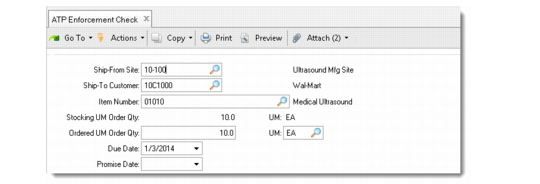
Use ATP Enforcement Check (7.1.19.2) to display ATP information, including alternate due dates and ATP quantities, without entering an order. You can select according to customer, item, site, quantity, due date, and promise date.
This inquiry displays the same ATP information as the Master Schedule Summary Inquiry (22.18). However, because this function lets you select according to customer, the system also considers the ATP of reserved inventory for customers associated with reserved locations. This means that the quantity on hand displayed when you run Master Schedule Summary Inquiry may not be the same as the value displayed using this program.
See
QAD Master Data User Guide for information on locations.
ATP Enforcement Check (7.1.19.2)
You can use the date fields as follows:
• When you do not enter a due date or promise date, the system calculates the earliest possible due date for the quantity specified for the site and customer.
• When you enter a due date without entering a promise date, the system accesses transit time data and calculates forward to determine a promise date.
Note: Calculate Promise Date must be Yes in Sales Order Control (7.1.24) for this feature to work.
• When you enter a promise date without entering a due date, the system accesses transit time data, if any, and calculates backward to determine a due date.
If the calculated due date is earlier than the current system date, the current system date defaults.
Note: If you enter a promise date only and transit-time data for the site and customer is not entered in Delivery Transit Time Maintenance (2.16.1), an error occurs.
When quantities of the item are available for the due date, ATP information displays and a message confirms availability. When quantities are not available, you can choose to review other due dates or quantities, review master schedule data, or determine the earliest possible due date.