Unconfirming Shippers
Some countries such as Italy and Brazil require that confirmed shipment documents can also be unconfirmed.
Use Shipper Unconfirm (7.9.21) to reverse most actions performed by the system at confirmation, returning the shipment to its pre-confirmed state and allowing it to be subsequently modified, canceled, reprinted, or re-confirmed.
In order to unconfirm a shipment, the following criteria must be met:
• The shipment must have been confirmed.
• Selection of the shipper must be permitted by both site security and inventory movement security.
• The effective date must be in a valid open fiscal period for all entities, with inventory affected by the confirmed shipper.
• Inventory issue sites and locations must still exist.
If you try to unconfirm a shipment that does not meet these requirements, the system displays an error.
When you unconfirm a shipper, the system:
• Reverses the movement of inventory out of the ship-from site/location/lot-serial for each shipped line and container.
• Reverses any automatic transfers made between the inventory site of each line item and container, and the ship-from site of the shipper.
• Creates IC and SO GL transactions, reversing the GL transactions created at the original confirmation.
• Creates intercompany transactions, as necessary.
• Reverses modifications to sales order fields updated at confirmation, including line item quantities, calculated freight charges included in the price, and schedule details.
• Updates Material Requirements Plan (MRP) to reflect items returned to inventory.
• Creates reversing entries to Global Tax Management history.
Important: Some actions performed during or after confirmation are not reversible. Read the following list carefully before using Shipper Unconfirm.
Shipper Unconfirm does not perform the following:
• Fully populate all fields of re-created location and lot/serial records. If such information is required (for example, if the unconfirmed shipper is not intended to be re-confirmed), enter the information manually.
• Fully reverse changes to GL average costs for line items. After the original confirmation, average costs could have been changed and recorded in various other transactions that are not reversible (for example, if other receipts or issues were made in that time period).
• Reverse trailer amounts entered or modified during or following the original confirmation.
• Reverse the issue of any invoice numbers assigned during or following the original confirmation.
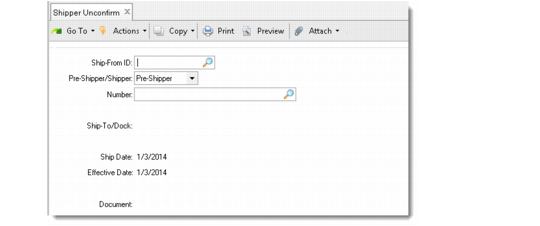
Shipper Unconfirm (7.9.21)
Ship-From
Enter the code for the address from which the shipment was issued. The address name appears next to the code. This field is used in conjunction with the shipper number to identify the shipper you want to unconfirm.
Pre-Shipper/Shipper
Choose either Pre-Shipper or Shipper in this field.
Number
Enter the pre-shipper/shipper number for the shipment you want to unconfirm. This field is used in conjunction with the ship‑from address code. You can only select sales order shippers. The system determines the source of demand for a shipper by checking the transaction type of the assigned inventory movement code.
Ship-To/Dock
Displays the code for the address where the shipment is to be delivered.
Ship Date
Displays the ship date of the shipper specified during confirmation.
Effective Date
Displays the effective date of the shipper specified during confirmation.
Post Invoice
Enter the same value (Yes or No) entered in this field in Pre-Shipper/Shipper Confirm. If you have not posted invoices since confirmation, then the effect of unconfirm is to net out the original confirmation, since invoice information is cumulative until posting. However, if you have posted invoices during or since confirmation, then the effect of the unconfirm is part of the next invoicing.
Print ISB Details
Specify whether the invoice post report includes information about additions, deletions, or modifications that affect installed base records.
The default is No.
Consolidate Invoice
The effect of this field is identical to that of the corresponding field in Pre-Shipper/Shipper Confirm.