Set Up Consignment Accounts
Use three programs to identify accounts used to track customer consignment inventory:
• Domain/Account Control (36.9.24)
• Product Line Maintenance (1.2.1)
• Inventory Account Maintenance (1.2.13)
Create accounts first in Account Create (25.3.13.1). Use Domain/Account Control to set up defaults. Codes entered in Domain/Account Control default to Product Line Maintenance. Product Line Maintenance accounts default to Inventory Account Maintenance (1.2.13). The SO consignment accounts must be of GL type inventory control.
Note: One of the Consignment Inventory modules must be active to access the Consignment Accounts frame. See
here.
Domain/Account Control (36.9.24)
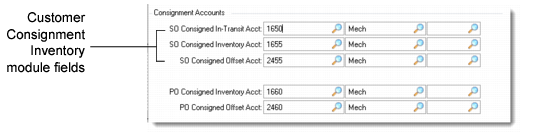
SO Consigned In-Transit Acct
Enter the general ledger (GL) account, sub-account, and cost center codes used to track consigned inventory that is in-transit to the customer.
SO Consigned Inventory Acct
Enter the GL account, sub-account, and cost center codes used to track consigned inventory that has been shipped and resides at the customer facility.
Note: If you want to reflect the shipment of consigned inventory in your Inventory account, set the offset account to the Inventory account.
SO Consigned Offset Acct
Enter the GL account, sub-account, and cost center codes used to track deferred receivable amounts for consigned shipments.
The SO Consigned Inventory and SO Consigned Offset accounts are updated simultaneously to record consigned activity and do not affect the balance sheet. The Inventory account is not updated until inventory is used by the customer.
The remaining account fields in this frame are used by the Supplier Consignment Inventory module.
See “Set Up Consignment Accounts” in the Supplier Consignment Inventory chapter of
QAD Purchasing User Guide.