QAD 2017 Enterprise Edition
>
User Guides
>
Sales
>
Legal Documents
>
Creating Legal Documents
Creating Legal Documents
After you have properly set up the system for legal documents, any function that generates shippers will enable you to generate legal documents along with the shipper.
The following functions that generate shippers also let you generate legal documents:
Issuing transactions
• Picklist/Pre-Shipper - Automatic (7.9.1)
• Pre-Shipper/Shipper Workbench (7.9.2)
• Sales Order Shipper Maintenance (7.9.8)
• Unplanned Issue (3.7)
• Item Transfer (Menu 3.4)
• Distribution Order Shipments (12.17.22)
• Sub Shipper Maintenance (18.22.5.5)
• Material Order Maintenance (10.7.1 and 11.11.1)
• Material Order Shipments (10.7.6 and 11.11.6)
• Call Activity Recording (11.1.1.13)
• RMA Maintenance (11.7.1.1)
• RMA Shipments (11.7.1.16)
• RTS Shipments (11.7.3.16)
• Work Order Component Issue (16.10)
• Repetitive Labor Transaction (18.14)
• Repetitive Picklist Transfer (18.22.3.6 and 18.3.6)
• Backflush Transaction (18.22.13)
• Receipt Backflush (16.12)
• Rework Transaction (18.22.17)
• Pending Invoice Maintenance (7.13.1)
• Sales Order Shipment (7.9.15)
Receiving transactions
• Receipts - Unplanned (3.9)
• Purchase Order Receipts (5.13.1)
• PO Shipper Receipt (5.5.5.11)
• PO Shipper Receipt (5.13.20)
• Work order Receipt (16.11)
• Work order Backflush (16.12)
• Backflush Transaction (18.22.13)
• Distributed Order Receipt (12.15.20)
• Move Transaction (18.22.19)
During shipper processing in these functions, additional pop-ups for processing legal documents appear when the following conditions are met:
• The current shipment belongs to a shipping group with the appropriate inventory movement details set up:
• The transaction flow of the inventory movement code is Outbound or Inbound.
• The document format defined for the shipper is associated with a valid legal document form code.
• A legal document NRM sequence has been defined and assigned to the issuing site with Transaction Flow set to Outbound.
Follow these steps to create and print legal documents:
1 When prompted for a legal document sequence ID, accept the default sequence ID or specify another one assigned to the current site, and press Enter to proceed.
Legal Documents NRM Sequence
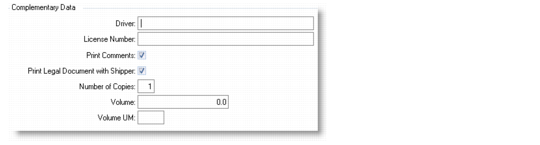
2 In the Complementary Data frame, provide additional information as required by the legal document and indicate whether you want to print the legal document immediately.
Legal Documents Complementary Data
Driver
Optionally enter the driver name of the carrier’s vehicle. This field is for reference only and appears on some legal documents.
License Number
Optionally enter the license number of the carrier’s vehicle. This field is for reference only and appears on some legal documents.
Print Comments
Specify whether to print shipper comments on the legal document.
Print Legal Document with Shipper
Choose Yes to immediately print the legal document along with the shipper. If you choose No, you can print the legal document later using Legal Document Print (7.10.4).
This value defaults from the Print Legal Document option in Legal Document Control (7.10.24).
Number of Copies
Specify how many copies of legal documents you want to print.
Volume
Enter a code indicating the amount of space the inventory occupies.
Volume UM
Enter a unit of measure in which the net weight is expressed, such as CF, SF, CM. This field is validated against predefined values entered in Generalized Codes Maintenance for field pt_size_um, if any.
3 If you chose Yes to immediately print the legal document, specify an output destination. The legal document will be sent to print.
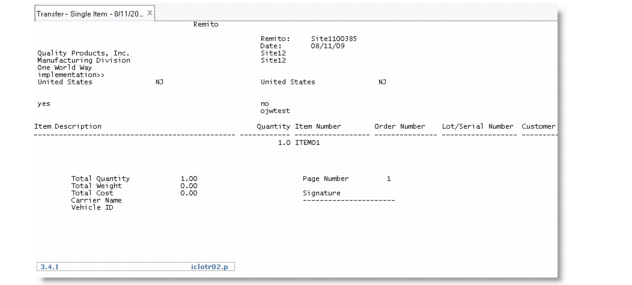
Sample Legal Document