Define Supplier Transportation Networks
Use Supplier Network Maintenance (5.5.1.11) to associate suppliers and vehicles with a defined network, sometimes known as a “milk run route.” You can both define the suppliers that are part of the network and specify the sequence in which the material is picked up. Additionally, you identify which transport modes are valid for the route.
When you run Pickup Sheet Auto Create or Pickup Sheet Maintenance, the system uses these network records to determine the appropriate vehicle to be assigned to the pickup sheet generated for the milk run. Network records are also used to determine which suppliers and order lines are part of the generated pickup sheets.
Use the View Supplier Network browse collection to see information about existing networks.
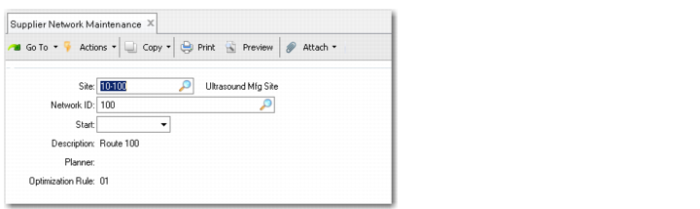
To define the supplier network, in the first frame, specify a network identifier, description, site, planner, and the date the network record takes effect, as well as an optional optimization rule.
Supplier Network Maintenance (5.5.1.11)
Site
Enter the site that applies to this supplier network.
Network ID
Enter an alphanumeric code (up to 18 characters) that identifies this supplier network.
Start
Enter the date on which this supplier network record becomes effective.
Description
Enter a description of this supplier network.
Planner
Optionally, enter the identifier for the planner who is responsible for this supplier network. You can use the Planner field in Pickup Sheet Auto Create to limit pickup sheets to networks associated with a specific planner.
Values are validated against Generalized Codes Maintenance for field vdn_planner.
Optimization Rule
Optionally, enter the default optimization rule to be associated with this supplier network.
Pickup Sheet Auto Create and Pickup Sheet Maintenance use this value when the specified site and network ID exactly match the supplier network record. Otherwise, the Pickup Sheet Auto Create or Pickup Sheet Maintenance value defaults to blank.
See
Optimization Rules for more information.
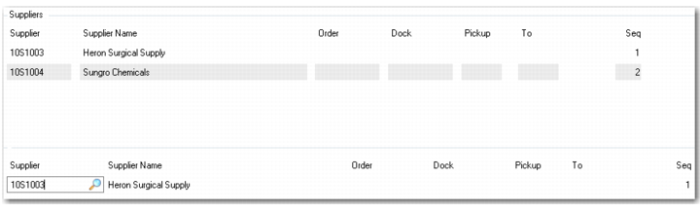
Supplier Network Maintenance, Supplier Frame
Supplier
Enter a supplier ID associated with this supplier network.
Order
Optionally, enter a supplier scheduled order number or purchase order number to associate with this supplier and supplier network. Leave blank to include all orders for this supplier.
Note: If you enter a discrete purchase order number, it cannot represent a blanket order, return-to-supplier order, EMT order, or Trade Sales order.
Note: If you add an order number when a record already exists for this supplier with PO left blank, the system displays a message. In that case, the record with a specific PO is not needed.
Dock
Optionally specify a supplier dock identifier—sometimes referred to as a “bay” or “gate”—where the logistics provider is expected to arrive. Use this value to further qualify the location at the supplier’s facility. This field is for reference only.
Pickup and To
Optionally specify beginning and end times for a pickup “window” for the logistics provider to be at the supplier for pickup. These fields are for reference only.
Seq
Enter the relative sequence in which this supplier/order combination is listed on the generated pickup sheet. If there is more than one supplier on the pickup sheet, pickup sheet create functions use this value to determine the sequence for the vehicle’s routing.
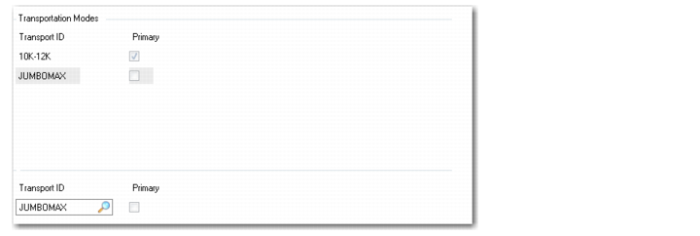
Supplier Network Maintenance, Transport Mode Frame
Transport ID
Enter a transportation ID to associate with this supplier network. Transportation IDs are defined in Supplier Transport Mode Maint.
Primary
If there are multiple transportation IDs associated with this supplier network, specify which one should be selected first when the system is creating pickup sheets. Only one transportation ID can have this field selected.
If during pickup sheet creation all the material does not fit in a single vehicle, the system creates multiple pickup sheets using the same vehicle. For example, if the Auto Create function needs to create three pickup sheets for a network, it will create all three pickup sheets using the primary transport mode defined here.