Favorites Menu
Favorites menus are not provided by QAD and can be updated by users and administrators; however, only administrators can configure Favorites menus from the Menus browse. Users can configure their own Favorites menu through the user drop-down in the menu bar.
Create a New Favorites Menu for a User
1 On the Menus browse, select New.
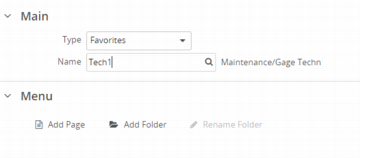
2 Select Favorites from the Type drop-down menu.
3 In the Name lookup, select the user ID to which to copy this role menu.
Create New Favorites Menu
4 Add Pages and Folders to the new Favorites menu. These folders and pages become the drop-down menus available in the menu bar for this role.
a Pages are the system’s menu items.
b Folders organize pages. Enter a new folder name or choose a label from the options in the system. If you select from the system-provided labels, the folder names will translate for users assigned different language codes.
5 Select Save.
6 Select Permissions to check that the user’s role has adequate permission to access the newly assigned Favorites menu. If all resources are not green, you can choose Allow All Permissions from the Actions menu. but remember that you are updating the resources for the role, not just this user.
Copy a Menu to a User’s Favorites Menu
You can use an existing menu as the basis of a user’s Favorites menu. This action can only be done for a user that does not have a Favorites menu.
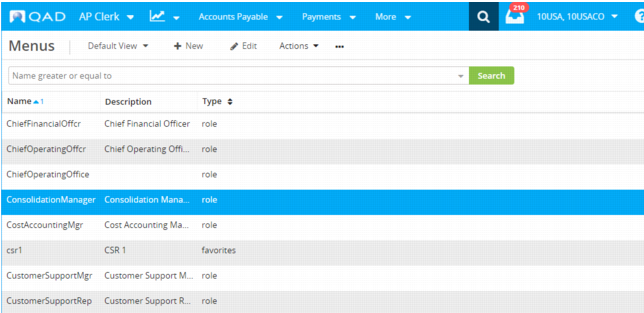
1 On the Menus browse, highlight the role menu you want to copy.
Menus
2 Select Copy from the Actions menu.
3 Select Favorites from the Type drop-down menu.
4 In the Name lookup, select the user ID to which to copy this menu.
5 Select Save.
Note: You cannot copy a Favorites menu to a user that already has a Favorites menu.
6 Select Permissions to check that the user’s role has adequate permission to access the newly assigned Favorites menu. If all resources are not green, you can choose Allow All Permissions from the Actions menu, but remember that you are updating the resources for the role, not just this user.