Pack Create by PO/Shipper
Use Pack Create by PO/Shipper (5.13.12.3) to create packs and print labels based on PO or PO shipper.
You can create packs and print labels by PO or PO shipper before you physically receive goods. You can create packs for discrete POs or supplier scheduled orders.
Note: When the PO line is a subcontract line, you cannot create packs with this function. When you try, the system displays an error message. Use Work Order Serial Booking or Pack Create by WO to create packs for the corresponding discrete WO. Use Pack Create by Production Line to create packs for the corresponding cumulative order.
Navigation
This program contains several frames.
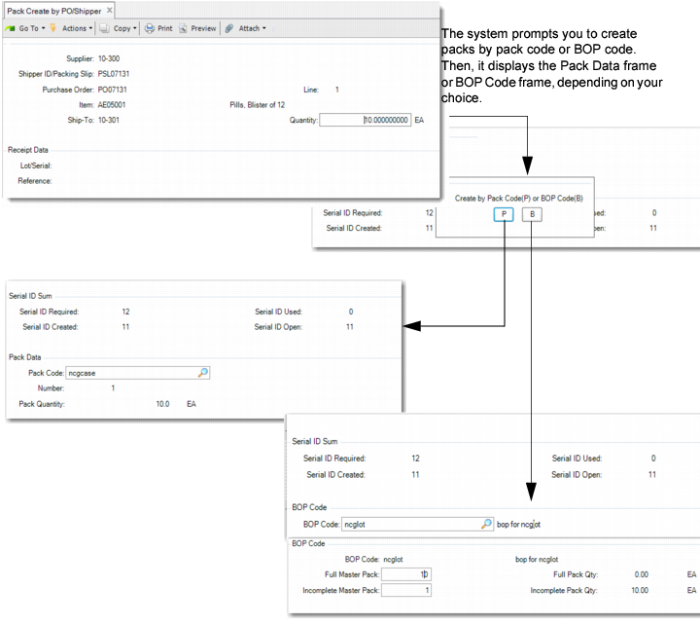
In the PO/Shipper Information frame, you enter the supplier, shipper ID or a packing slip number, order, and line number. The system displays the item and ship-to. Enter the quantity to pack.
In the Receipt Data frame and Serial ID frame, the system displays receipt data and lot/serial numbers. The system prompts you to create packs by pack code or BOP code. When you specify P(ack), the system displays the Pack Data frame. When you specify B(op), the system displays the BOP Code frame. The default BOP code is from Item Packaging Maintenance.
In the Pack Data frame, the system displays the unit pack code, quantity per, and UM from unit pack/item level of the BOP structure. You enter pack data in this frame to create packs by pack code. The system creates new packs, using the pack information in this frame.
If Serial Control of the unit pack is set to Never in Pack Code Maintenance, the system attempts to locate the higher-level pack. The system multiplies the per quantity and displays the pack code description.
In the BOP Code frame, you enter the BOP code to create packs by BOP code. After you press Enter, you can enter the number of full or incomplete master packs.
When the entered incomplete master pack quantity is zero and you press Enter, the system prompts you to display serial IDs created. Select Yes and the system displays the Serial List frame, which shows you the levels, pack codes, From serial IDs, and numbers.
When incomplete master pack quantity is not zero and you press Enter, the system displays the Pack Configuration frame before prompting you to display serial IDs created. This frame shows you the levels, pack codes, numbers, contents, quantity in the pack, and UM.
Click Next and the system informs you that it created serial IDs. If the Label Printing module is installed, you are prompted to print the created serial IDs.
Pack Create by PO/Shipper (5.13.12.3)
Supplier
Enter the address code of the supplier who sent the shipper document.
Shipper ID/Packing Slip
Enter the PO shipper for which the system creates serial IDs. If there is no PO shipper, you can enter a packing slip number. When blank, the system creates packs for PO lines.
Purchase Order
Enter the PO or a supplier scheduled order for which the system creates serial IDs.
Line
Enter the PO line for which the system creates serial IDs.
Quantity
When you create packs for a discrete purchase order, the system defaults the value in this field from the open quantity on the PO line. When you create packs for a supplier scheduled order, the system defaults the value here from the open quantity of the supplier schedule order line. When you create packs for a PO shipper, the system defaults the value from the quantity to receive for the specified PO line that is included in the PO shipper.
Pack Code
Enter or accept the pack code the system uses to create the serial ID. The default is from the lowest-level serialized pack. Typically, this pack is the unit pack. When you set the Serial Control field in Pack Code Maintenance of the unit pack to Never, the system locates the upper level of the BOP structure with a serial control that is not set to Never.
You can enter an assembly pack code. You can enter blank when the Serial Control field is set to M. When blank, the system processes it as item serialization and ignores the pack quantity and UM.
Number
Enter the number of packs to create. You cannot enter a negative number. The default is based on the Quantity value you enter in the first frame and the item quantity in the specified pack level in the BOP structure.
Pack Quantity
Enter or accept the expected quantity to hold in the pack. You cannot enter a negative number. The default is the quantity per in the specified pack level in the BOP structure.
Pack Quantity UM
Enter the UM of the content to hold in the pack. The default is from the item UM. When you specify an assembly pack code, make sure that the entered value is a pack UM.
BOP Code
Enter or accept the BOP code. The default is from Item Packaging Maintenance and is based on item, site (ship-to), address (supplier), and transaction type (RCT-PO).
Full Master Pack
Enter the number of full master packs.
Incomplete Master Pack
Enter the number of incomplete master packs.