Unplanned Receipts
Note: For unplanned receipts of non-serialized inventory, use QAD EE Receipts-Unplanned (3.9).
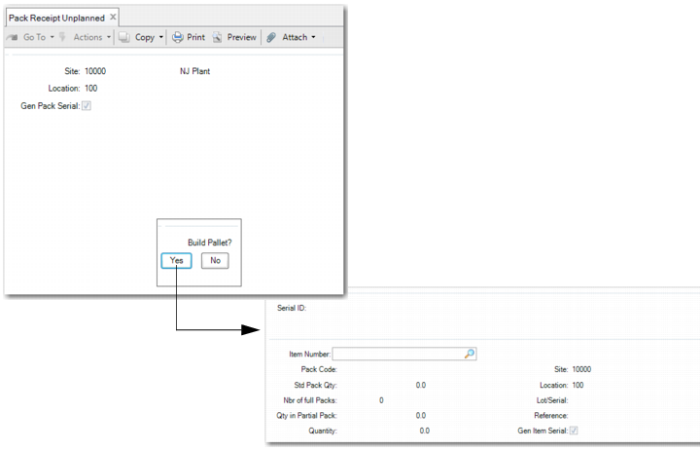
Use Pack Receipt Unplanned (3.17.13) in the Serialization Inventory Transaction menu to build both single-level and multiple-level packs and then receive them in this transaction or for pending receipts. You can load inventory to pending pallets without breaking down the pack structure.
Using Pack Receipt Unplanned, you can:
• Create unit packs.
• Create unit packs and assembly packs.
• Build lower-level packs on an existing parent pack.
• Receive serialized items as loose inventory.
The following topics provide more information on these functions.
Creating Unit Packs
You can create unit packs, and then load inventory to the created unit packs.
Select No when the system prompts you to build the pallet. Leave the unit pack serial ID blank, then enter the inventory data. You can enter additional data and the BOP code. When prompted to create a pack, select Yes. The system generates the serial ID for the unit pack.
When you keep clicking the Back button, the system prompts you to receive all the pending packs of this location.When you confirm the receipt, the system returns to the first frame that lists site and location.
Creating New Unit Pack and Assembly Pack
You can also create a unit pack and an assembly pack, then build the unit pack on the assembly pack. You can then load the inventory into the unit pack and load the unit pack into the assembly pack.
To do this, you select to build a pallet when prompted, and leave both parent pack and unit pack serial IDs blank. Then you enter a BOP code and the inventory data. When prompted to create a pack, select Yes. The system then generates the serial ID for the unit pack and the serial ID for the assembly pack. The inventory is loaded into the unit pack and the unit pack is loaded into the assembly pack.
Note: When the item to be received is set to mandatory serial controlled in the item master, the system prohibits receipt using the QAD EE Unplanned Receipts program.
Build Lower-Level Packs on an Existing Parent Pack
You can use Pack Receipt Unplanned to build lower-level packs on an existing parent pack. To do this, you select the existing assembly pack, then create a new lower-level pack or use the serial ID that the system already created using pack create functions. You then load inventory into the unit pack and build the lower-level pack on its parent.
Receiving Serialized Items As Loose Inventory
You can also use Pack Receipt Unplanned to receive serialized items into a specific site and location as loose inventory. Set the Gen Pack Serial field to No, and when prompted to build a pallet, select No. Leave the unit pack serial ID blank, and enter the BOP code. In the Inventory Data frame, enter the item number, quantity to receive, and lot/serial information. When prompted to create a pack, select No. If you select the Gen Item Ser field, the system creates the serial IDs pending receipt. If you do not select that field, you are required to specify New item serial IDs that were previously created or printed.
Generating Serial IDs According to Pack Code
When you set Gen Pack Serial to Yes, the system generates a number of serial IDs, according to:
• Pack code
• Standard pack quantity
• Number of full packs you enter
If you set Gen Pack Serial to No, when you create new unit packs and assembly packs, you can create only one unit pack and one assembly pack each time, regardless of the quantity to receive. The system automatically generates the unit pack and assembly pack serial IDs according to this BOP code.
Navigation
Begin by entering the site and location in the header. When pending packs exist in the location you enter, the system prompts you to receive all pending packs for the location. When you respond with No, the system lets you create new pending packs.
Note: The Build Pallet program controls whether one-level or two-level unit boxes are created. The Gen Pack Serial field in Serialization Pack Receipt Unplanned controls the way to create pending packs. When you respond with Yes to Gen Pack Serial, the system generates pack serial and item serial IDs automatically by entered receipt data. When you respond with No, you scan or generate pack serial IDs manually.
When you respond with Yes to receive all pending packs, the system receives all pending packs of the location into inventory and ends the transaction.
After details display and you confirm that details are correct, the system displays the Additional Data frame for you to enter order information. Once completed, you can receive the packs.
Note: Serial IDs can be imported from external systems.
Pack Receipt Unplanned (3.17.13)
Site
Enter a valid site where items are stored. You cannot leave this field blank.
Location
Enter a valid location where items are stored.
Gen Pack Serial
Indicate Yes for the system to generate pack serial and item serial IDs automatically by entered receipt data. Otherwise, enter No to scan or generate pack serial IDs manually.
Item Number
Enter the item stored in the pack. When you enter a valid serial ID, this field is display only. When the Serial field is blank or does not exist in the system, you can edit this field to determine the pack sequence ID.
Pack Code
This field is display only and shows the pack code.
Std Pack Quantity
Indicate the number of items in a standard pack.
Nbr of Full Packs
Enter the number of full packs to receive.
Qty in Partial Pack
Enter the number of items to receive in the partial pack.
Ref
Enter a reference for the item. When the serial ID label has printed, Ref is display only.
Gen Item Serial
Indicate Yes to automatically generate serial IDs for each inventory unit. The system only generates when you set the Serial Control field to M(andatory) in Item Master Maintenance to specify whether inventory units are serialized.
When Yes, the system generates serial IDs and displays the total number created. When No, you are required to manually enter item serial IDs.
Serial ID
Enter the serial ID for the parent pack or leave blank to generate serial IDs.
Lot/Serial
Specifies the lot number of the item held in the pack. The quantity displays in the read-only Quantity field.
Order
Enter a valid sales, work, or purchase order number for the transaction. The order number can also display a valid RMA/RTS number, or any other user-defined value.
Sales/Job
Enter the order number referenced to inventory transaction.
Address
Enter the address for this transaction.
Effective Date
Enter the general ledger (GL) effective date for this transaction. The default is the system date.