Unplanned Issues
To do unplanned issues with serialized inventory, use Pack Issue Unplanned (3.17.14). For unplanned issues of non-serialized goods, you can use QAD EE Issues - Unplanned (3.7).
Note: When you use the following functions, make sure that you enter the proper issue and receipt quantities, as the system does Serialization validation for all inventory transactions.
• If there is serialized inventory for the inventory location detail, the system then checks whether non-serialized loose inventory is enough. If the quantity you enter exceeds the non-serialized loose inventory, the system displays an error message.
• If there is no serialized inventory for the inventory location detail, the system not only checks whether inventory is enough but also checks the Overissue flag. The system checks the Overissue flag to validate whether inventory balance is allowed to go negative.
• Batchload Transfer with Lot/Serial (3.4.4)
• Receipts - Sales Order Return (3.10)
• Receipts - Return to Stock (3.11)
• Receipts - Backward Exploded (3.12)
• PO Shipper Receipt (5.5.5.11)
• PO Fiscal Receiving (5.13.16)
• Pre-Shipper/Shipper Auto Confirm (7.9.7)
• Sales Order Shipments (7.9.15)
• Consignment Inventory Transfer (7.18.7)
• Aging Inventory Update (7.18.10)
• Aging Inventory Batch Update (7.18.11)
• Inventory Usage Create (7.18.13)
• Authorization Usage Create (7.18.14)
• Sequenced Usage Create (7.18.15)
• Shipper Usage Create (7.18.19)
• Usage Create Undo (7.18.22)
When you issue inventory that is serialized using the QAD EE Issues - Unplanned program, the system displays an error and prompts you to use this program.
Navigation
This program contains several frames and can display different frames, depending upon the serial ID you enter.
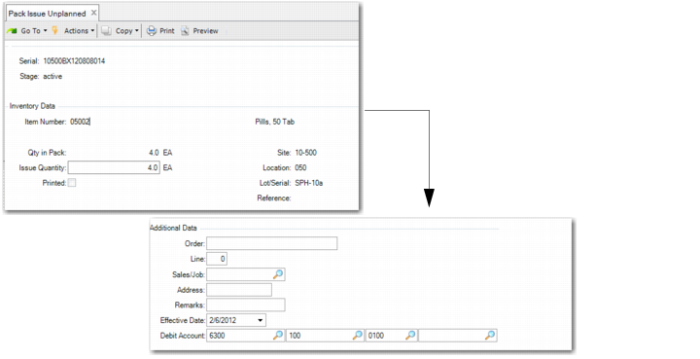
Start by entering an active master pack. If it is a unit pack, the system displays the Inventory Data frame.
• If the unit pack contains items of a single item number, lot, and reference, you can enter the Issue Quantity to do a partial issue or issue the whole pack. When the items in the pack are serialized items, after you enter the quantity to issue, the system displays issue details. If you do a partial issue, the system sets the stage of serialized items to Consumed. If you issue the whole unit pack, the system set the stage of the unit pack to Consumed.
• If the unit pack contains items of multiple combinations of item number, lot, and reference, the Inventory Data frame is display only. The system issues the whole unit pack, with the stage set to Consumed.
If it is an assembly pack that does not contain items at the lower level, the system displays the Lower-Level Pack frame. Enter the serial ID of a lower-level pack to do a partial issue or leave blank to issue the whole pack. When Issue Pack Serial is blank, the system issues the entire pack contents, sets the stage to Consumed, and updates the pack quantity. When Issue Pack Serial has a value, the system sets the stage of the pack to Consumed, and removes it from the parent pack. It updates the pack quantity of the parent pack. If the issue pack is the last lower-level pack, the system sets the stage of the parent pack to Consumed.
If it is an assembly pack that contains items not in a unit pack, the system directly issues the whole assembly pack. You cannot do a partial issue.
When you press Enter, you can enter the Inventory Movement Code, then go on to enter order data in the Additional Data frame, including the order, address, sales data, and effective date.
After you enter the additional data, the system prompts you to confirm the issue. When you respond with Yes, the system updates the serial master data, creates serial history, and prompts you to print labels when the Label Printing module is installed.
Pack Issue Unplanned (3.17.14)
Relevant fields not previously described include:
Serial
Enter a valid serial ID for the issue pack. The system displays the stage, item, item description, site, and other data.
When the pack stage is aggregated, the system prompts you to remove it from parent pack.
Issue Quantity
Indicate the number of items to issue in this transaction.
Issue Pack Ser
Enter the serial ID of a lower-level pack to do a partial issue. Leave blank to issue the entire pack.
Inventory Movement Code
Enter the inventory movement code for the item.
Item Number
This field is display only.
Order/Line
Enter a valid sales, work, or purchase order number and line for the transaction. The number can also be an RMA/RTS number or any other user-defined value.
Sales/Job
Enter the order number referenced to the inventory transaction.
Address
Enter the address for this transaction.
Remarks
Identify the source or the reason for the transaction.
Effective Date
Enter the general ledger (GL) effective date for this transaction. The default is the system date.