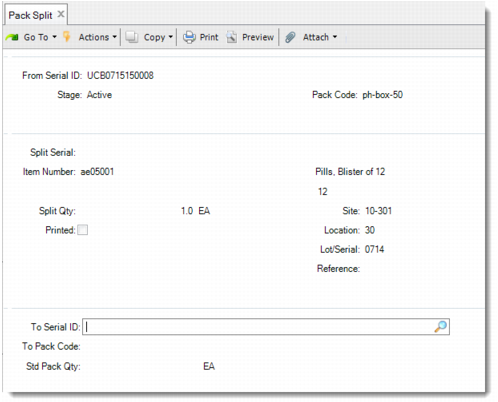
Pack Split
Use Pack Split (3.17.16) to remove all or partial inventory from the original pack and build it into a destination pack.
In the From Serial ID field, specify the master pack from which you want to remove inventory.
If the specified pack is a unit pack that holds non-serialized items, in the Split Qty field, enter the inventory quantity that you want to remove.
If the specified pack is an assembly pack, or a unit pack that holds serialized items, in the Split Serial field, enter the child serial IDs one by one to remove them. You can leave this field blank to remove all child serial IDs at the same time.
Then click Back to go to next frame. Specify the destination pack to receive the inventory that is removed from the original pack.
After the pack split, removed inventory is built into the To serial ID. The To serial ID becomes Active and stays in the same site/location as the original pack. Optionally, you can leave both To Serial ID and To Pack Code fields blank to let the removed serial IDs or inventory become Active packs or items, or loose inventory. When the original pack becomes empty after inventory removal, the system decommissions the original pack.
Pack Split (3.17.16)
From Serial ID
Enter the serial ID of an original pack from which you want to remove inventory. Make sure that the stage of the entered pack is Active, and not linked with a DO.
Split Serial
This field is editable when the entered From serial ID is an assembly pack, or a unit pack that holds serialized items. Enter the child serial IDs of the From serial ID that you want to remove one by one. Or you can leave this field blank to remove all child serial IDs at the same time.
Split Qty
This field is editable when the entered From serial ID is a unit pack that holds non-serialized items. Enter the quantity that you want to remove. The default value is the inventory quantity in the unit pack. If the From serial ID is an assembly pack, or a unit pack that holds serialized items, this field is display only, and shows the inventory quantity of the entered Split Serial.
To Serial ID
Specify a destination pack to receive the inventory that is removed from the original pack. Or leave this field blank. When you enter a serial ID, its stage can be New, Booked, Decommed, or Active. If you enter an Active serial ID, make sure that it is not linked with a DO and that its site/location is the same as the From serial ID. If the entered From serial ID is booked for a master SO line, make sure that the To serial ID is booked for the same master SO line. If the From serial ID is not booked, the To serial ID cannot be booked, either. The system also compares the UM of the original child of the To serial ID against the UM of the Split Serial or item. Make sure that they are the same.
To Pack Code
This field is editable when you enter a Booked To serial ID or leave the To Serial ID field blank.
When you enter a Booked To serial ID, you specify the pack code to apply to the serial ID.
When you leave the To Serial ID field blank, you can enter a pack code for the system to generate a serial ID as the destination pack. If the From serial ID is booked for a sales order, the system picks a serial ID from the pool of booked serial IDs. Specified pack code and standard pack quantity are applied to the selected serial ID.
When you leave the To Serial ID field blank, optionally, you can leave the To Pack Code field blank. In this way, you let removed inventory become loose inventory, or Active packs or items, depending on the entered From serial ID.
Std Pack Qty
This field is editable when you enter a Booked To serial ID or leave the To Serial ID field blank. You can specify the standard quantity of inventory items that can be held in the generated destination pack.