Move Pack between (Pre-)Shippers
When the truck arrives, it is possible that the truck does not have enough capacity to load all the materials. In order to avoid unpicking remaining packs from the pre-shipper or shipper and losing track of the goods picked for a specific ship-to/order line, you can use Move Pack between (Pre-) Shippers (7.8.12). Use Move Pack between (Pre-) Shippers to transfer the picked inventory from a source pre-shipper/shipper to an existing one for the same ship-from and ship-to combination or a new destination pre-shipper/shipper.
Note: Non-serialized loose inventory linked with a pre-shipper/shipper cannot be moved.
1 Enter the destination pre-shipper/shipper information.
This destination pre-shipper or shipper can be either an existing pre-shipper/shipper or a new one. If you leave the Number field blank, the system can automatically produce a pre-shipper or shipper number.
2 In the Serial ID field, specify the serial ID for a picked pack or a loose serialized item associated with the source pre-shipper or shipper.
Note: If you specify a serial ID that is already picked for the destination pre-shipper or shipper, the system displays a warning message.
Note: You are not allowed to move kit components from the source pre-shipper or shipper to the destination pre-shipper or shipper. If you enter a serial ID for a picked kit component in the Serial ID field, the system displays an error message.
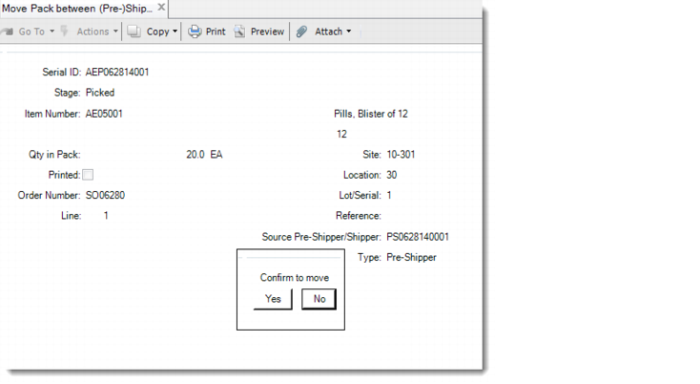
The system then displays the source pre-shipper/shipper information for the serial ID and prompts you to confirm the move.
Move Pack between (Pre-)Shippers (7.8.12)
3 Click Yes to confirm the transfer of the picked inventory from the source pre-shipper/shipper to the destination pre-shipper/shipper.
4 If you are using the Logistics Accounting functionality, click Back and you come to the Logistics Charges Detail frame. In this frame, logistics charges are updated and displayed for the current pre-shipper or shipper. You can specify the logistics charge code and logistics supplier.
5 Then, if the current document is a shipper rather than a pre-shipper, click Back and the system displays the Complementary Data frame. In the Complementary Data frame, provide additional information as required by the legal document and indicate whether you want to print the legal document immediately.