Viewing Pegging Data
The relationships between customer schedule requirements and serial IDs linked with shipper lines are maintained in the system.
For serialized packs or loose items, you can view the pegging data in any of the following functions:
• Customer Scheduled Orders
• Manage Customer Scheduled Orders
• View Customer Scheduled Orders
To view the pegging data:
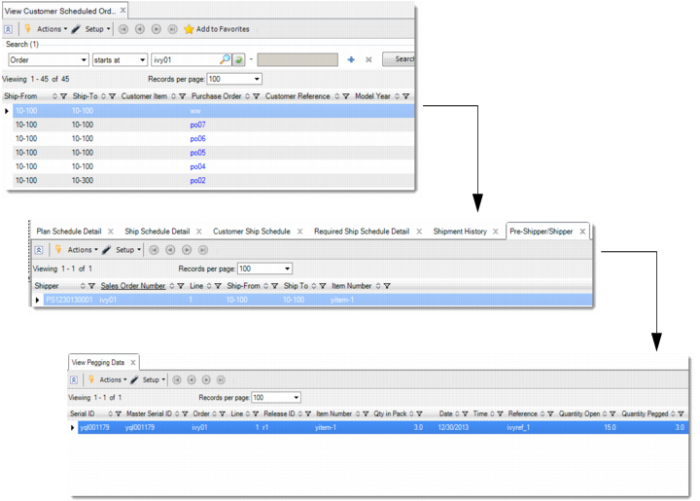
1 Right-click the order number and select Pre-Shipper/Shipper.
2 In the Pre-Shipper/Shipper browse, right-click the shipper ID and select View Pegging Data.
View Pegging Data Browse
3 In the View Pegging Data browse, you can see the quantity of the serialized pack pegged to the schedule requirement, and other data.
Serial ID
The field displays the serial ID of the unit pack or loose item pegged to customer schedule requirements.
Master Serial ID
The field displays the serial ID of the master pack.
Order
The field displays the customer scheduled order for the pegged serialized packs.
Line
The field displays the line of the customer scheduled order.
Release ID
The field displays the specific version or release of a customer scheduled order.
Qty in Pack
The field displays the quantity of the unit pack or the serial IDs of loose items.
Date
The field displays the date when this quantity is delivered.
Time
The field displays the date when this quantity is delivered.
Reference
The field displays the reference number to identify a specific shipment or delivery quantity.
Quantity Open.
The field displays the quantity of this item open at the time or date.
Quantity Pegged.
The field displays the quantity of the serialized pack pegged to the schedule requirement.
Authorization Number
The field displays the reference number that the customer uses to identify a specific shipment or delivery quantity.
Note: If you have assigned an authorization number in Required Ship Schedule Maint (7.5.3), the system prints the authorization number below each shipper line in the pre-shipper or shipper.
Shipper ID
The field displays the shipper number for the serialized pack or loose item.
Note:
• After you use Pre-Shipper/Shipper Picking or Pre-Shipper/Shipper Pack Build, the system updates the pegged quantity when the order is set for automatic pegging.
• After you use Pre-Shipper/Shipper Confirm to confirm a shipper, the system sets Peg Qty of the Picked line to zero, but the Ship Line Peg Qty for each schedule requirement remains. When the shipper is unconfirmed, the system retrieves the value of Peg Qty.
• When you use Pre-Shipper/Shipper Confirm to return serial IDs pegged to customer schedule requirements, the system deletes the link between serial IDs and schedule requirements according to the following logic:
• If you return a master pack, the system removes the pegging linked with all unit packs of the master pack.
• If you return a loose item, the system removes the pegging linked with the loose item.
• If you return a unit pack aggregated to the master pack, the system removes the pegging linked with the unit pack.
• If you return items of a unit pack, the system reduces the peg quantity of the unit pack according to the quantity of items returned.
• If you return inventory together with a unit pack fully or partially, the system removes the pegging.
• If Dynamic Unpeg is Yes in Customer Scheduled Order Maint (7.3.13), when you use Picklist/Pre-Shipper - Automatic (7.9.1), the system removes pegging information from any unconfirmed shippers or pre-shippers.
• The system always pegs serial IDs to the active release after you create a release and make it active.