DO Pre-Shipper/Shipper Packing
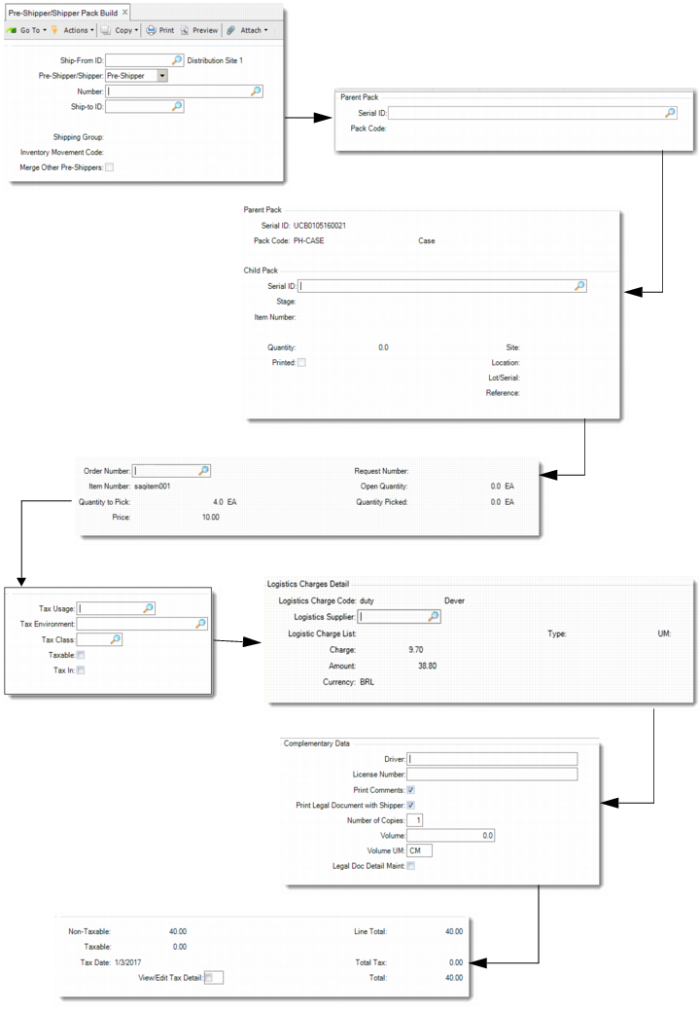
Use Pre-Shipper/Shipper Pack Build (12.9.2) to pack DO goods based on the exact demand of a specific pre-shipper/shipper. You can:
• Package picked packs or inventory into a parent pack.
• Build active packs or inventory into picked packs on current pre-shipper/shipper.
• Directly pick the packs or items from the inventory for current pre-shipper/shipper.
Note: Kit items are not supported; however, you can pick kit components using Pre‑Shipper/Shipper Picking.
After you specify the DO request information, a pop-up displays. In this pop-up window, specify tax data, such as tax usage, tax environment, and tax class. The system calculates taxes on this line based on the tax data you define here.
If you are using the Logistics Accounting functionality, click Back to access the Logistics Charges Detail frame. In this frame, logistics charges are updated and displayed for the current pre-shipper or shipper. You can specify the logistics charge code and logistics supplier.
If the current is a shipper rather than a pre-shipper, click Back. The system displays the Complementary Data frame. In the Complementary Data frame, provide additional information as required by the legal document and indicate whether you want to print the legal document immediately.
Finally, the system displays tax amounts. You can review system-calculated tax amounts by setting View/Edit Tax Detail to Yes. The screen displays the total nontaxable and taxable line item and trailer charge amounts, the tax date, and tax amounts by category.
Pre-Shipper/Shipper Pack Build (12.9.2)
Ship-From ID
Enter the site from which the serial IDs are shipped.
Pre-Shipper/Shipper
Select Pre-Shipper or Shipper.
Number
Enter the number of the pre-shipper or shipper. If you have not created a pre-shipper or shipper, leave the Number field blank to let the system automatically generate a pre-shipper or shipper.
Note: Do not enter the pre-shipper or shipper that links with an open task in Warehousing. Otherwise, the system displays an error message.
Ship-To/Dock
When you have entered a pre-shipper or shipper number, this field is display only and indicates the ship-to address. When you leave the Number field blank, enter a ship-to address.
Shipping Group
This field is display only. The system searches for a shipping group based on the Ship-From and Ship-To/Dock address combination.
Inventory Movement Code
Enter an inventory movement code for this shipment. Inventory movement codes determine the default Number Range Management (NRM) sequences, carriers, and document formats. If specified, the system verifies that the code exists in the inventory movement detail record for the shipping group. If no shipping group is available for the Ship-From and Ship-To/Dock address combination, leave this field blank.
You are required to have access to this inventory movement code, defined in Inventory Movement Code Security.
Merge other Pre-Shippers
Specify Yes to merge a pre-shipper with this pre-shipper/shipper. When Yes, the system prompts you to enter the pre-shipper number to merge with this pre-shipper/shipper.
Merge Pre-Shipper
When Merge other Pre-Shippers is Yes, this field displays. It identifies the pre-shipper to merge with the pre-shipper/shipper.
Serial ID
Enter a valid serial ID as the parent pack. Or leave this field blank.
Pack Code
This field indicates the pack code of the serial ID. When enabled, enter the pack code of the serial ID.
Serial ID
When enabled, enter a valid serial ID to build into or remove from the parent pack. When the parent serial ID is booked for a sales order line, make sure that this serial ID is booked for the same master sales order line.
Order Number/Request Number
Enter the DO and request number for which you pick the serial ID.
Quantity To Pick
Enter the number of the items to pick for the entered DO request.
Price
Enter the unit price of the item.
Tax Usage
Tax usage is used to select tax rates. Tax usage defaults from the relevant address record: customer, supplier, or end user. You can override the transaction tax usage for line items but not for trailer charges.
Tax Environment
The tax environment is used to select tax types for the transaction. The ship-from/ship-to tax zones and tax class, if any, determines the default tax environment. A line item can have a different tax environment if its ship-from tax zone is different from the one for the rest of the transaction.
Tax Class
Tax class is used to select the transaction tax environment and/or tax rates for items and trailer charges. Tax class defaults from the relevant address record: customer, supplier, or end user.
Taxable
The taxable status determines how tax types apply to the transaction. If Taxable is No, the amount is nontaxable. However, if Taxable is Yes, the amount can also be nontaxable if you use tax types and zero-percent tax rates to report tax exemptions.
Tax In
Tax In (tax included) determines whether tax is already included in line item amounts. If it is, the system reverse-calculates the tax from the item amount and displays it along within the other tax amounts.
Logistics Charge Code
Enter a logistics charge code.
Logistics Supplier
Enter a supplier.
Driver
Optionally, enter the name of the carrier vehicle’s driver. This field is for reference only and appears on some legal documents.
License Number
Optionally, enter the license number of the carrier’s vehicle. This field is for reference only and appears on some legal documents.
Print Comments
Specify whether to print shipper comments on the legal document.
Print Legal Document with Shipper
Choose Yes to immediately print the legal document along with the shipper. If you choose No, you can print the legal document later using Legal Document Print (7.10.4). This value defaults from the Print Legal Document option in Legal Document Control (7.10.24).
Number of Copies
Specify how many copies of legal documents you want to print.
Volume
Enter a code indicating the amount of space the inventory occupies.
Volume UM
Enter a unit of measure in which the net weight is expressed, such as CF, SF, CM. This field is validated against predefined values entered in Generalized Codes Maintenance for field pt_size_um, if any.
Legal Document Detail Maint
Choose Yes to review and maintain legal document details.
Packaging Picked Packs or Inventory into a Parent Pack
You can use Pre-Shipper/Shipper Pack Build to package picked packs or inventory into a parent pack. The parent pack can be new, or already picked for the current pre-shipper or shipper. The parent pack can be an assembly pack or a unit pack.
In the Parent Pack frame, specify information of the parent pack.
If you want to generate a new pack, you can do any of the following:
• Enter a serial ID with stage set as New.
• Enter a serial ID with stage set as Booked for a master sales order line.
• Enter a nonexistent serial ID.
• Leave Serial ID blank.
When you enter a Booked or nonexistent serial ID, or leave the Serial ID field blank, you are required to enter a pack code in the Pack Code field. If you enter a nonexistent serial ID, the system validates it by the number range determined by site (Ship-From), address (Ship-To), transaction type, item, and pack code. If you enter a Booked serial ID, make sure that it is linked with the same master SO line as the child packs you want to build into it. Also make sure that the related master SO line of the booked serial ID has matching ship-from/site and ship-to address codes with the current pre-shipper or shipper.
If you enter a Picked pack serial ID, specify No when prompted to remove it from the pre-shipper or shipper.
In the Child Pack frame, enter the serial ID of a picked pack or item to build into the parent. Or, leave the Serial ID field blank and enter inventory information to pack picked loose inventory into the parent. The picked pack can be an assembly pack or a unit pack, regardless of the parent serial ID.
Building Active Packs or Inventory into Picked Packs
You can use Pre-Shipper/Shipper Pack Build to build active packs or inventory into picked packs on the current pre-shipper or shipper.
In the Parent Pack frame, enter the picked pack serial ID on the current pre-shipper or shipper. When prompted to remove it from the pre-shipper or shipper, specify No to build more content into it.
In the Child Pack frame, enter the serial ID of an active pack or item to pick it for the pre-shipper or shipper and build it into the parent. Regardless of the parent serial ID, the active pack can be an assembly pack or unit pack, but if it is an assembly pack, make sure that it contains single items. If the parent serial ID is booked for a master SO line, make sure that the entered child serial ID is booked for the same master SO line. If the parent serial ID is not booked, you cannot enter a child serial ID that is booked for any SO line. If you want to build non-serialized items into the parent pack, leave the Serial ID field blank and then enter inventory information. As long as the pack code of the parent pack allows, a pack can hold multiple items and items of multiple lots.
In the DO Request frame, specify the distribution order and request information to link with the child pack or inventory.
Picking Active Packs Directly for Pre-Shipper or Shipper
You can use Pre-Shipper/Shipper Pack Build to directly pick active packs for the pre-shipper or shipper. In this scenario, Pre-Shipper/Shipper Pack Build functions in the same way as Pre-Shipper/Shipper Picking.
In the Parent Pack frame, specify the serial ID of the pack to pick for the current pre-shipper/shipper.
The Child Pack frame is display only in either of the following situations:
• The parent pack is a unit pack that contains items of a single combination of item, lot, and reference.
• The parent pack is an assembly pack that contains items of a single combination of item, lot, and reference, and has no items at the lower level.
Then in the DO Request frame, for a unit pack, enter the DO request information to pick the whole pack. You can enter multiple requests until all the quantity is assigned. But make sure that all the requests are linked with a single DO. For an assembly pack, you can enter a single DO request only, and the whole assembly pack is then picked for this DO request. If you want to pick the assembly pack for multiple DO requests, pick the lower-level packs one by one instead.
The Child Pack frame is editable in any of the following scenarios:
• Scenario A: The parent pack is a unit pack and contains items of multiple combinations of item, lot, and reference.
• Scenario B: The parent pack is an assembly pack that contains single items with multiple lots or references.
• Scenario C: The parent pack is an assembly pack that contains single items and also contains items not in a unit pack.
• Scenario D: The parent pack is an assembly pack that contains multiple items.
Under Scenario A, B, or C, you have two options. One is to pick the whole parent pack directly. The other option is to pick specific inventory for different SO lines.
• To directly pick the whole parent pack, leave the fields in the Child Pack frame blank, and click Next. Then in the DO Request frame, enter a single DO number and request ID.
• To select specific inventory to pick, enter the serial ID of a lower-level pack and then DO Request frame information to pick the lower-level pack. Leave the Serial ID field blank, enter inventory information, and then DO Request frame information to pick the lower-level items. This function does not support the scenario where a lower-level pack is an assembly pack and contains multiple items. Finish picking all the other lower-level packs or items. Otherwise, when you click Back, you are prompted to remove those unpicked packs or items from the parent pack. If you answer No, the system prompts you to remove the parent pack from the pre-shipper or shipper.
Under Scenario D, you cannot skip the Child Pack frame to directly pick the whole assembly pack. You are required to enter the serial IDs of lower-level packs to pick the lower-level packs one by one. If there are items at the lower level, enter the inventory information of the items to pick them. After you enter data in the Child Pack frame, specify information in the DO Request frame.
Picking Loose Inventory and Building New Packs
You can use Pre-Shipper/Shipper Pack Build to pick loose inventory for the current pre-shipper or shipper, and build a new unit pack.
In the Parent Pack frame, specify the unit pack information. Do not leave both Serial ID field and Pack Code blank.
Enter the loose item serial ID in the Child Pack frame, and then specify the DO request to pick the serialized item and build it into the new unit pack.
Or, leave the Serial ID field blank, and enter item number, site, location, lot, and reference. Then enter the DO request and quantity information to pick the non-serialized inventory and build it into the new unit pack. If you leave the parent serial ID blank and specify a pack code, the system generates a parent serial ID automatically.
Picking Loose Inventory Directly Without a Package
You can use Pre-Shipper/Shipper Pack Build to directly pick loose inventory for the current pre-shipper or shipper without a package.
For non-serialized items, leave both Serial ID and Pack Code fields blank in the Parent Pack frame. The system disables the Serial ID field in the Child Pack frame. Enter a non-serialized item number and other inventory information. Then in the DO Request frame, enter the DO request and quantity to pick information.
For serialized items, in the Parent Pack frame, enter the item serial ID. The system displays the stage, item number, site, location, lot and other information in the Child Pack frame. Then, in the DO Request frame, enter the DO request.