Maintaining DO Shipping Data
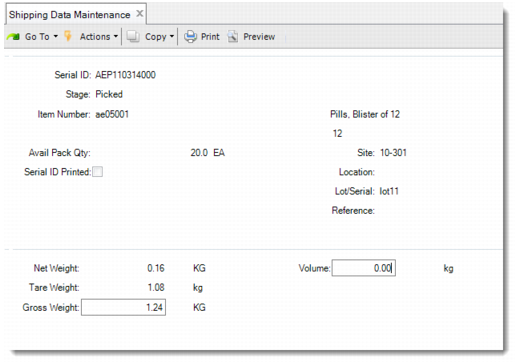
Use Shipping Data Maintenance (12.9.6) to record actual measured logistics data for a master pack or loose serialized item linked with a DO pre-shipper/shipper. You cannot use this function to maintain the weight of non-serialized loose inventory linked with a DO pre-shipper/shipper.
Note: You can maintain the shipping data before or after confirming the pre-shipper/shipper. If you change the shipping data after the pre-shipper/shipper is confirmed, the system updates the weight and volume values of the serial IDs in shipping history. But if the In-Transit site is in a domain other than the supply domain, you are not allowed to maintain shipping data after the pre-shipper/shipper is confirmed.
1 Enter the serial ID of a master pack or loose serialized item linked with a DO pre-shipper/shipper.
You can see information about:
• The stage of the serial ID
• The item and its description if only a single item links with the serial ID
• The quantity in the pack
• The site
• The lot/serial and reference if there is a single lot
2 In the Weight frame, update the volume and gross weight according to actual measured logistics data.
Shipping Data Maintenance (12.9.6)
3 In the Complementary Data frame, provide additional information as required by the legal document and indicate whether you want to print the legal document immediately.
4 Finally, the system displays tax amounts. You can review system-calculated tax amounts by setting View/Edit Tax Detail to Yes. The screen displays the total nontaxable and taxable line item and trailer charge amounts, the tax date, and tax amounts by category.
Serial ID
Enter the serial ID of a master pack or a loose serialized item for which you want to update the gross weight and volume.
Volume
Enter the volume of the master pack or item. The value defaults from the pre-shipper or shipper.
Gross Weight
Enter the actual measured gross weight of the master pack or item. The value defaults from the pre-shipper or shipper
Logistics Charge Code
Enter a logistics charge code.
Logistics Supplier
Enter a supplier.
Driver
Optionally enter the name of the carrier vehicle’s driver. This field is for reference only and appears on some legal documents.
License Number
Optionally enter the license number of the carrier’s vehicle. This field is for reference only and appears on some legal documents.
Print Comments
Specify whether to print shipper comments on the legal document.
Print Legal Document with Shipper
Choose Yes to immediately print the legal document along with the shipper. If you choose No, you can print the legal document later using Legal Document Print (7.10.4). This value defaults from the Print Legal Document option in Legal Document Control (7.10.24).
Number of Copies
Specify how many copies of legal documents you want to print.
Volume
Enter a code indicating the amount of space the inventory occupies.
Volume UM
Enter a unit of measure in which the net weight is expressed, such as CF, SF, CM. This field is validated against predefined values entered in Generalized Codes Maintenance for field pt_size_um, if any.
Legal Document Detail Maint
Choose Yes to review and maintain legal document details.