Setting Up Full-Day Exceptions
You can set up full-day exceptions for one or more calendars associated with production lines, work centers, or kanban processes using the following .NET UI programs:
• Production Line Non-Workday Update
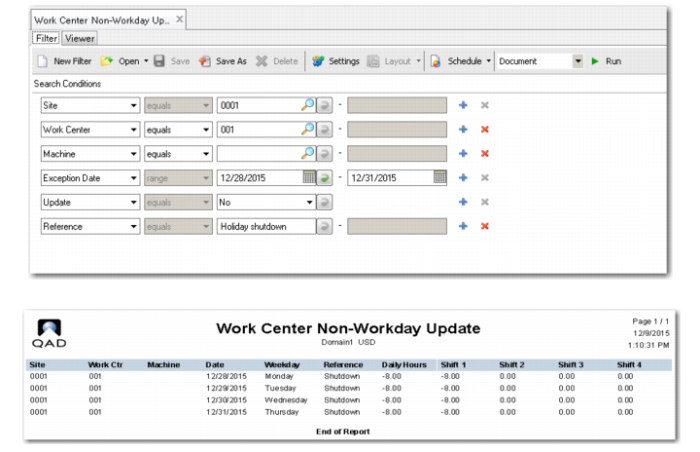
• Work Center Non-Workday Update
• Process Non-Workday Update
You do not enter a number of hours. The system uses the number of hours defined for the specified dates in the associated calendar maintenance program (adjusted for any exceptions), then assigns the equivalent negative value to that number. To enter partial days, you must use the appropriate exceptions maintenance program.
Note: If there are multiple shifts, the update applies to all.
To create non-workdays:
1 Specify the site to be affected by the calendar updates. You can only specify a single site. This is a required field.
2 Enter program-specific information to select calendars for one or more production lines, work centers/machines, or processes.
3 Enter a range of dates to have the non-working exception applied. These are required fields.
4 Use the Update field to determine whether the function runs in simulation or update mode. When Update is No, the system displays a report so you can review the effects of the function before actually doing the update.
5 Use Reference to enter a code to identify the reason for the update. For example, you might add TRAIN to specify that the staff will be in training all day.
Note: This field is optional when you run the program in simulation mode. However, when Update is Yes, you must specify a value in Reference.
6 Click Run. The system displays the results in the Viewer window.
7 If you ran the function in simulation mode, review the results, modify the selection criteria as needed until you get the required results, then run the function with Update set to Yes.
Work Center Non-Workday Update