Generalized Codes Groups
Using generalized codes groups, you can extend security access to Generalized Codes Maintenance beyond the system level down to the job functional level. This enables you to limit the generalized codes fields that a user can edit.
Example: A buyer needs access to item generalized codes but does not need access to manufacturing codes.
By default, all generalized codes are assigned to one of two groups, SYSTEM or APP (Application). Generalized codes associated with system-supplied fields are assigned to the SYSTEM group. Generalized codes that are not part of the SYSTEM group are assigned to the APP group. Although the administrator can modify access for any role, all roles with Generalized Codes Maintenance access are automatically members of the APP group. Therefore, if you do not want to use generalized codes groups, no action is necessary and the system continues to function as expected.
Note: It is recommended that the system administrator enable administrator access to the SYSTEM group.
Before you use generalized codes groups, decide which groups you need, the fields to associate with each group, and which roles have access to each group. Next, follow these steps to establish generalized codes groups:
1 Create the groups in Generalized Codes Group Maint (36.2.10).
Note: Enter a meaningful group name that contains a maximum of 24 characters.
Generalized Codes Group Maint (36.2.10)
2 If necessary, use Role Create (36.3.6.1) to create the roles you want to associate with these groups.
3 Ensure the role has access to Generalized Codes Maintenance under Secured items on menu in Role Permissions Maintain (36.3.6.5).
4 Associate roles with the generalized codes groups in Secured items not on menu under Generalized Code Groups.
Note: If a role has access to all existing groups, the role is automatically assigned access to each new group. When the administrator removes access to any group for a given role, the administrator must manually grant access for each subsequent group added for that role.
5 Assign each field to its new group in Generalized Codes Maintenance (36.2.13).
Note: A field can only belong to one group.
Working with Generalized Codes Groups
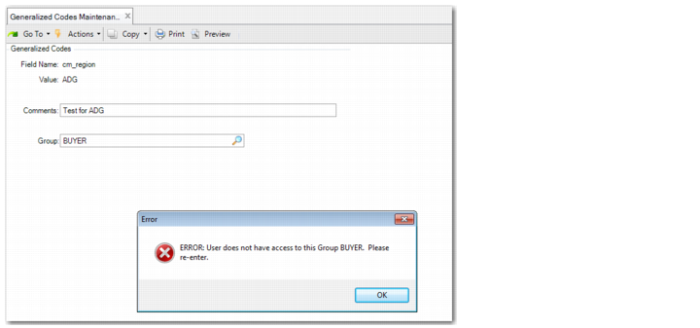
If you have implemented generalized codes groups in your system and associated the groups with specific roles, role members can assign a new code to any field belonging to a group they have access to. If a role member tries to assign a code to a field the role has no access to, an error message is displayed.
An administrator can move fields from one group to another in Generalized Codes Maintenance, provided the administrator has access to both groups. If a user with that role is not associated with a generalized codes group and attempts to add or modify a code associated with that group in Generalized Codes Maintenance, an error message is displayed.
Generalized Codes Maintenance (36.2.13)
If you want to delete a generalized codes group, you must make sure it is not associated with any generalized codes fields. If you try to delete a group tied to one or more fields, an error message is displayed. A generalized codes group associated with generalized codes can be synchronized to other domains and databases using QXtend. See QAD QXtend User Guide.
Browsing Generalized Codes Group Security
All users can browse generalized codes group security to identify which generalized codes fields they have access to and to determine who has access if they do not. Based on a user search, the Generalized Codes Sec. Browse (36.2.11) displays generalized codes groups and the domain values for each group. The Role Resources Browse tab displays all roles that have permissions for a generalized codes group. The Generalized Codes Field Browse tab displays all fields that belong to a group.