Create a User-Defined Field
Use the User-Defined Field activities (36.4.12.) to create, modify, view, and delete UDFs.
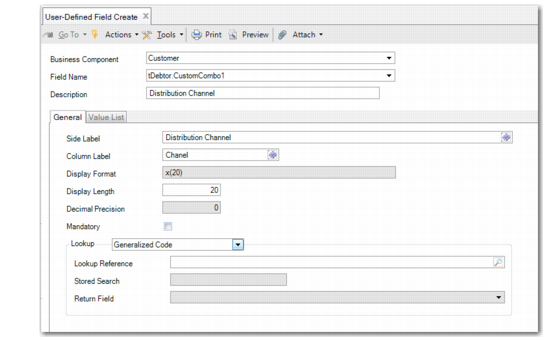
User-Defined Field Create
Field Descriptions
Business Component
Select the business component for which you want to create a UDF. The drop-down list displays the components that have predefined UDFs.
Field Name
Select the field that you want to customize. Note that for components that have subcomponent tables, the UDFs of the subcomponent appear in the list also. For example, the Business Relation component has the subcomponents Address, Contact, and Tax Number. When you select a business component, the custom fields available for the business component are displayed in the field name drop-down list.
Description
Enter a brief description (maximum 40 characters) of the new UDF.
Side Label
Enter the field label that you want to display next to the UDF on the UI. The side label is a translatable string.
Column Label
Enter the translatable string to appear in lookup and report column headers.
Display Format
This field displays the format of the field.
Display Length
This field displays the length in characters of the field’s input or display zone. The system displays a default value, depending on the field type, which you can overwrite.
Decimal Precision
Specify the number of decimal places allowed in the new UDF. This field is enabled for UDFs of type decimal. The maximum number of decimal places is 10.
Mandatory
Select to make it mandatory for users to populate data in the new UDF.
Lookup
Select the type of lookup to associate with the new field. The Lookup field is enabled if you select a CustomShort, CustomLong, or CustomCombo type field in the Field Name field in the header.
The possible values are:
• None: If you select the None option, the Lookup Reference, Stored Search, and Return Field are disabled.
• Stored Search: If you select the Stored Search option, you must use the Lookup Reference and Stored Search fields to identify the stored search.
• Browse: If you select the Browse option, the Stored Search field is updated to display the label Browse and the Lookup Reference field becomes read-only. You then use the Browse field to specify the relevant browse definition.
• Generalized Code: If you select Generalized Code, the Lookup Reference field lets you select values from the Generalized Codes (code_mstr) table. If you select the Generalized Code option for a CustomCombo type field, the Value List tab is disabled in the User-Defined Field screen.
• Other: If you select Other, you can define a custom query in the Lookup Reference field. The Stored Search and Return Field fields are disabled.
If you are creating a CustomCombo field, you can only select the values None or Generalized Code.
Lookup Reference
Click the lookup to select a query from the list of predefined queries. This field lets you specify a standard lookup to associate with the user-defined field. Users can then select a value from the lookup. For example, you can add a UDF to the Customer Invoice object and give it the name Supplier Code, and specify the Supplier lookup as the Lookup Reference. When users create customer invoices, the Supplier Code UDF appears in Customer Invoice Create, and there is a lookup button next to that field listing all supplier codes.
The Lookup Reference field is enabled when you select a field of type CustomShort or CustomLong in the Field Name field.
Stored Search
This field is automatically populated when you enter a value in the Lookup Reference field. This value can be FACTORYDEFAULT for system-installed searches or a user-defined name for stored searches.
The lookup attributes are controlled through these defaults, such as columns and display order.
Return Field
If a query returns multiple values, select the one with which the UDF value list must be populated.
Note: To prevent a user from overwriting the value selected from the return list, set the ScReadOnly property of that field to True.
Value List Tab
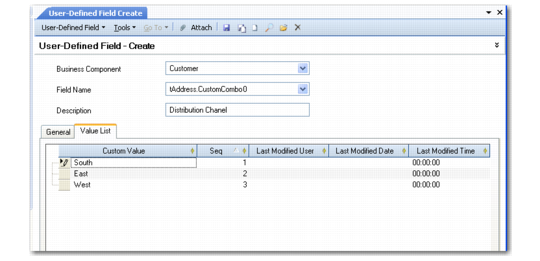
Use the Value List tab to define the list of values for a drop-down list UDF. Right-click and choose Insert a New Row to specify a specific value.
User-Defined Field. Value List Tab