Report Daemon
You can output a report directly to screen, in which case the system retrieves the report template and processes the report on the application client.
You can also:
• Schedule the report to be processed (printed, mailed or saved) at a later date.
• Schedule the report to be pre-processed at predefined intervals (daily, weekly, monthly, or yearly).
• Save the report in file format.
• E-mail the report to systems users or roles.
• Combine some or all of these options.
Note: You select these options in the server output processing section of the report screen. For more information on generating reports, see
QAD Financials User Guide.
When you select one or all of these options, the report request is sent to the report request queue and is then handled as a server-side activity by the Report daemon.
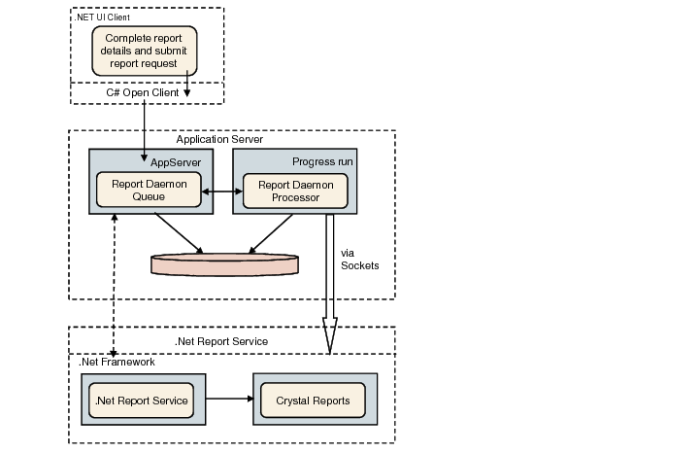
The Report daemon handles all batch report requests for reports developed using Crystal Reports, including scheduled reports, e-mailed reports, and reports to be saved to file format or sent to a printer. The Report daemon is managed by the .Net Report Service, which is installed as an additional service on the application server.
The Report daemon:
• Monitors the report request queue
• Calls the .Net Report Service and passes the report details
• Receives the result of the report and issues a confirmation that the report has been successfully generated
.Net Report Service
The .Net Report Service is responsible for starting, monitoring, and when necessary, restarting the Report daemon.
The .Net Report Service communicates with the Report daemon through the server socket port defined during the service configuration. Once the daemon is started, the report service:
• Runs the report business logic and resolves the e-mail addresses from roles and user names
• Retrieves a list of printers installed on the server and passes this list to the appserver for report printing
• Checks that the report templates stored on the server are up-to-date
• Updates the server socket port and socket host information on the Report Daemon monitor screen
When a report request is received from the Report daemon, the Report Service then:
• Passes the request details and report template to Crystal Reports
• Executes the report options by generating the report at the scheduled time, saving the report as a file, printing the report on a local printer, or e-mailing the report to a user or role
• Sends a confirmation request or error message to the daemon
• Receives a confirmation from the daemon and updates the daemon report log accordingly
Report Daemon Architecture
Configuring and Monitoring the .Net Report Service
The .Net Report Service is configured by defining service settings in the QAD.CBFReportingService.exe.config file, which is located in the service installation directory.
Define the following settings in the <applicationSettings> section of the file:
• The SMTP Server for e-mailing reports
• The folder in which to save reports in file format
• The check interval in seconds for the report daemon
• The TCP socket port on which the service listens for report requests
• The user login ID and password for the service—normally your application login and password
Example:
<?xml version="1.0" encoding="utf-8" ?>
<configuration>
<configSections>
<section name="qad.appserver" type="QAD.AppServer.ASConfigHandler, QAD.AppServer" />
<sectionGroup name="applicationSettings" type="System.Configuration.ApplicationSettingsGroup, System, Version=2.0.0.0, Culture=neutral, PublicKeyToken=b77a5c561934e089" >
<section name="QAD.CBFReportingService.Properties.Settings" type="System.Configuration.ClientSettingsSection, System, Version=2.0.0.0, Culture=neutral, PublicKeyToken=b77a5c561934e089" requirePermission="false" />
</sectionGroup>
</configSections>
<qad.appserver url="appserver://localhost:5162/devcbf93ui">
</qad.appserver>
<applicationSettings>
<QAD.CBFReportingService.Properties.Settings>
<setting name="SMTPServer" serializeAs="String">
<value>server01.company.com</value>
</setting>
<setting name="ReportFolder" serializeAs="String">
<value>reports</value>
</setting>
<setting name="DaemonCheckInterval" serializeAs="String">
<value>5000</value>
</setting>
<setting name="TCPPort" serializeAs="String">
<value>4331</value>
</setting>
<setting name="LoginUsr" serializeAs="String">
<value>user</value>
</setting>
<setting name="LoginPasswd" serializeAs="String">
<value>password</value>
</setting>
</QAD.CBFReportingService.Properties.Settings>
</applicationSettings>
</configuration>
The .Net Report Service is automatically started when you log in to the application.
The service can also be started with an alternative configuration file location, using the -configfile configfilename startup option.
Errors in Report Processing
The Report Daemon monitor lists the report requests and status, and indicates if a report has not been processed correctly.
Processing error details are displayed on the .Net Report Service monitor screen. This monitor is launched using the QAD.CBFReportingServiceMonitor.exe file, which is contained in the .Net Report service installation folder.